
Appareils
Copiez une invite de configuration avec les étapes d'installation et la guide markdown complet pour ce plugin.
Afficher la liste de tous les appareils
Section intitulée « Afficher la liste de tous les appareils »Ouvrez votre application, puis sélectionnez le Appareils onglet.
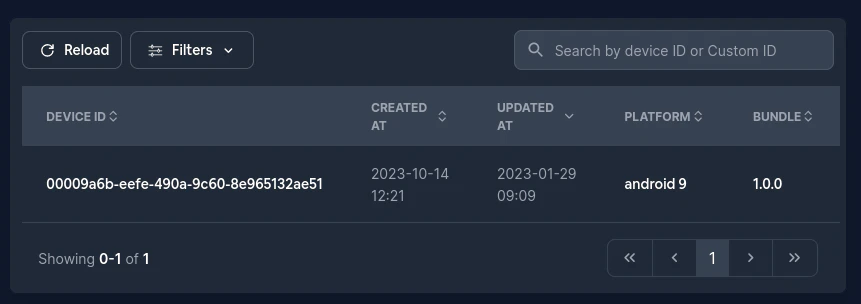
- Onglet Appareils - Ouvrez l'inventaire des appareils.
- Filtres - Filtrez les appareils par :
- Surcharge - Affichez les appareils avec un tableau de bord ou un canal public API ou une version personnalisée. Local
setChannel()Assignations locales ne sont pas listées ici. - ID personnalisé - Affichez les appareils avec un identifiant personnalisé.
- Surcharge - Affichez les appareils avec un tableau de bord ou un canal public API ou une version personnalisée. Local
Configurer un appareil
Section intitulée « Configurer un appareil »Sélectionnez un appareil dans le tableau pour ouvrir sa page de détails.
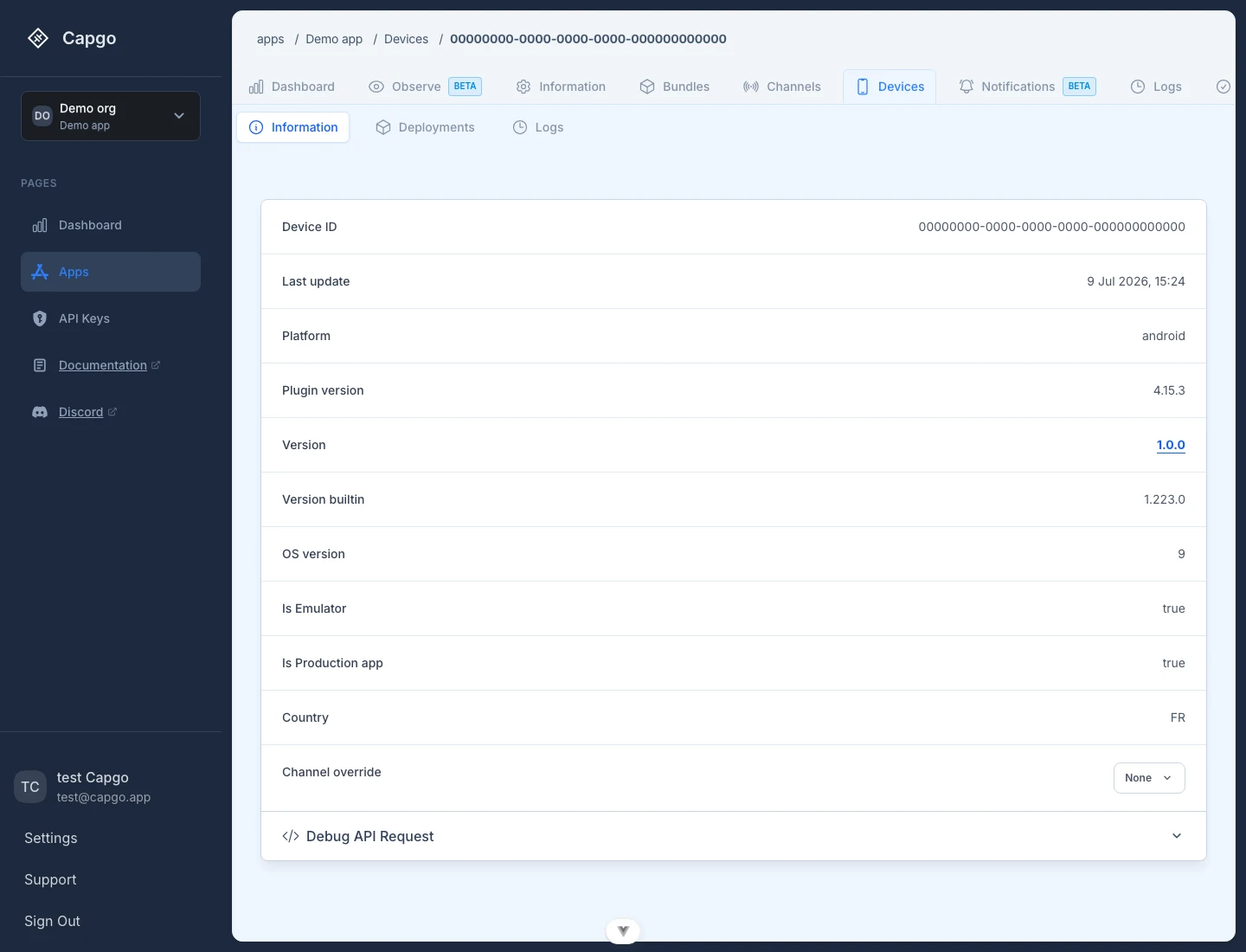
- Information - Afficher l'ID de l'appareil, la dernière mise à jour, le système d'exploitation, la version de l'updateur, les versions installées et natives, la version du système d'exploitation, l'état de l'emulateur et de production, le préfixe de la clé de chiffrement, et le pays de la requête lorsque disponible.
- Deployments - Afficher l'historique des déploiements pour cet appareil.
- Logs - Afficher les journaux associés à cet appareil.
- Channel override - Routez cet appareil vers un canal privé spécifique depuis la console. Lorsque défini, cela prend la priorité sur la sélection normale du canal. Les consoles et les API de remplacement expirent après 90 jours.
setChannel()on les versions actuelles du plugin est local et n'apparaît pas ici.
Pays de la requête
Section intitulée « Pays de la requête »Pays est le dernier code pays valide à deux lettres ISO 3166-1 code reçu d'une requête Cloudflare-traitée pour ce dispositif. Il ne s'agit pas d'une localisation GPS ou d'une valeur de localisation envoyée par votre application. Les requêtes sans un code pays valide ne suppriment pas la dernière valeur valide, et le champ est absent lorsque Capgo n'a pas de code pays valide pour le dispositif.
Comment les informations sur les appareils sont mises à jour
Section intitulée « Comment les informations sur les appareils sont mises à jour »Le service de mise à jour et les points de terminaison de statistiques signalent les métadonnées de l'appareil lorsqu'elle vérifie l'application. Un appareil n'a pas besoin d'installer une mise à jour pour apparaître ou mettre à jour ses détails : une vérification de mise à jour qui retourne __CAPGO_KEEP_0__ peut toujours enregistrer les métadonnées signalées. __CAPGO_KEEP_0__ saute les écritures redondantes lorsque ces métadonnées n'ont pas changé, donc no_new_version_available can still record the reported metadata. Capgo skips redundant writes when that metadata has not changed, so context : Page/zone : Site de marketing Capgo. Rôle : Étiquette de navigation ou élément de navigation court. Vu dans : composant SharedNumbers.astro, page aup.astro, page subprocessors.astro. Clé de message `last_update` (Dernière mise à jour). ce n'est pas nécessairement changé après chaque vérification.
Métadonnées de l'appareil et MAU sont des signaux différents. Voir pour la distinction facturation. ID personnalisé
ID personnalisé
Titre de la section « ID personnalisé »Le Custom ID vous aide à associer un appareil à un identifiant que vous reconnaîtrez pour vos utilisateurs. Définissez-l’à partir de l'appareil avec CapacitorUpdater.setCustomId({ customId: user }).
Continuez d'ici les appareils
Titre de la section « Continuez d'ici les appareils »Si vous utilisez les appareils pour planifier le tableau de bord et les opérations API, connectez-l’avec API Vue d'ensemble pour les détails d'implémentation dans API Vue d'ensemble, Introduction pour les détails d'implémentation dans Introduction, API Clés pour le détail d'implémentation dans API Clés, Appareils pour le détail d'implémentation dans Appareils, et Ensembles pour le détail d'implémentation dans Ensembles.