
Firebase Google Login on Android
Ce contenu n'est pas encore disponible dans votre langue.
Introduction
Section titled “Introduction”This guide will help you integrate Google Sign-In with Firebase Authentication on Android. I assume you have already completed the general Firebase Google setup
Setup Steps
Section titled “Setup Steps”-
Go to your project overview over at console.cloud.google.com
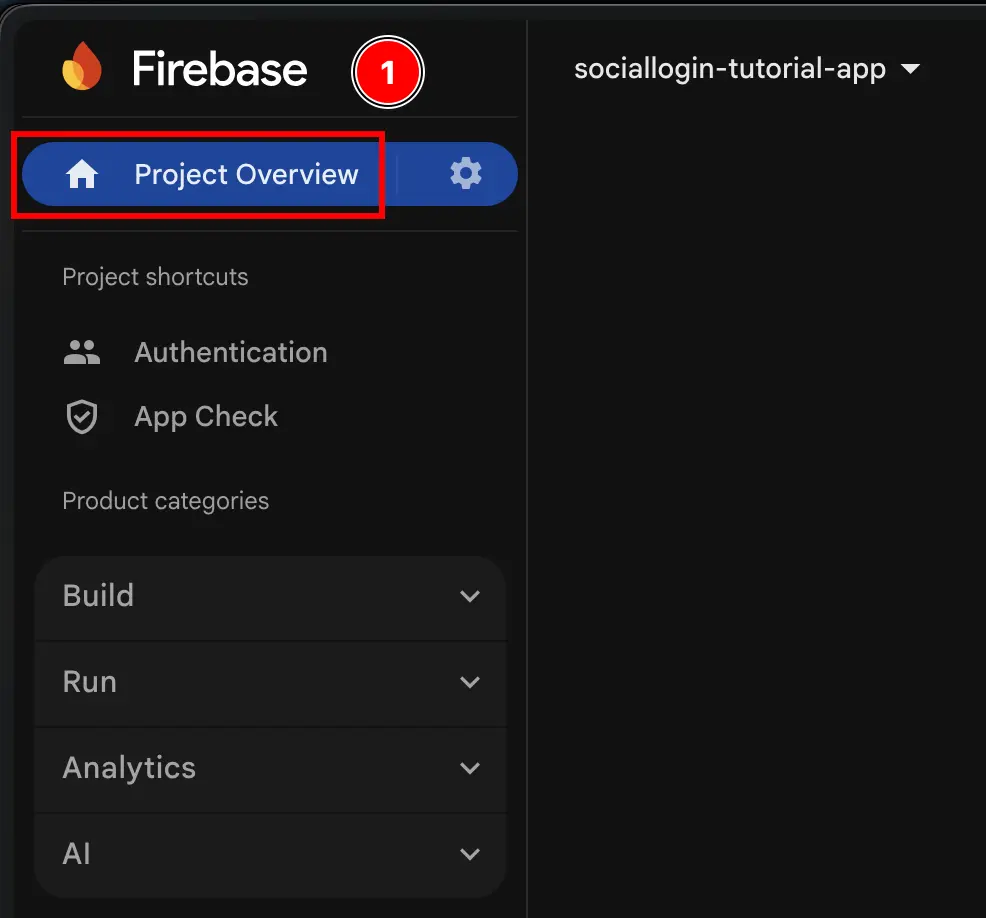
-
Click on the
Add appbutton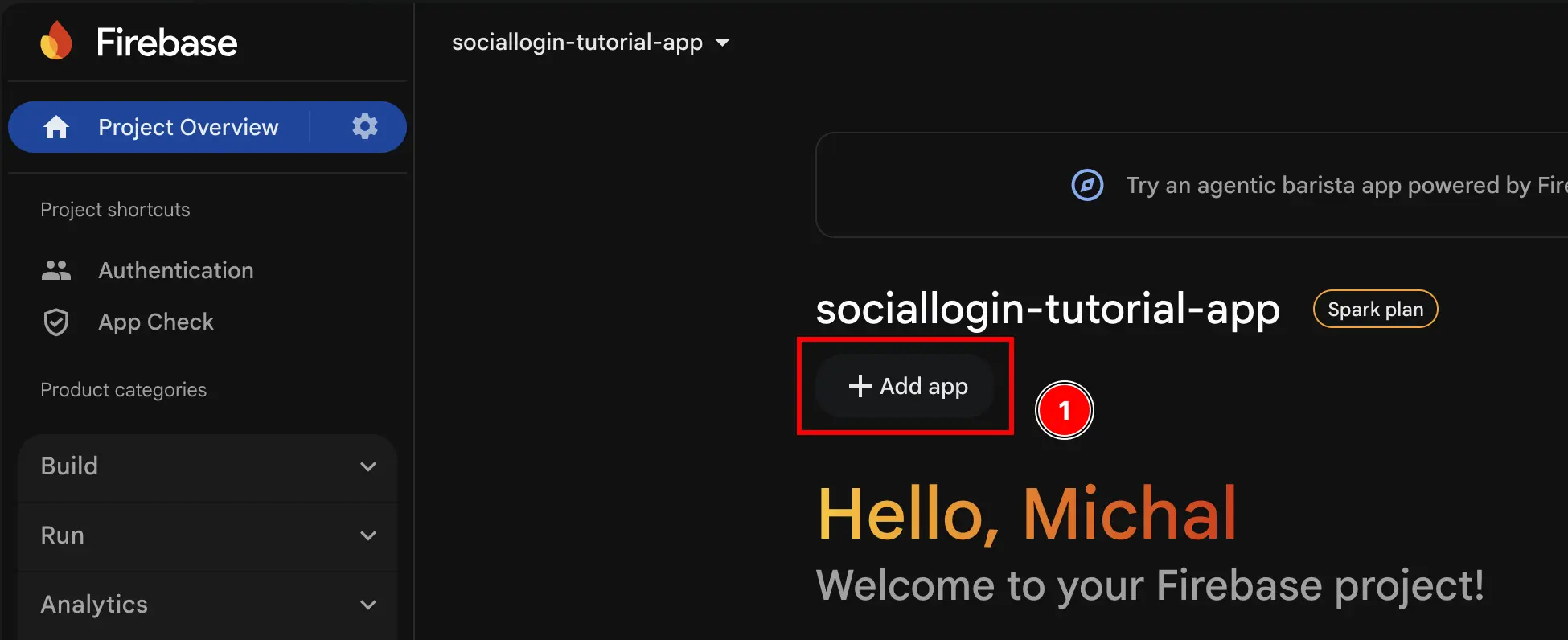
-
Select
Android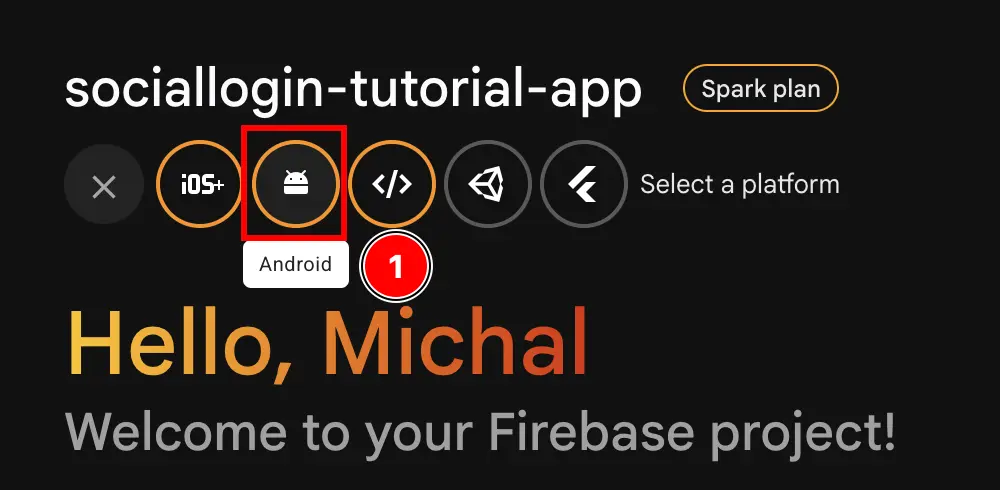
-
Fill the first part of the form
- Fill the
Android package name- Open Android Studio at your app using
npx cap open android - At the very bottom of the navigator, find the
Gradle Scripts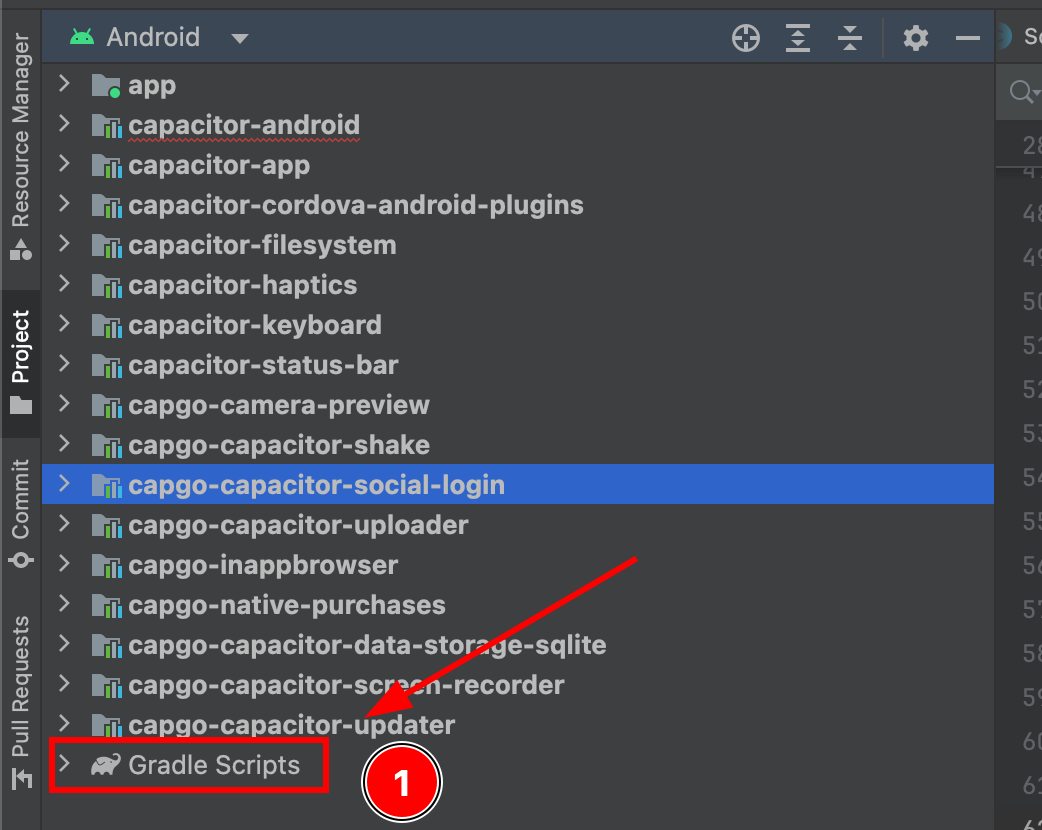
- Find
build.gradlefor the moduleapp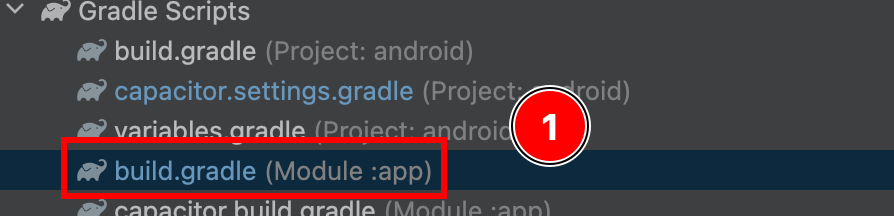
- Copy the
android.defaultConfig.applicationId. This will be yourpackage namein the Firebase console
- Paste it in the Firebase console
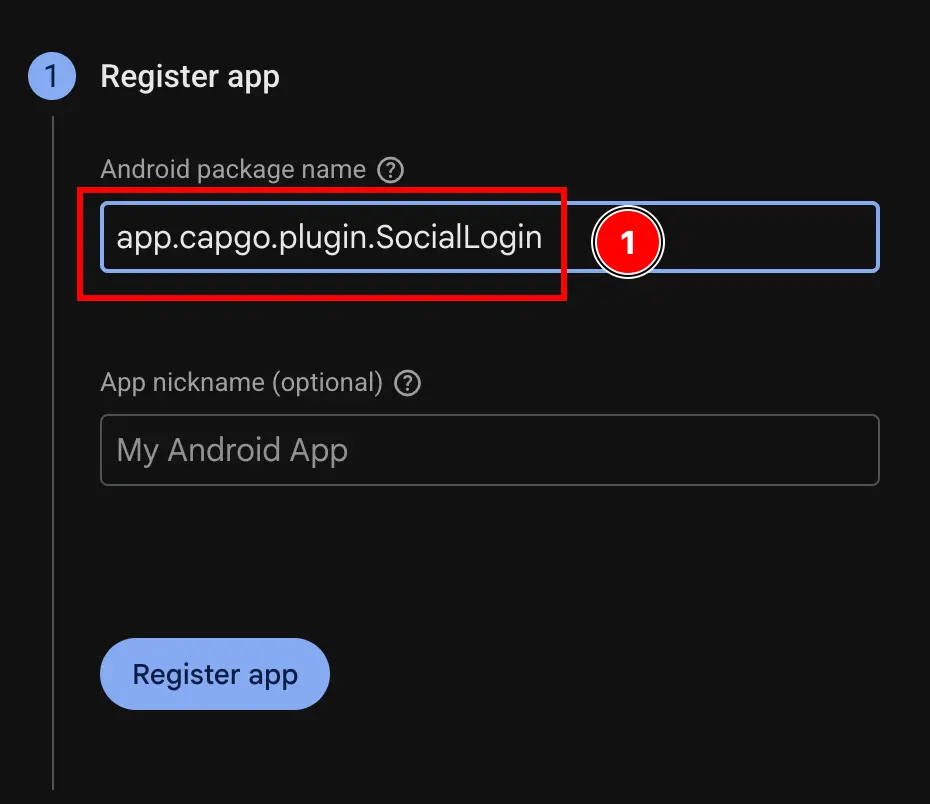
- Open Android Studio at your app using
- Click on the
Register appbutton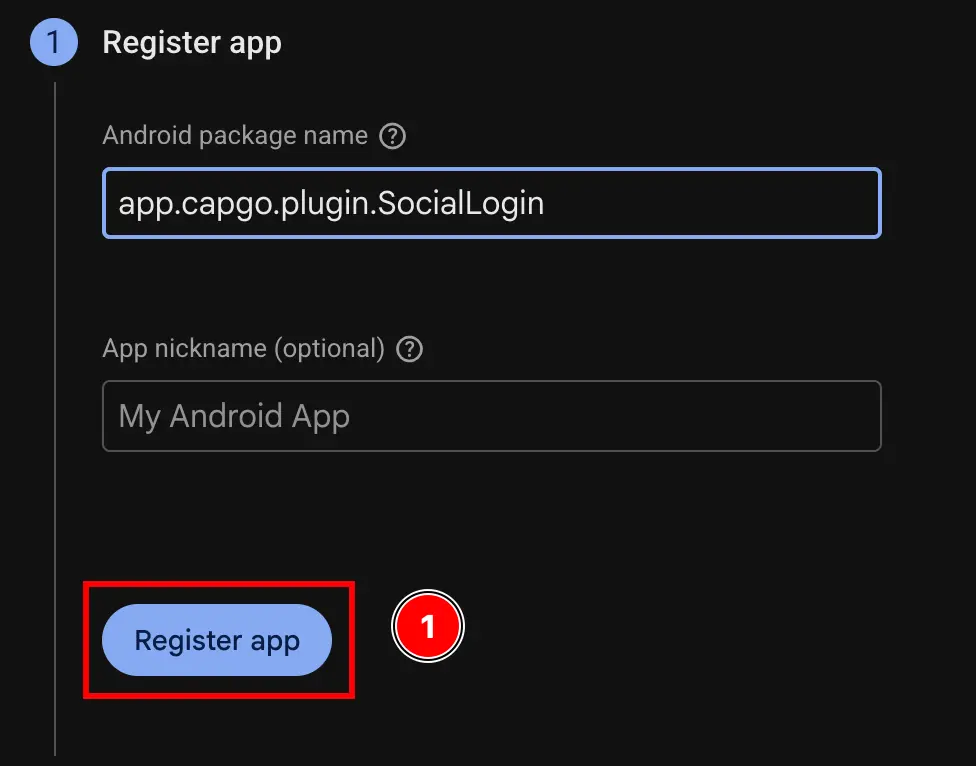
- Fill the
-
Skip the
Download and then add config filestep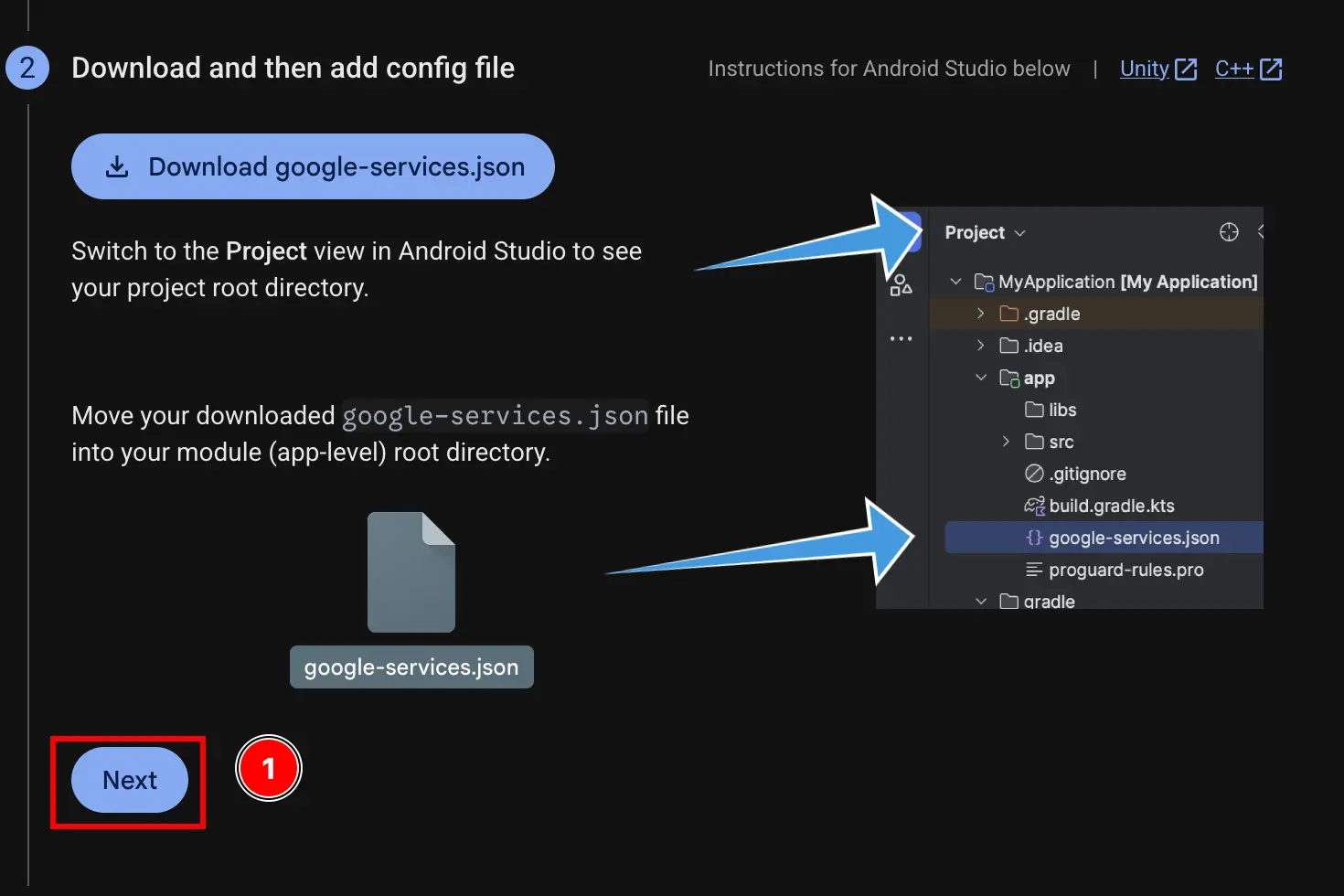
-
Skip the
Add firebase SDKstep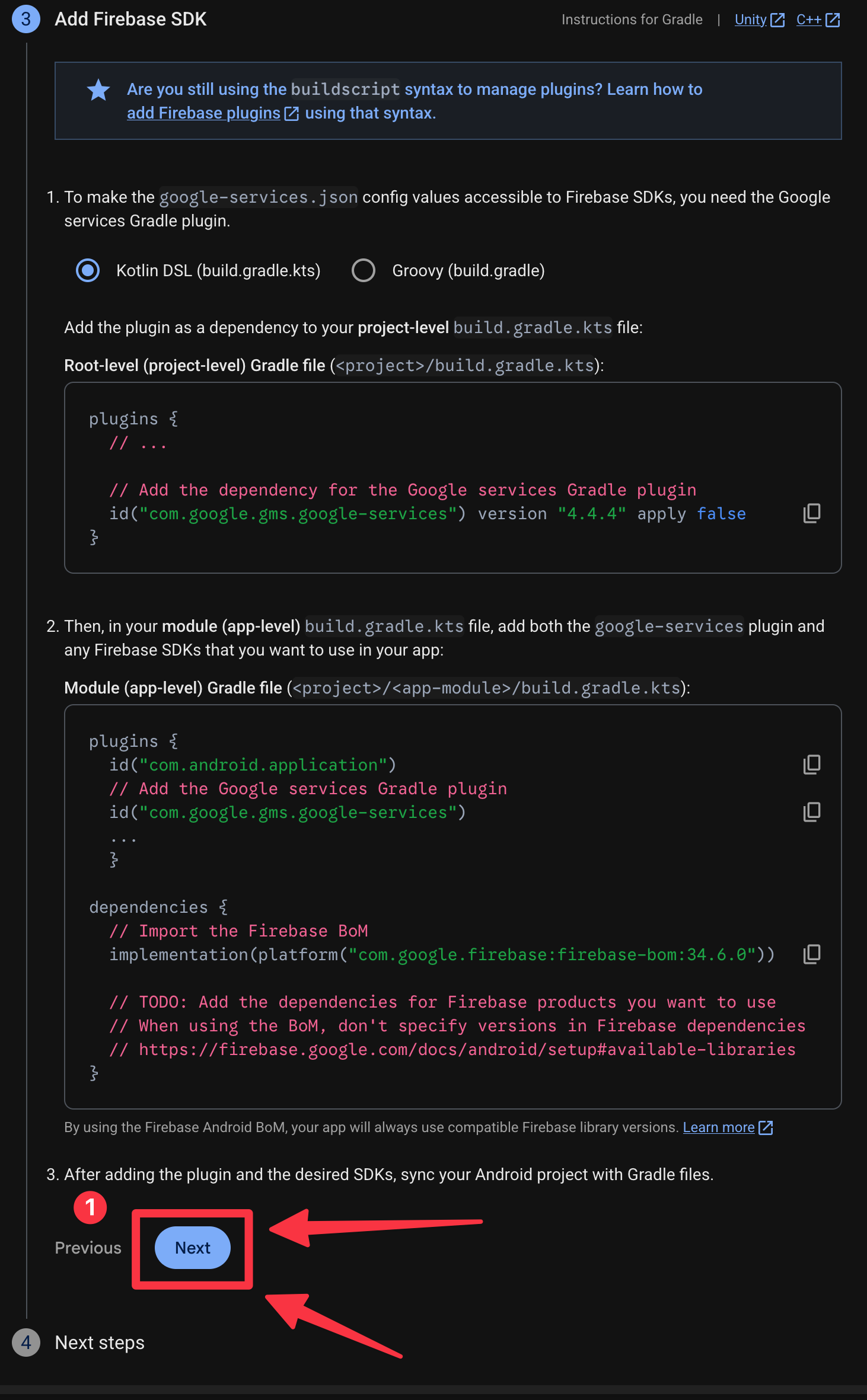
-
Click on the
Continue to consolebutton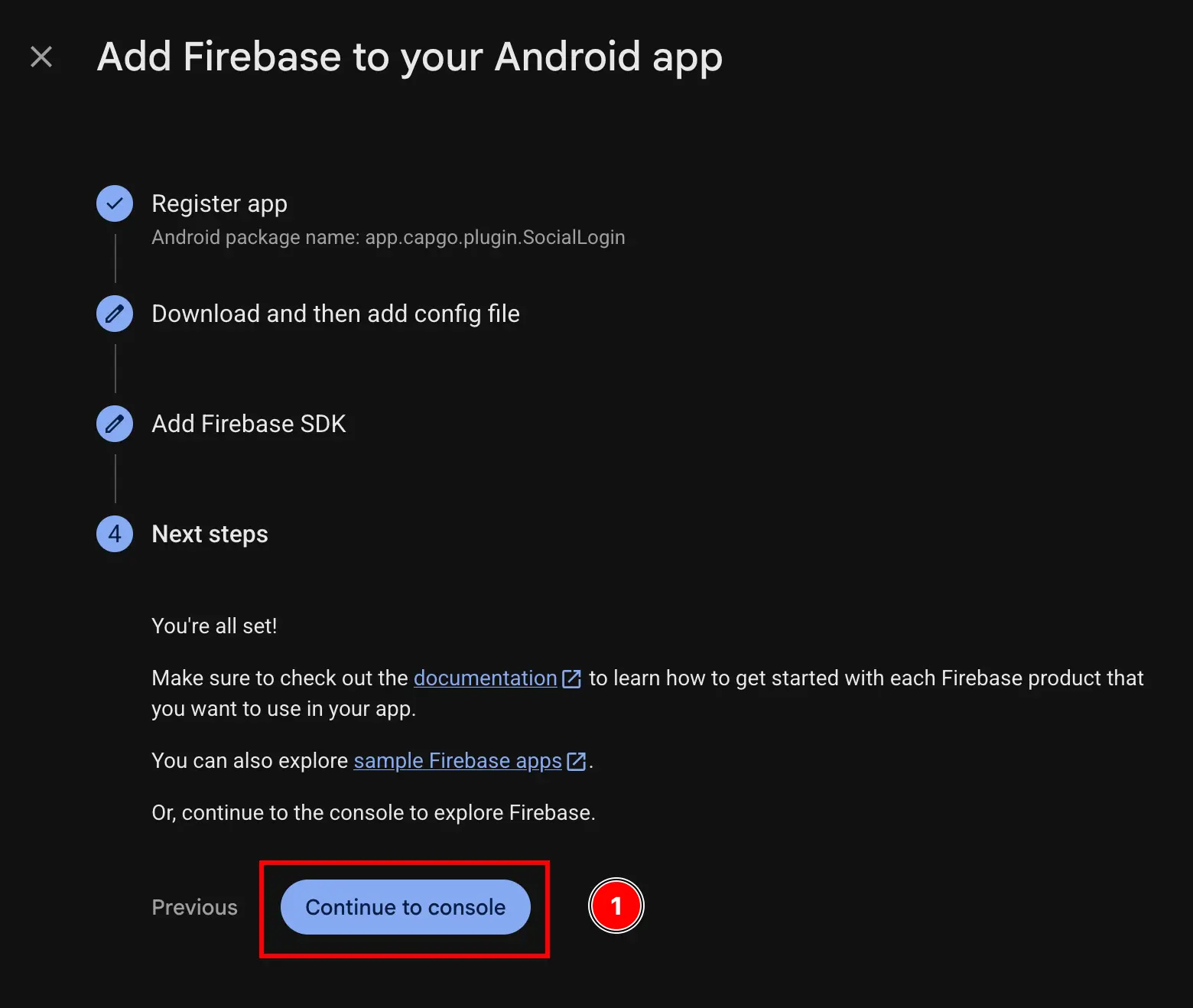
-
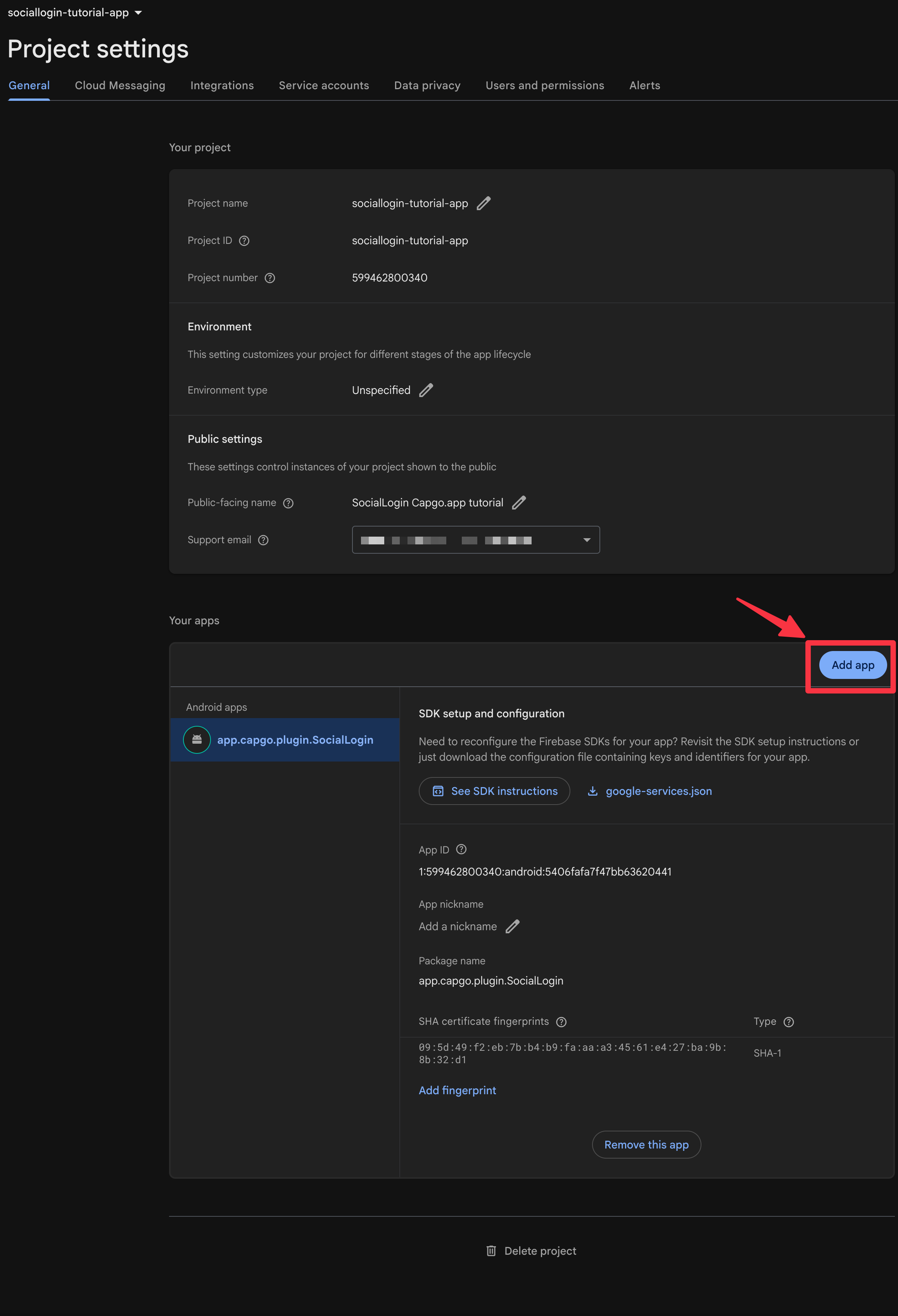
If you do not get automatically authenticated, go to
settings->general->your apps-> find your android app and click on it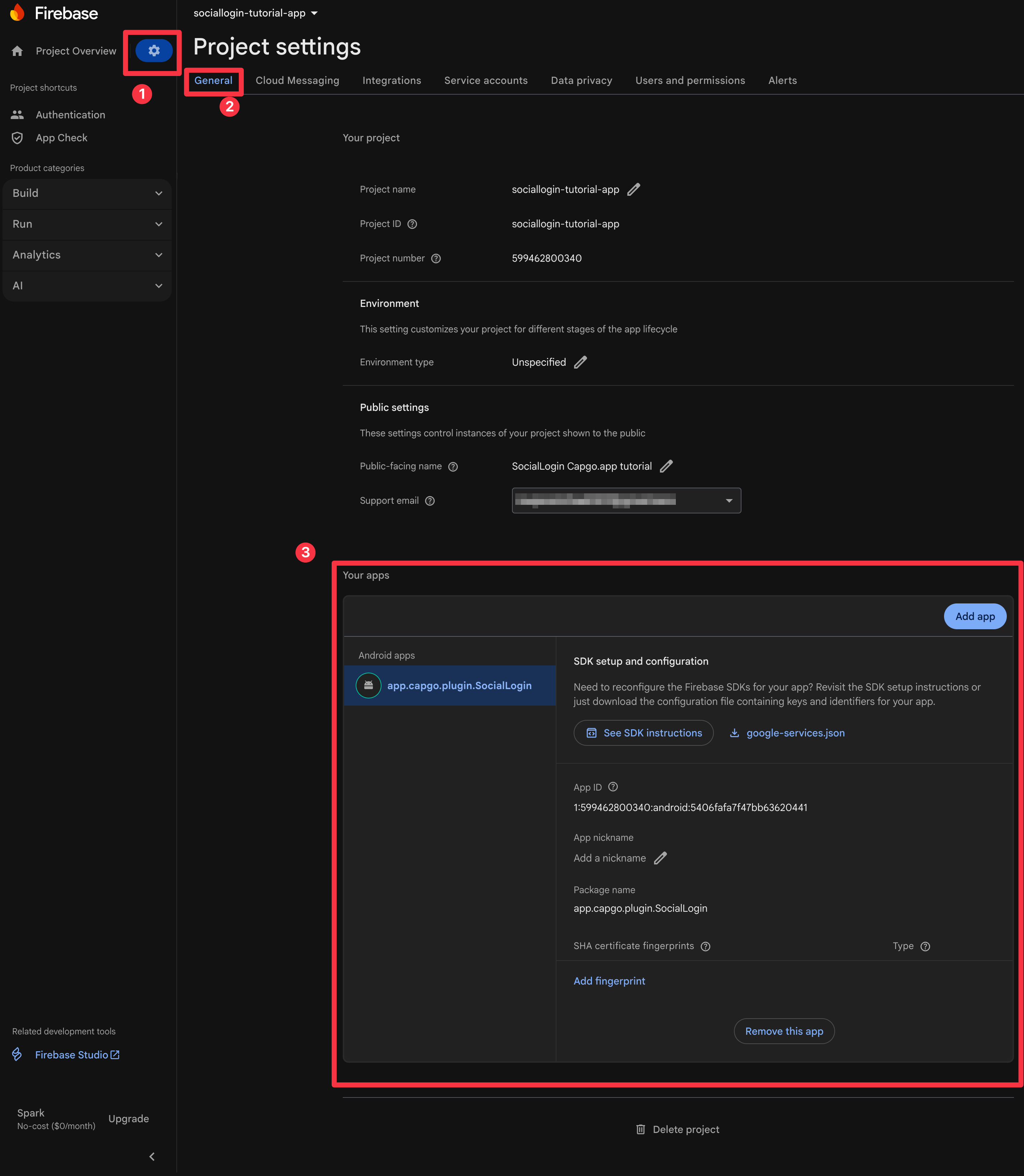
-
Get your SHA1 fingerprint
Follow steps 10-11 from the Google Login Android setup guide:
-
Now, open the terminal. Make sure that you are in the
androidfolder of your app and run./gradlew signInReport
-
Scroll to the top of this command. You should see the following. Copy the
SHA1.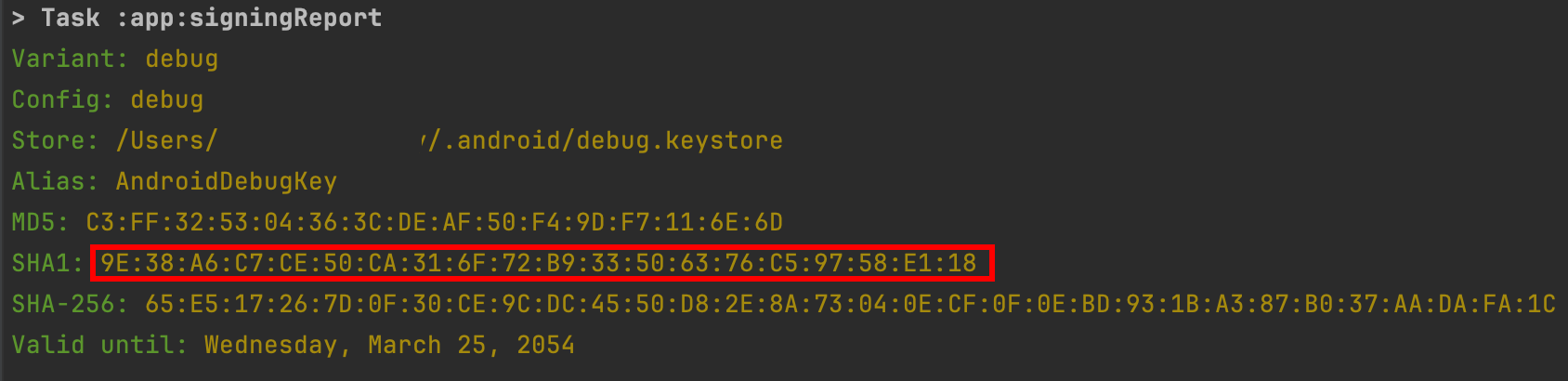
-
-
Add the SHA1 to the Firebase project
- Click on the
Add fingerprintbutton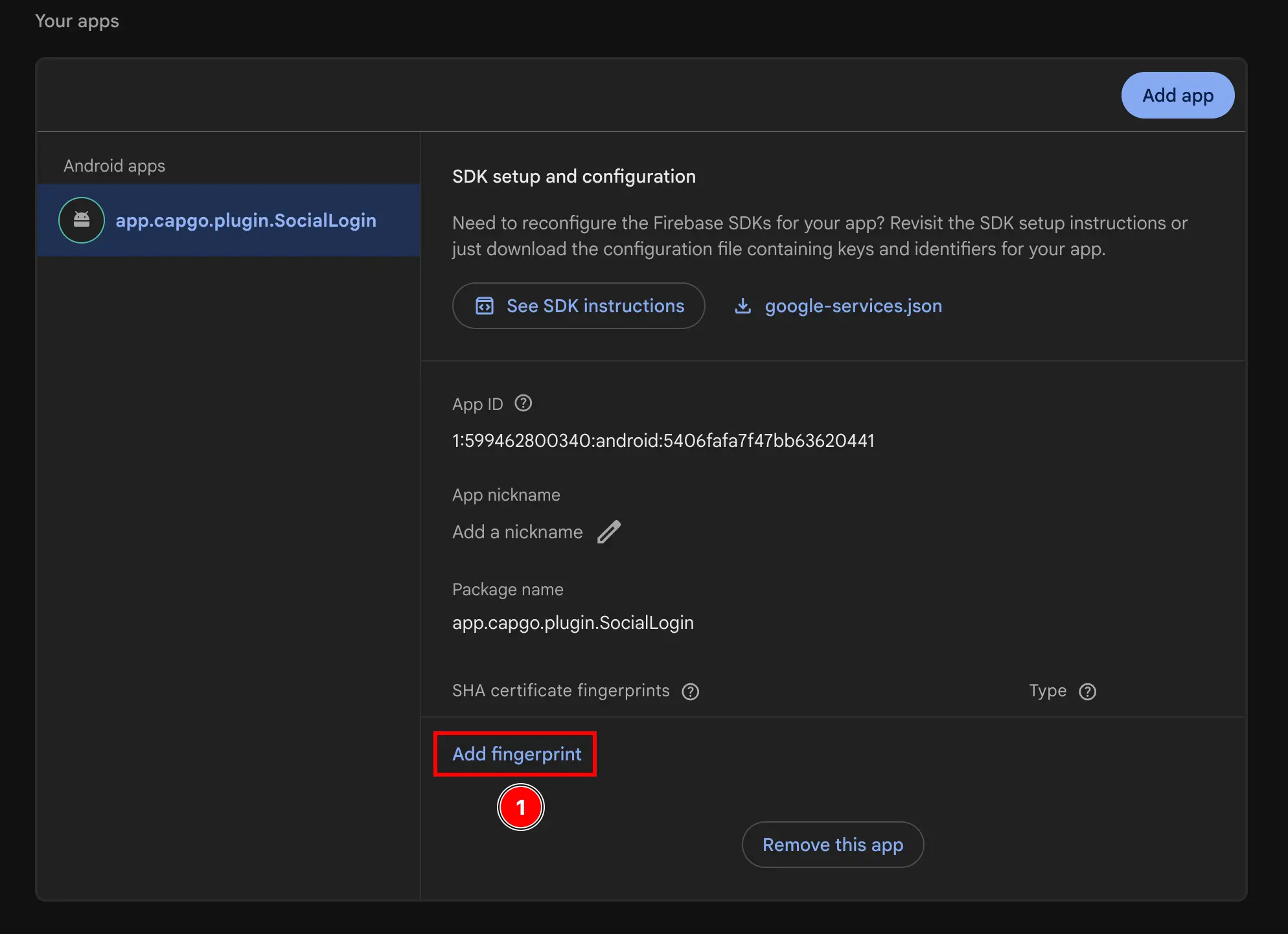
- Paste the SHA1 you copied in the previous step
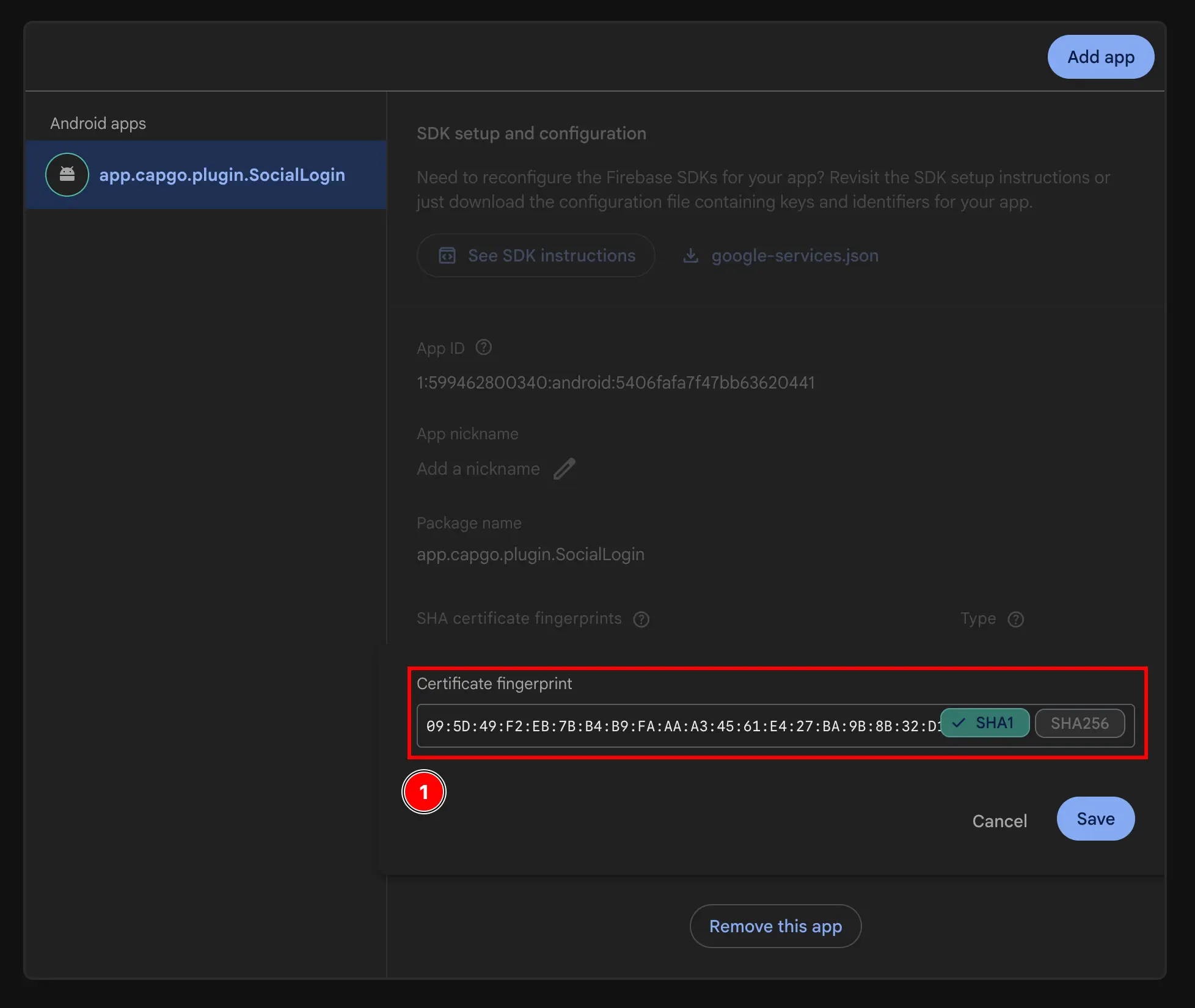
- Click on the
Savebutton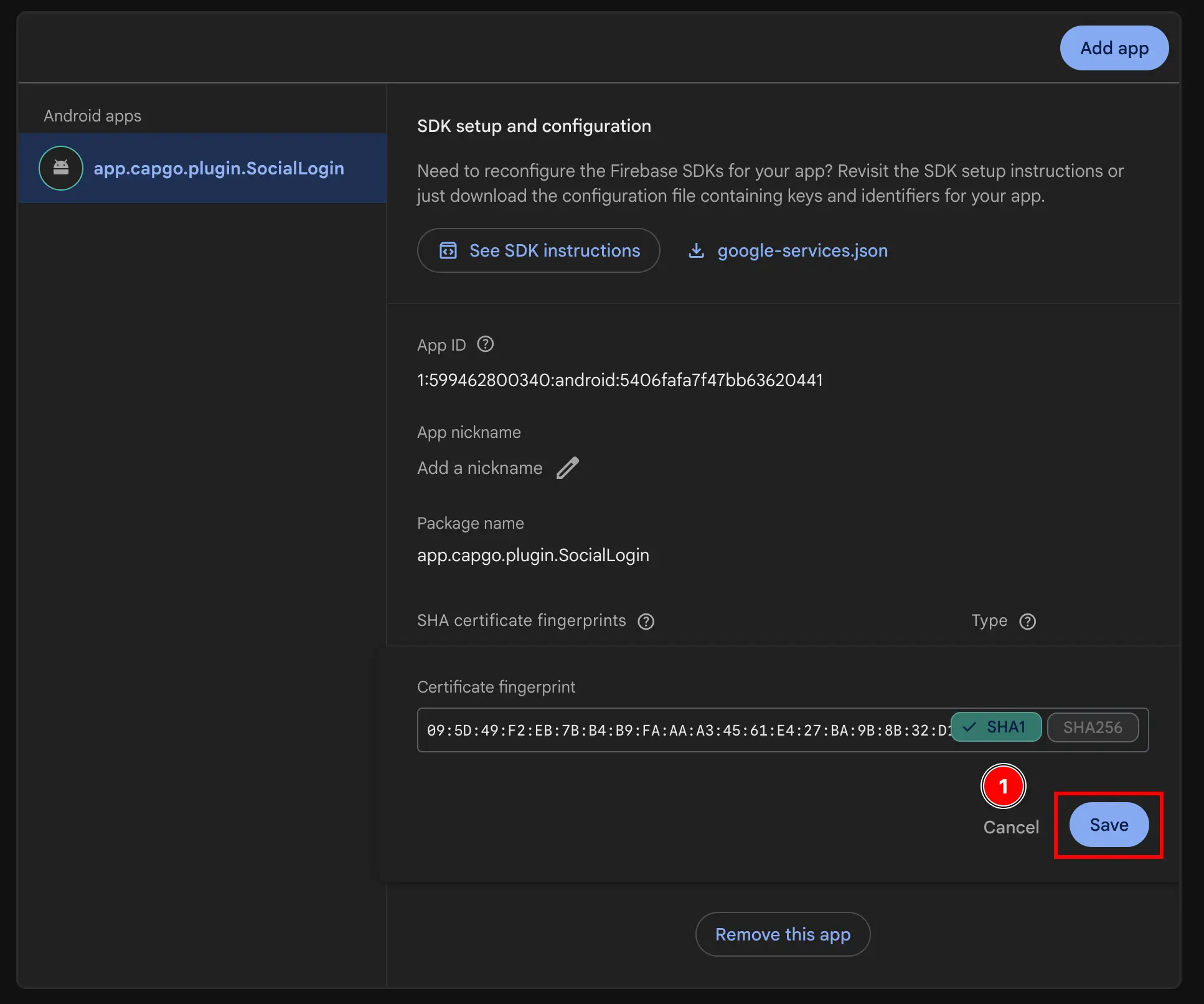
- Click on the
-
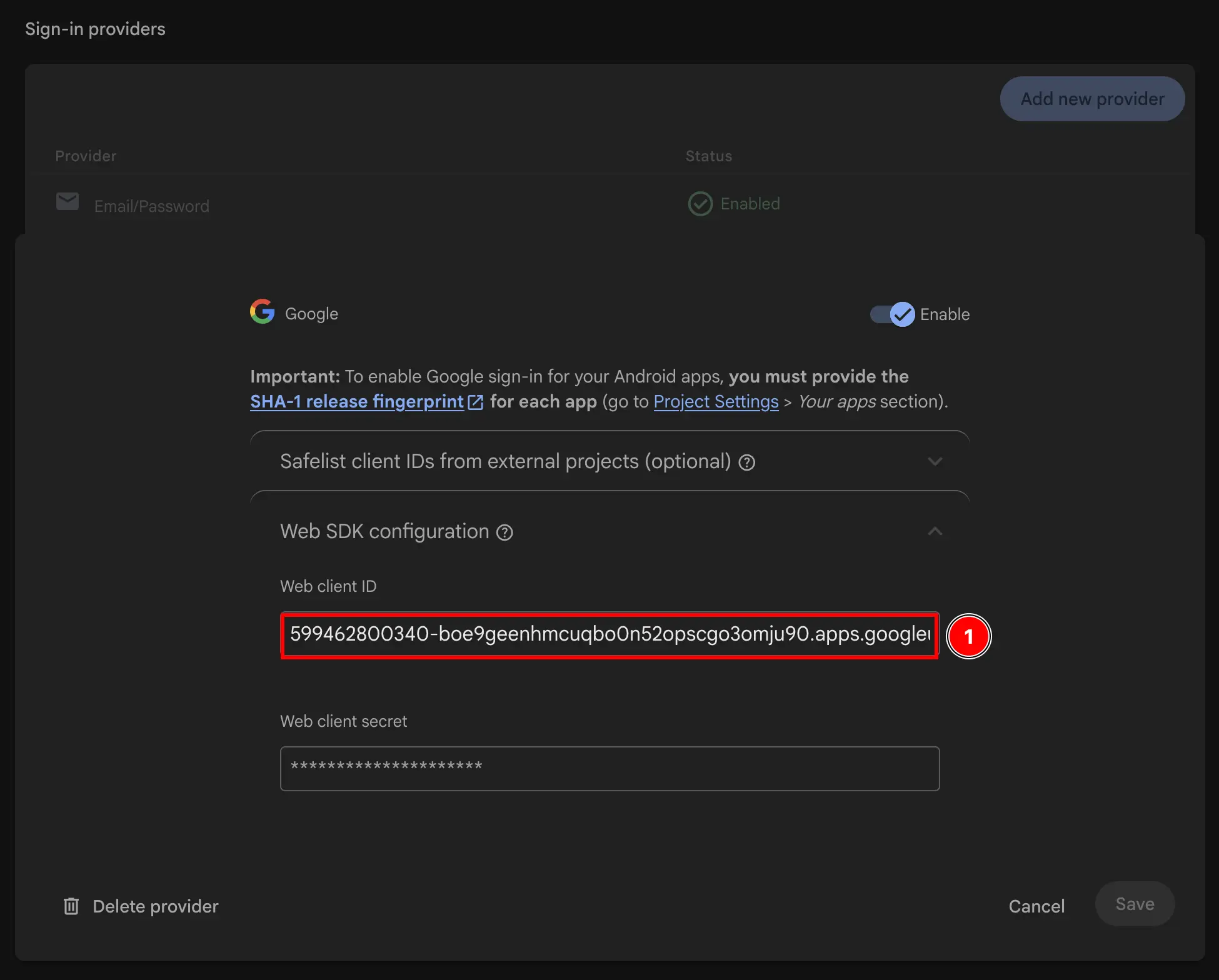
Get your web client ID
- Go to
Build->Authentication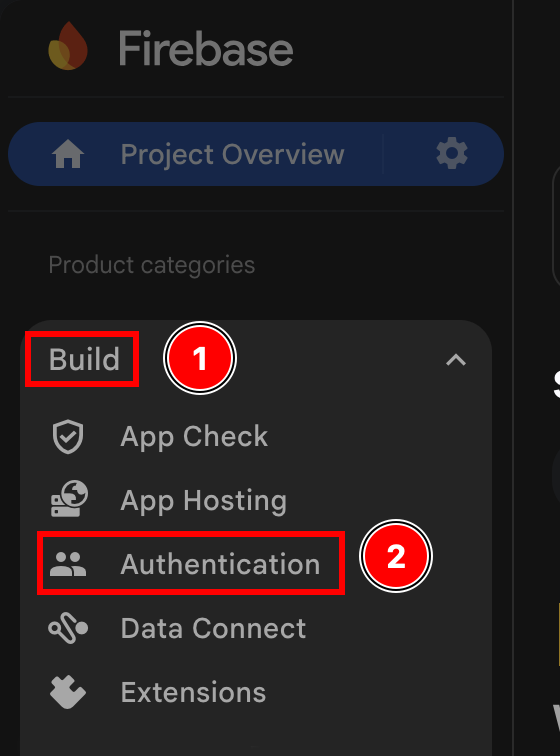
- Click on the
Sign-in methodbutton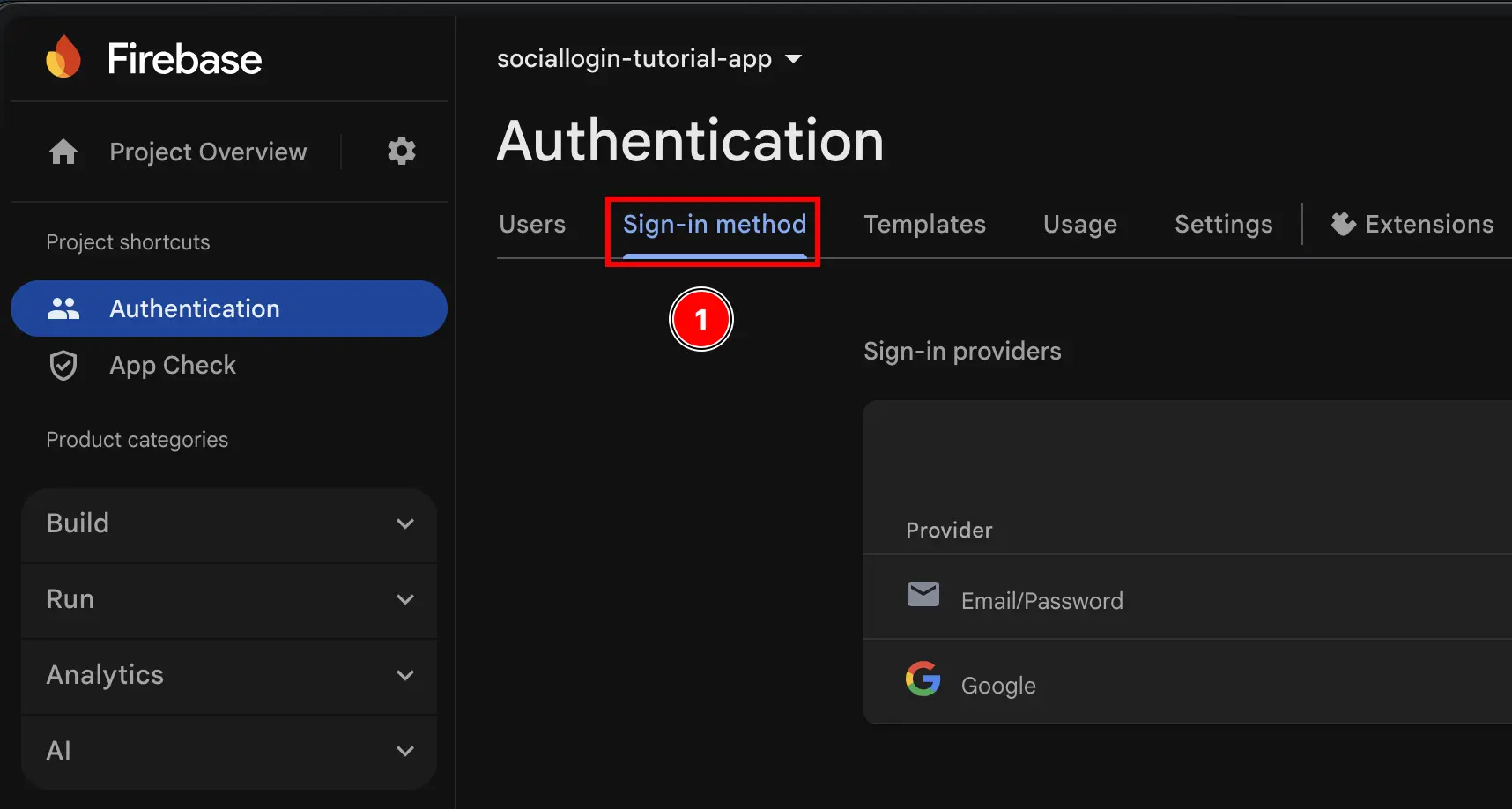
- Click on the
Googleprovider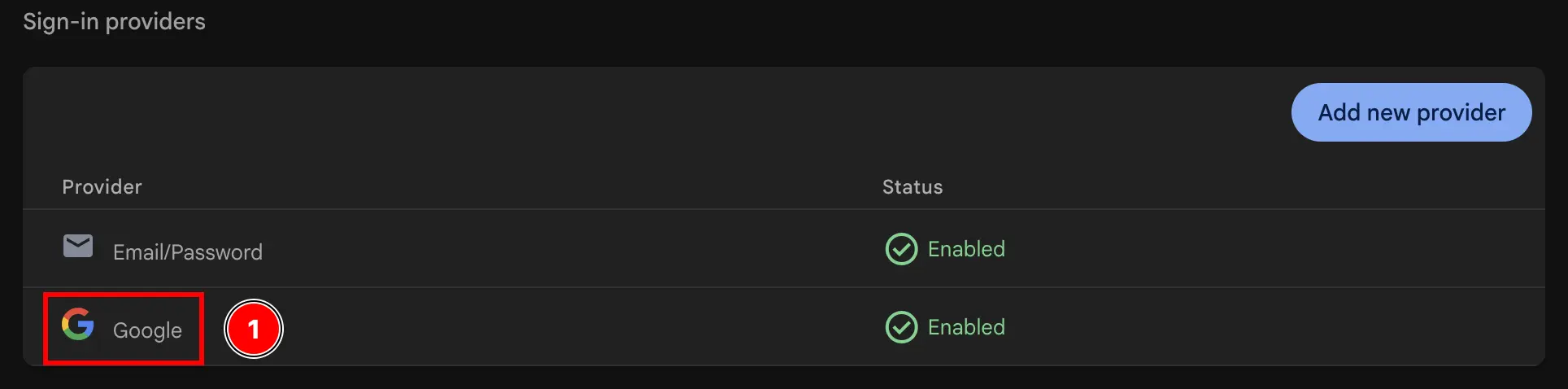
- Click on the
Web SDK configurationbutton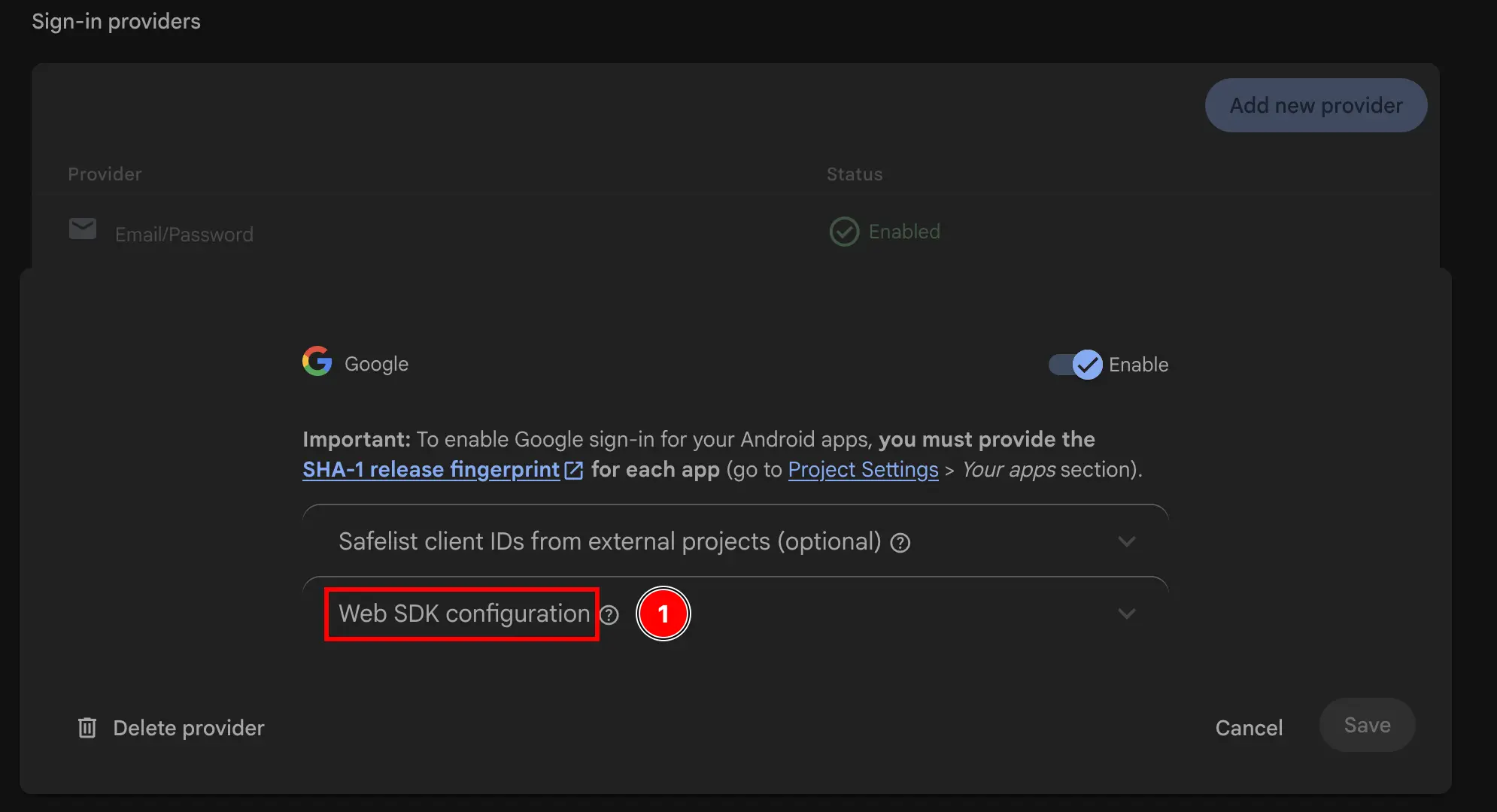
- Copy the
Web client ID. This will be yourwebClientIdin theinitializemethod of the plugin.
- Go to
-
Use the web client ID in JS.
At this point, you are TECHNICALLY ready to use Google Sign-In with Firebase Authentication on Android. However, I would recommend double-checking the setup in the Google Cloud console as explained in the next step.
Double-check the setup in Google Cloud console
Section titled “Double-check the setup in Google Cloud console”In order to make sure that the setup is correct, you should double-check the setup in the Google Cloud console.
-
Go to console.cloud.google.com
-
Find your project
- Click on the project selector
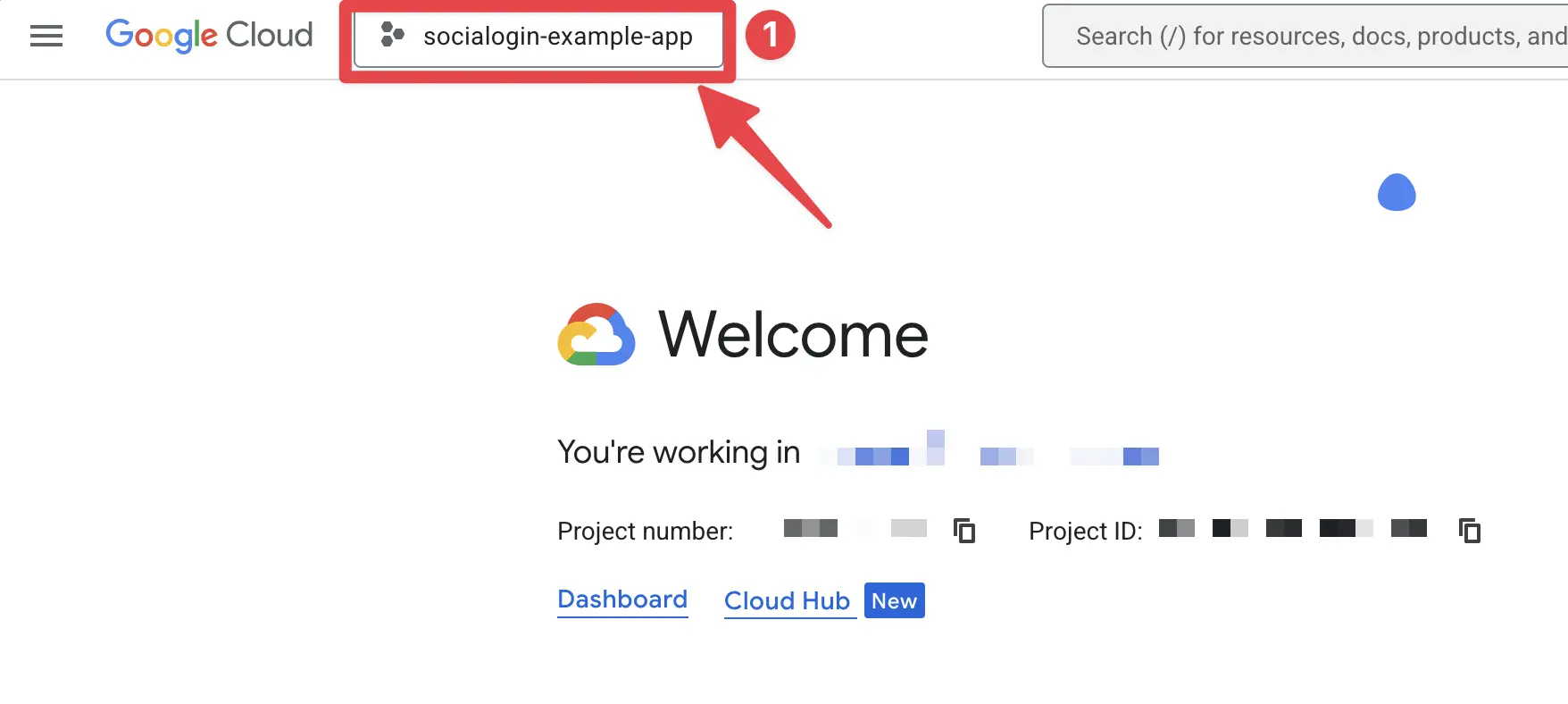
- Search up your project by the exact name of your Firebase project and click on it. In my case, it is
sociallogin-tutorial-app.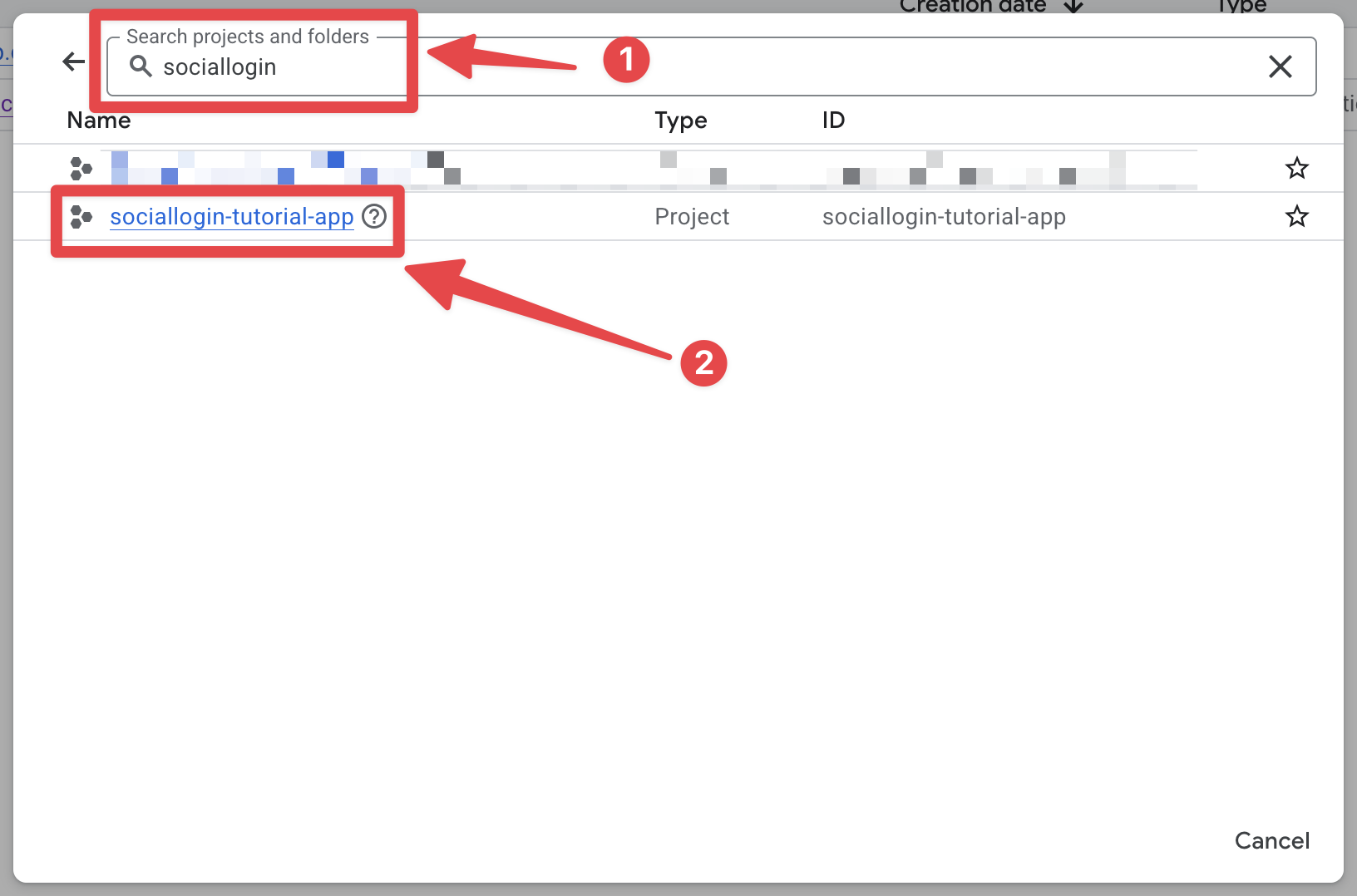
- Click on the project selector
-
Open the search bar and open
credentials- Open the search bar
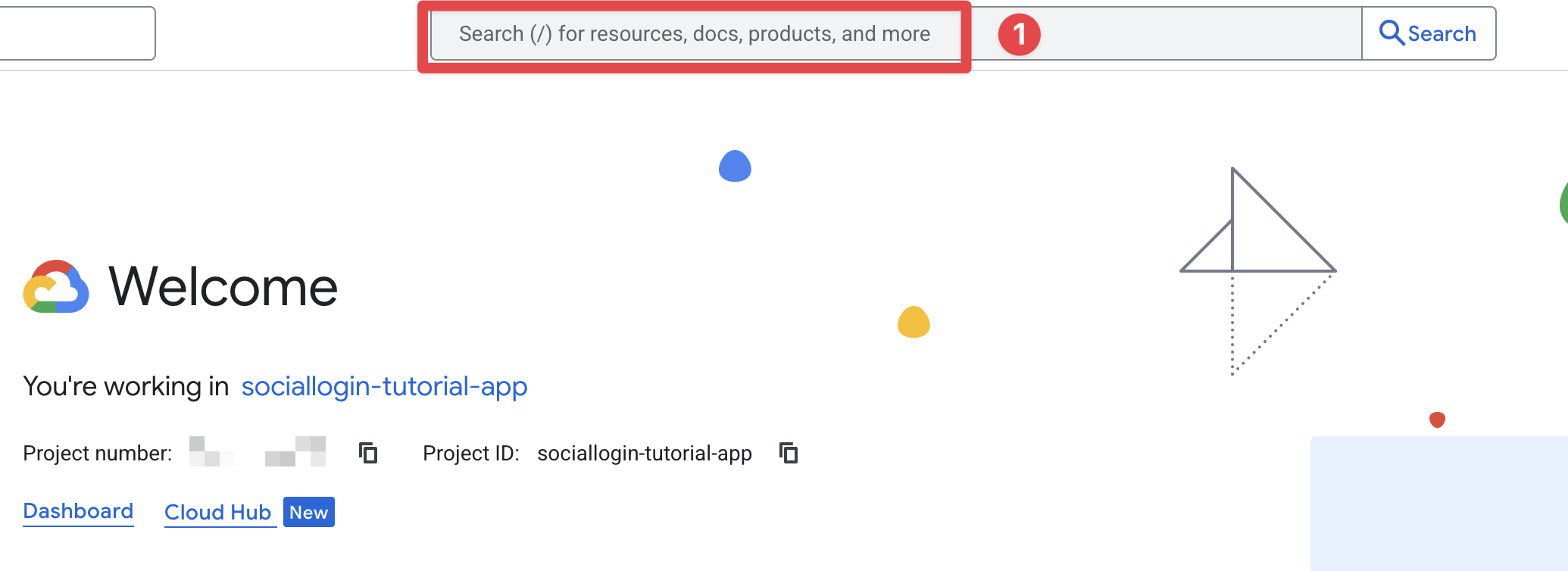
- Search for
credentialsand click on theAPIs and Servicesone (number 2 on the screenshot)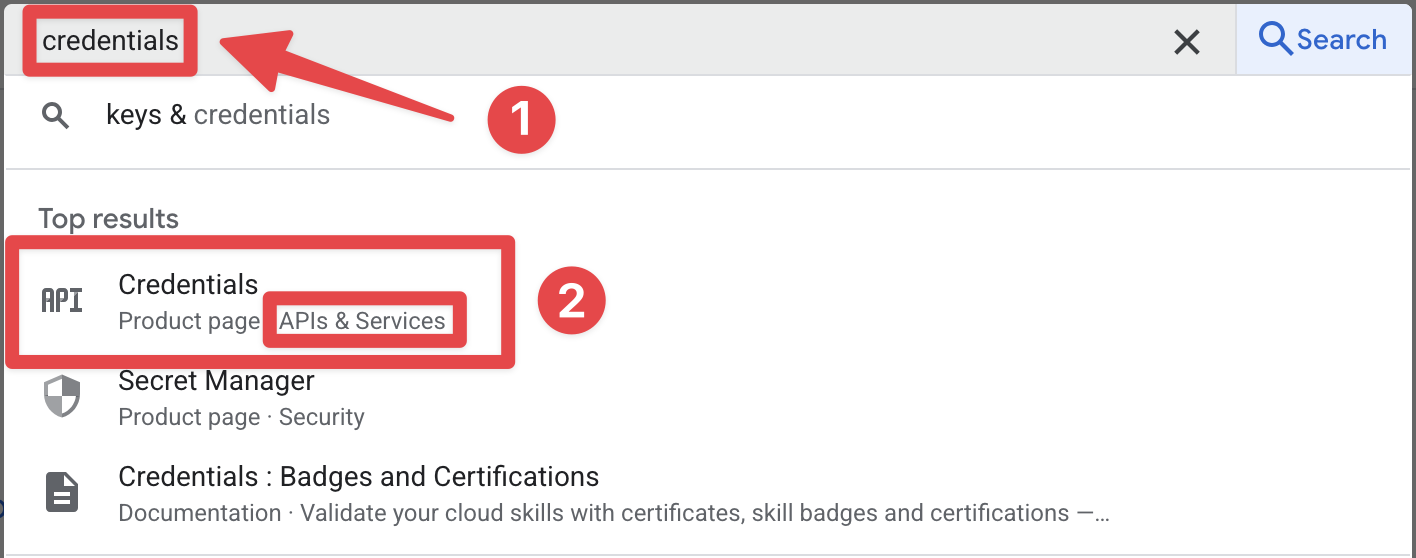
- Open the search bar
-
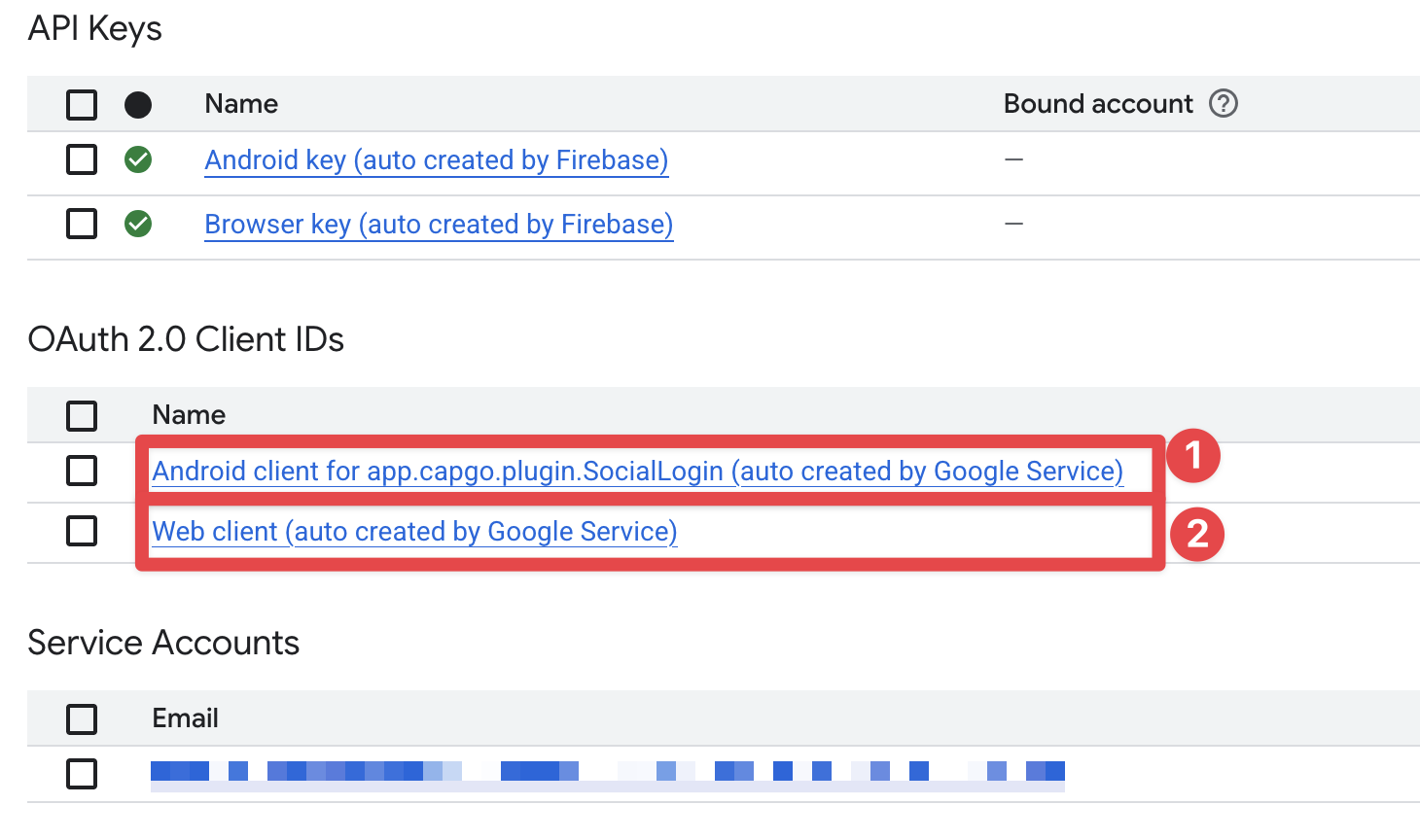
Verify that you see both the Android and Web client IDs in the list.
-
Verify that the Android client ID is correctly configured in the Firebase console.
- Click on the
Androidapp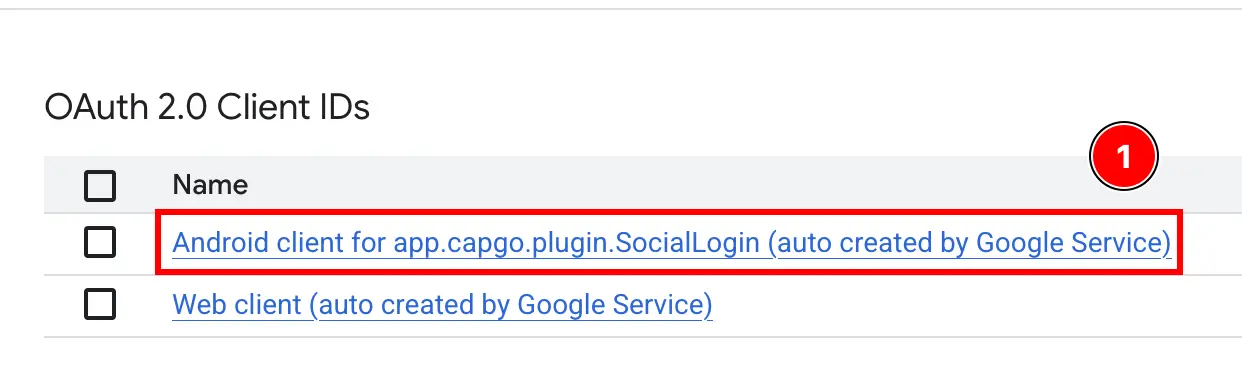
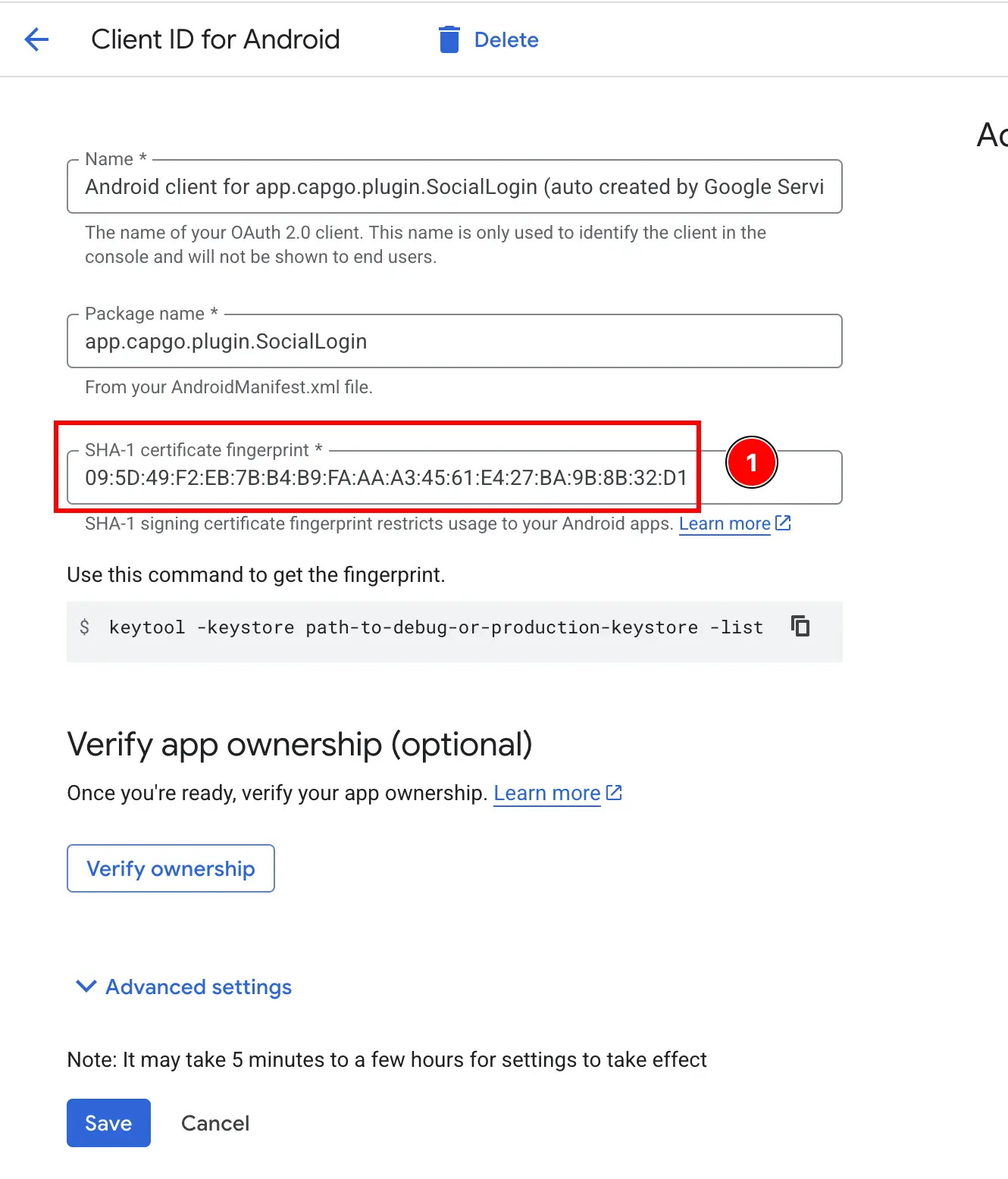
- Confirm that the SHA1 hash is correctly configured and that it matches the one you copied in the previous steps.
- Click on the
-
Verify that the Web client ID is correctly configured in the Firebase console.
- Click on the
Webapp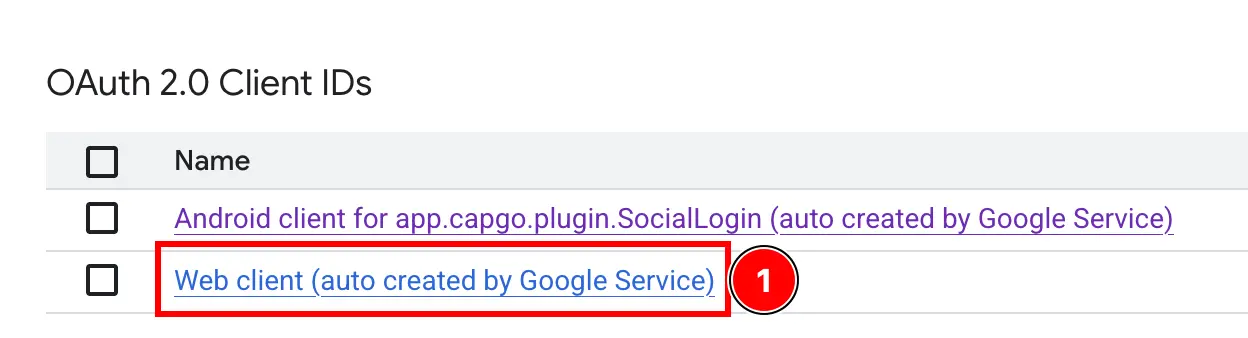
- Confirm that the client ID matches the one you copied in the previous steps.
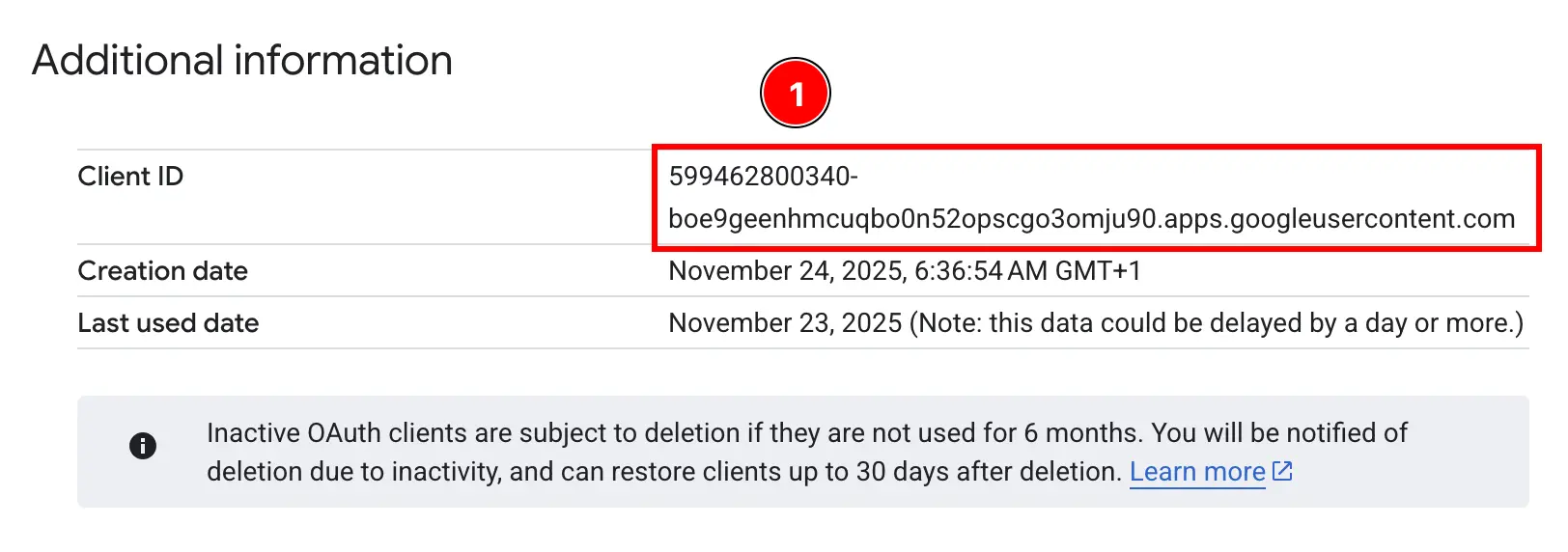
- Click on the
Voila! You are now ready to use Google Sign-In with Firebase Authentication on Android.
Troubleshooting
Section titled “Troubleshooting”If authentication hangs or fails:
- Verify the
idTokenaudience matches your Firebase web client ID - Check that Google Sign-In is enabled in Firebase Console
- Ensure the SHA-1 fingerprint is correctly configured
- Review the example app code for reference