
Supabase Google ログイン - 一般設定
このガイドでは、Capacitor ソーシャル ログイン プラグインを使用して、Google サインインと Supabase 認証を統合する手順を説明します。この設定により、バックエンド認証に Supabase Auth を利用しながら、モバイル プラットフォームでネイティブ Google サインインを使用できるようになります。
始める前に、次のものが揃っていることを確認してください。
-
Google ログイン一般セットアップ ガイドを読んで、Google OAuth 資格情報をセットアップします。
-
それぞれのプラットフォーム固有のガイドに従って、ターゲット プラットフォームの Google OAuth 資格情報をセットアップします。
:::メモ Supabase チュートリアルを開始する前に、使用する予定のプラットフォームのクライアント ID を生成する必要があります。 これらは、このガイドのステップ 7 で使用します。 :::
Supabase で Google OAuth プロバイダーを有効にする
Section titled “Supabase で Google OAuth プロバイダーを有効にする”-
Supabase ダッシュボード に移動します。
-
プロジェクトをクリックします。
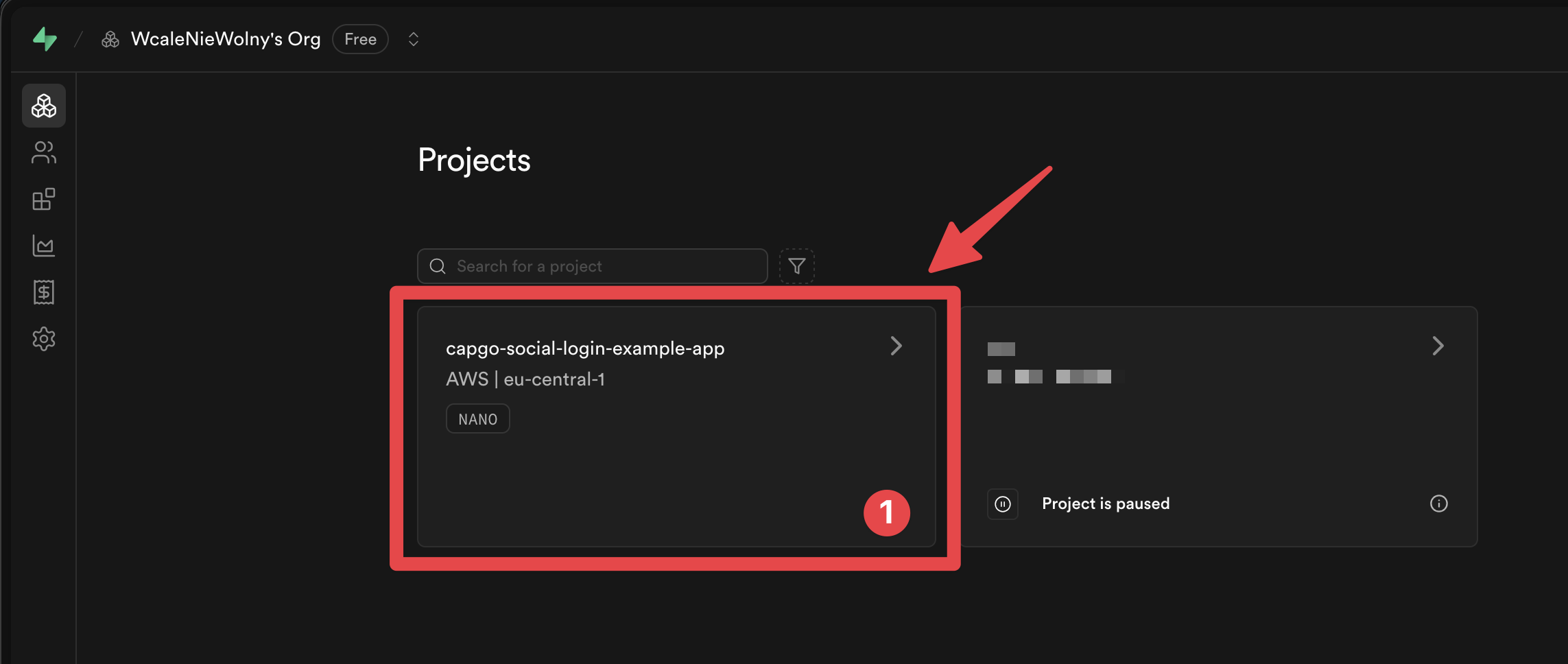
-
Authenticationメニューに移動してください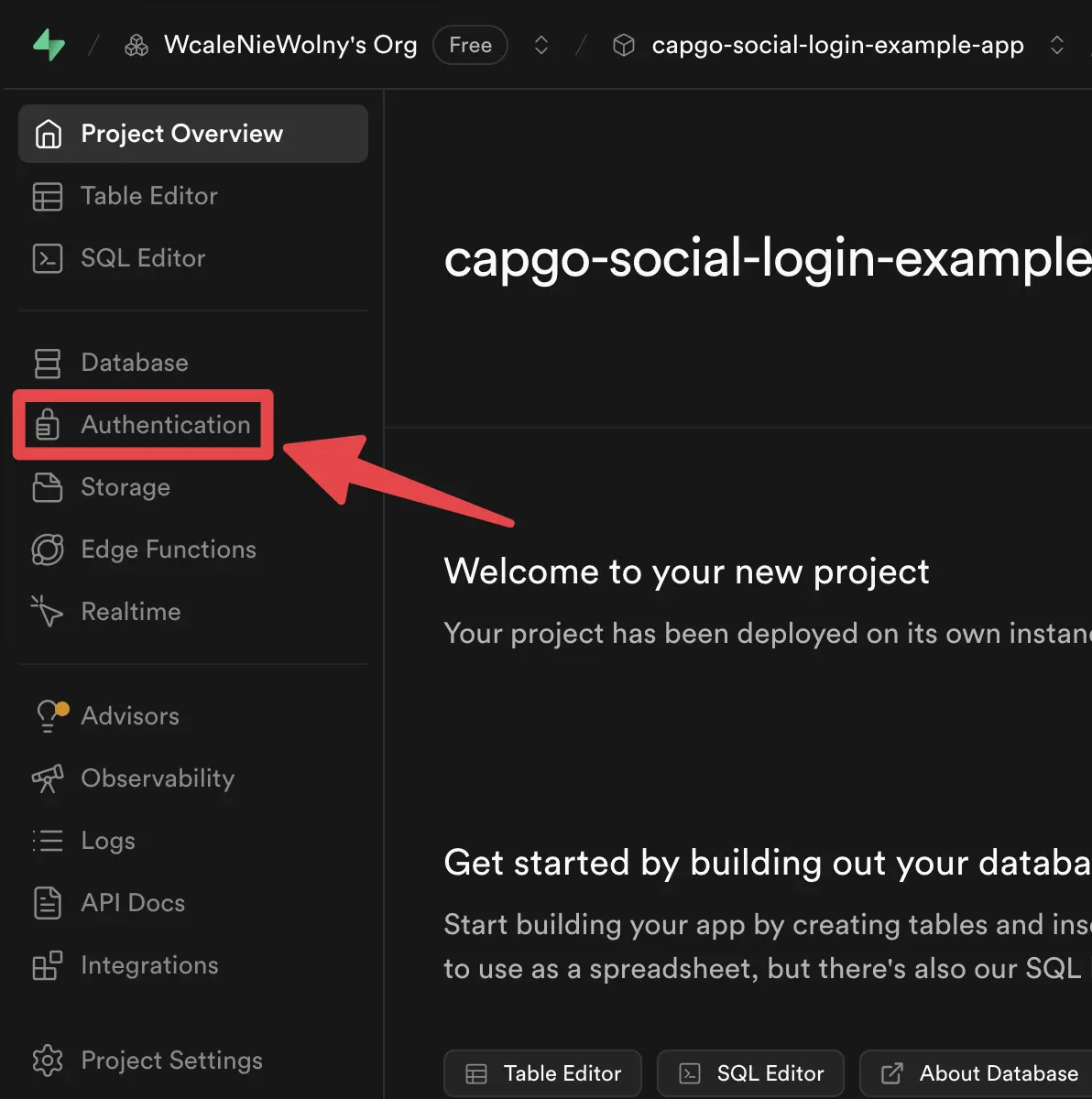
-
[
Providers] タブをクリックします。![Supabase [プロバイダー] タブ](/social-login-assets/supabase_providers_tab.webp)
-
Googleプロバイダーを見つけます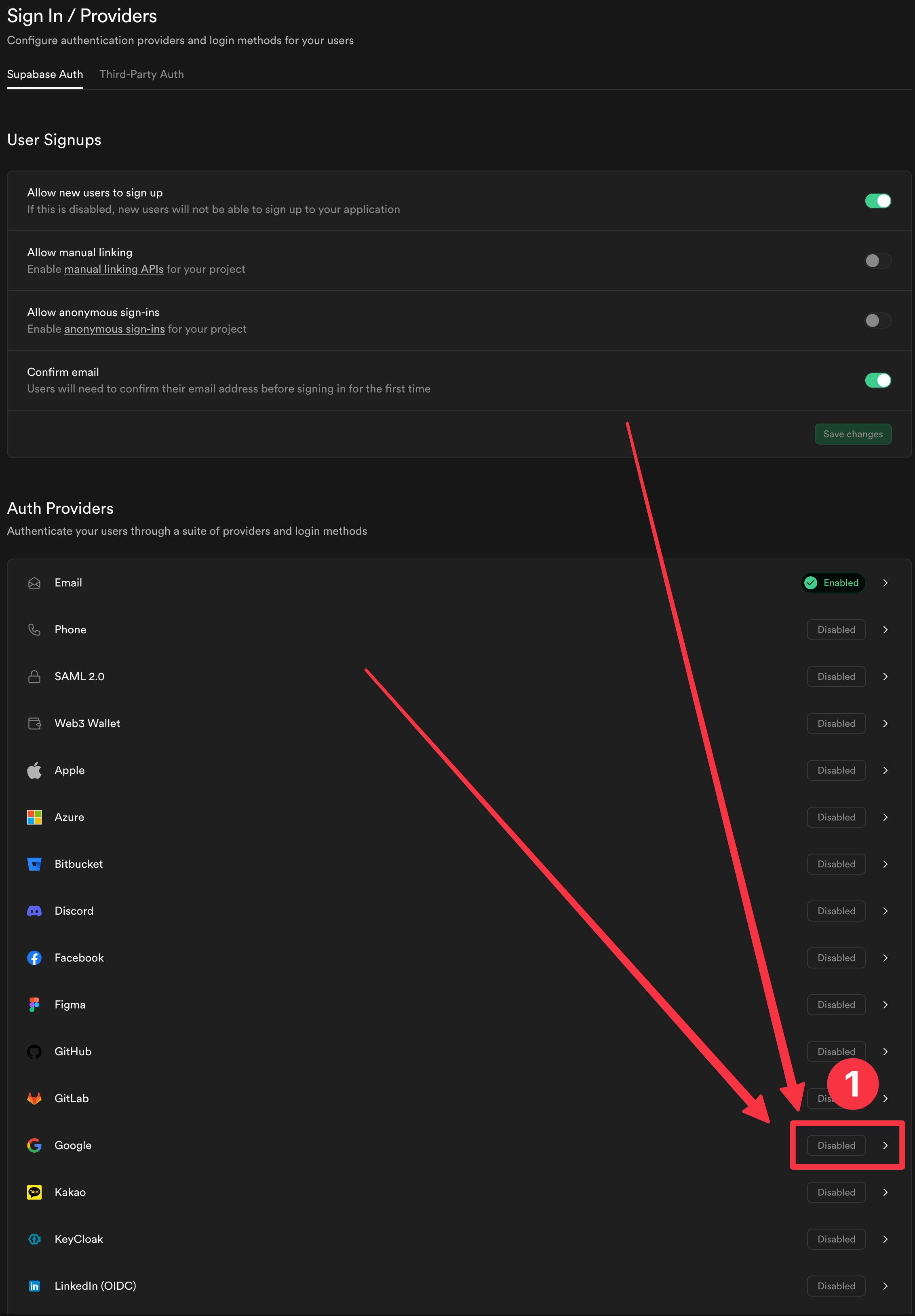
-
プロバイダーを有効にする
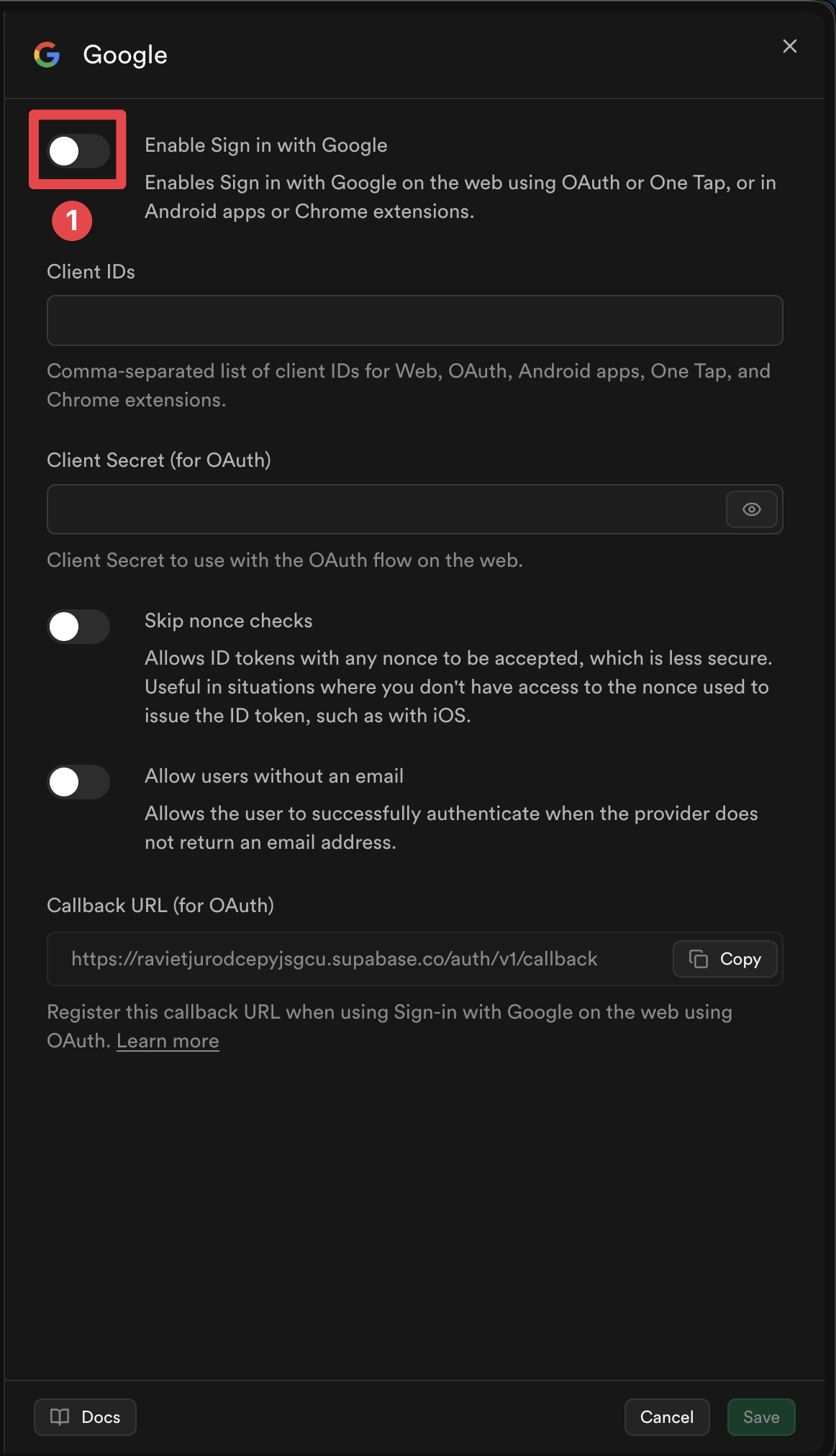
-
使用する予定のプラットフォームのクライアント ID を追加します。
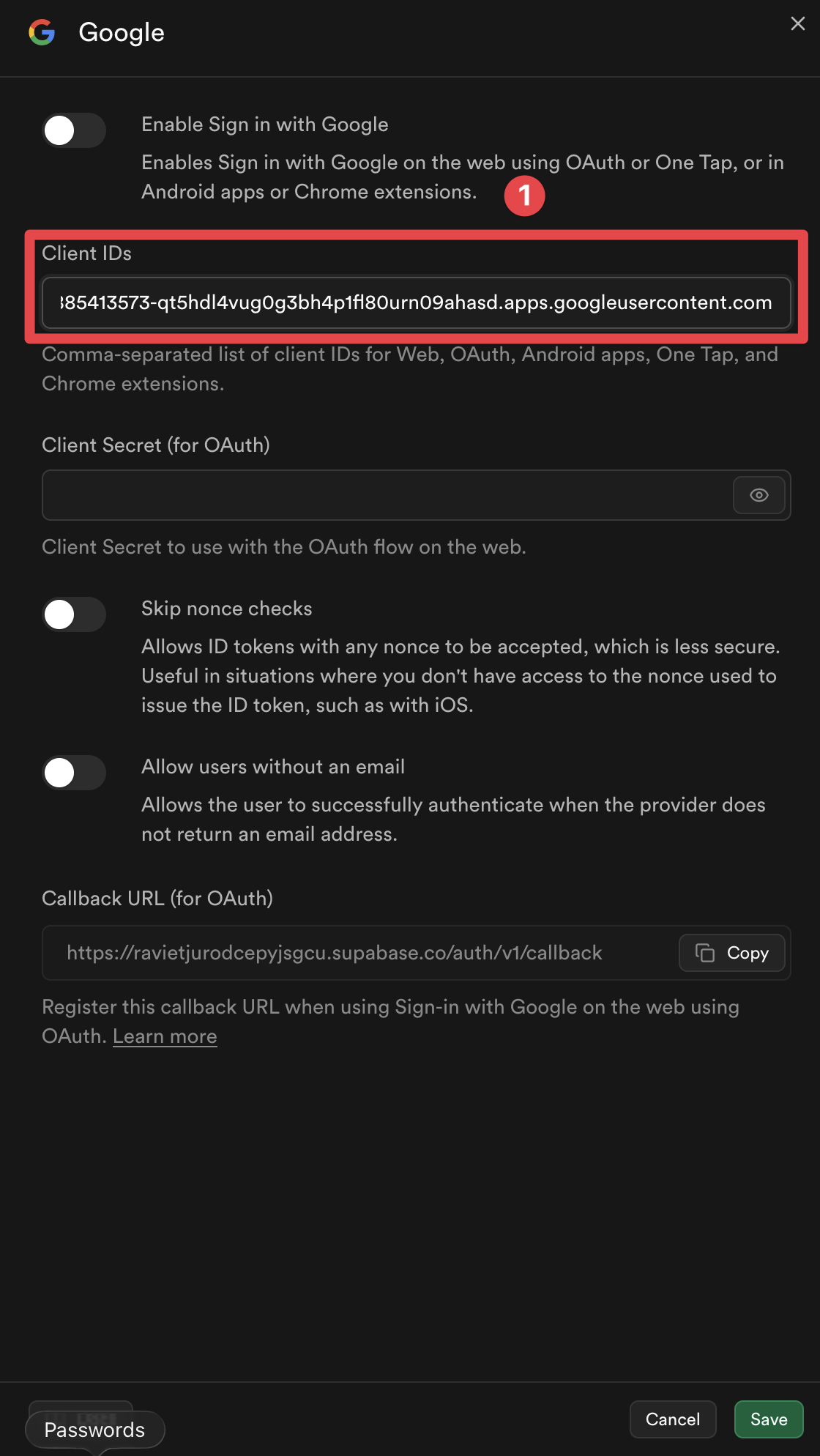
:::メモ これには、Web クライアント ID、iOS クライアント ID、Android クライアント ID が含まれます。使用する予定のプラットフォームに応じて、それらの一部の提供を省略できます。 :::
-
[
Save] ボタンをクリックします。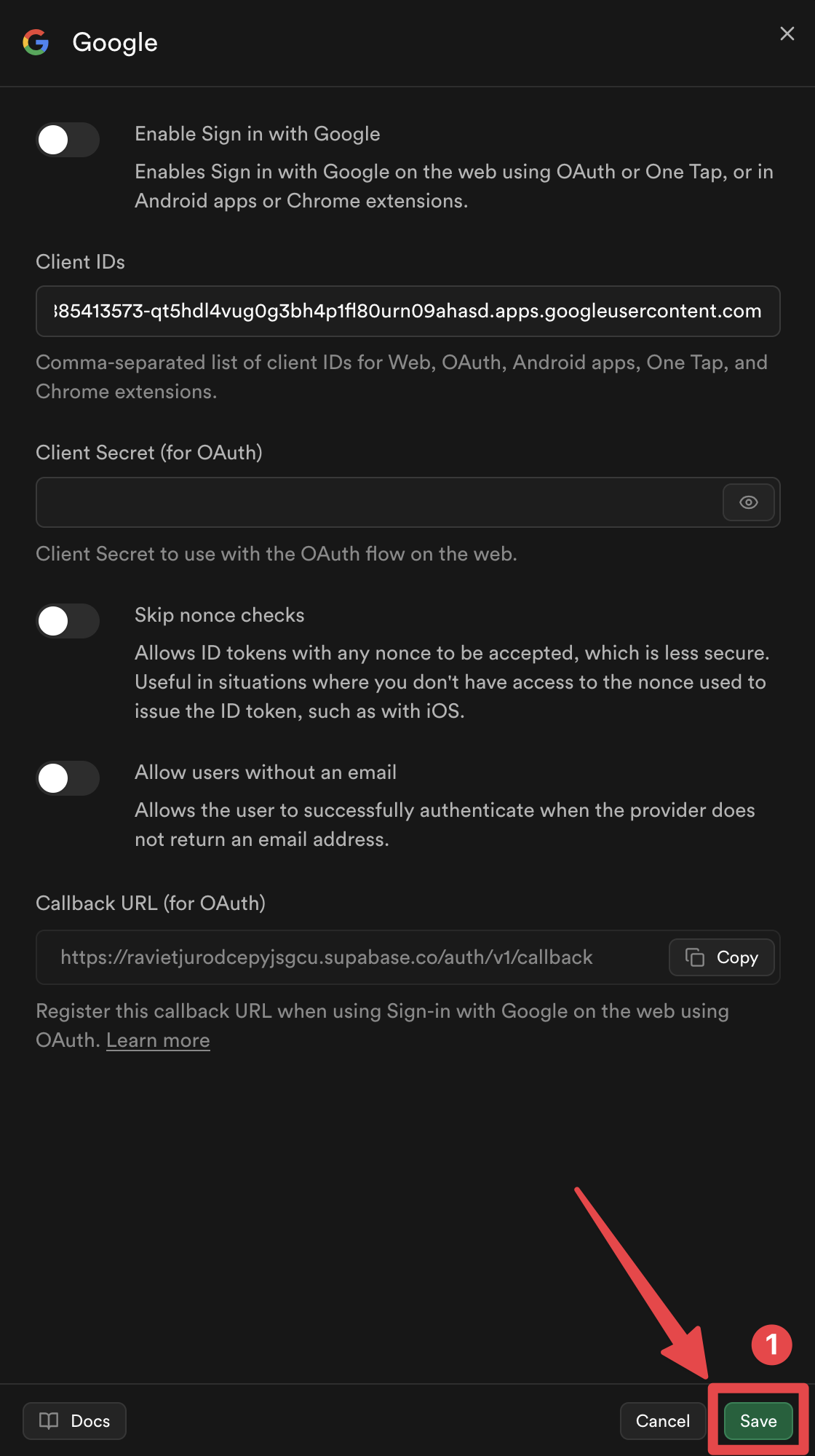
これで、Supabase 認証を使用した Google サインインが有効になりました 🎉
Google Supabase 認証ヘルパーを使用したサインインの仕組み
Section titled “Google Supabase 認証ヘルパーを使用したサインインの仕組み”このセクションでは、Google サインインと Supabase の統合が内部でどのように機能するかについて説明します。このフローを理解すると、認証プロセスの実装とトラブルシューティングに役立ちます。
1. ナンスの生成
Section titled “1. ナンスの生成”実装では、Supabase ノンス要件 に従って安全なノンス ペアが生成されます。
// Generate URL-safe random noncefunction getUrlSafeNonce(): string {  const array = new Uint8Array(32);  crypto.getRandomValues(array);  return Array.from(array, (byte) => byte.toString(16).padStart(2, '0')).join('');}
// Hash the nonce with SHA-256async function sha256Hash(message: string): Promise<string> {  const encoder = new TextEncoder();  const data = encoder.encode(message);  const hashBuffer = await crypto.subtle.digest('SHA-256', data);  const hashArray = Array.from(new Uint8Array(hashBuffer));  return hashArray.map((b) => b.toString(16).padStart(2, '0')).join('');}
// Generate nonce pairasync function getNonce(): Promise<{ rawNonce: string; nonceDigest: string }> {  const rawNonce = getUrlSafeNonce();  const nonceDigest = await sha256Hash(rawNonce);  return { rawNonce, nonceDigest };}
フロー:
rawNonce: URL セーフなランダム文字列 (64 の 16 進数文字)nonceDigest:rawNonceの SHA-256 ハッシュ (16 進エンコード)nonceDigestが Google に渡されます。 サインイン → Google は ID トークンにノンス ダイジェストを含めますrawNonceが Supabase に渡される → Supabase は生の nonce をハッシュし、トークンの nonce と比較します
2. Google サインイン
Section titled “2. Google サインイン”この関数はプラグインを初期化し、Google でサインインします。
await SocialLogin.initialize({  google: {    webClientId: 'YOUR_WEB_CLIENT_ID.apps.googleusercontent.com',    // iOS only:    iOSClientId: 'YOUR_IOS_CLIENT_ID.apps.googleusercontent.com',    mode: 'online', // Required to get idToken  },});
const response = await SocialLogin.login({  provider: 'google',  options: {    scopes: ['email', 'profile'],    nonce: nonceDigest, // Pass the SHA-256 hashed nonce  },});
3. JWT の検証
Section titled “3. JWT の検証”トークンを Supabase に送信する前に、実装は JWT トークンを検証します。
function validateJWTToken(idToken: string, expectedNonceDigest: string): { valid: boolean; error?: string } {  const decodedToken = decodeJWT(idToken);
  // Check audience matches your Google Client IDs  const audience = decodedToken.aud;  if (!VALID_GOOGLE_CLIENT_IDS.includes(audience)) {    return { valid: false, error: 'Invalid audience' };  }
  // Check nonce matches  const tokenNonce = decodedToken.nonce;  if (tokenNonce && tokenNonce !== expectedNonceDigest) {    return { valid: false, error: 'Nonce mismatch' };  }
  return { valid: true };}
Supabase より前に検証する必要があるのはなぜですか?
トークンを Supabase に送信する前に JWT トークンを検証することは、いくつかの重要な目的に役立ちます。
-
無効なリクエストの防止: トークンの対象ユーザーが間違っているか、ノンスが一致しない場合でも、Supabase はトークンを拒否します。最初に検証すると、不必要な API 呼び出しが回避され、より明確なエラー メッセージが表示されます。
-
トークン キャッシュの問題: 一部のプラットフォーム (特に iOS) では、Google サインイン SDK がパフォーマンスのためにトークンをキャッシュすることがあります。キャッシュされたトークンが返されると、キャッシュされたトークンが異なる nonce で生成された (または nonce がまったくない) 可能性があり、Supabase が「nonce の不一致」エラーでトークンを拒否します。 Supabase に送信する前に検証することで、この問題を早期に検出し、新しいトークンを使用して自動的に再試行できます。
-
セキュリティ (iOS): iOS では、検証によって特定の Google クライアント ID に対してトークンが発行されたことが確認され、他のアプリケーション向けのトークンを使用することによる潜在的なセキュリティ問題が防止されます。
-
エラー処理の改善: Supabase より前に問題を検出すると、自動再試行ロジックが可能になります。これは、iOS キャッシュの問題を透過的に処理するために不可欠です。
検証が失敗した場合、関数は自動的に次の処理を行います。
- Google からログアウトします (キャッシュされたトークンをクリアします - iOS では重要)
- 認証を 1 回再試行します (正しいナンスを使用して新しいトークンを強制的に生成します)
- 再試行も失敗した場合は、エラーを返します。
4. Supabase サインイン
Section titled “4. Supabase サインイン”最後に、検証されたトークンが Supabase に送信されます。
const { data, error } = await supabase.auth.signInWithIdToken({ provider: 'google', token: googleResponse.idToken, nonce: rawNonce, // Pass the raw (unhashed) nonce});完全なコード リファレンス
Section titled “完全なコード リファレンス”完全な実装は、サンプル アプリの supabaseAuthUtils.ts ファイルで入手できます。これには次のものが含まれます。
getUrlSafeNonce()- URL セーフなランダム ノンスを生成しますsha256Hash()- SHA-256 で文字列をハッシュしますgetNonce()- ノンスペアを生成しますdecodeJWT()- JWT トークンをデコードしますvalidateJWTToken()- JWT オーディエンスと nonce を検証しますauthenticateWithGoogleSupabase()- 自動再試行を備えたメイン認証機能
追加のサンプル ファイル
Section titled “追加のサンプル ファイル”- SupabasePage.tsx - リダイレクト処理を備えたコンポーネントの例 (Web)
- SupabaseCreateAccountPage.tsx - アカウント作成ページの例
次のステップ
Section titled “次のステップ”ターゲット プラットフォームのプラットフォーム固有のセットアップ ガイドに進んでください。