
iOSでのFirebase Googleログイン
このガイドでは、iOSでFirebase AuthenticationとGoogleサインインを統合する方法を説明します。一般的なFirebase Googleの設定をすでに完了していることを前提としています。
-
console.cloud.google.comでプロジェクト概要に移動します
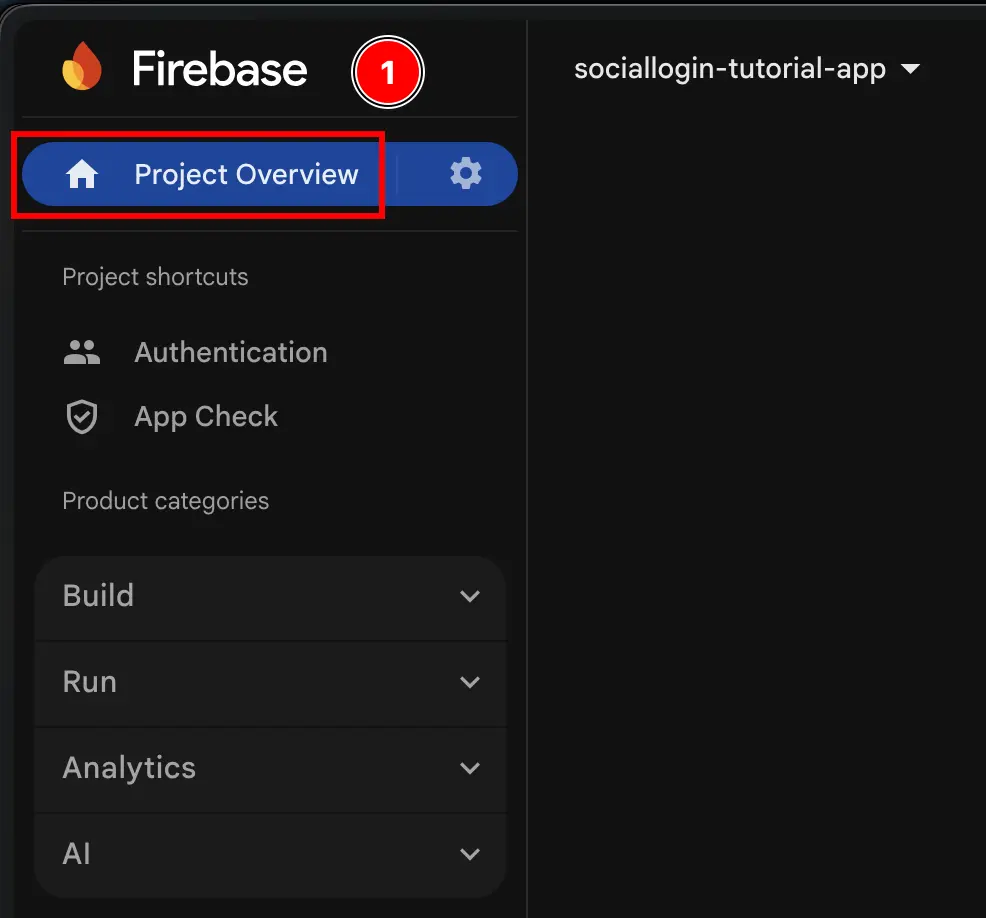
-
Add appボタンをクリックします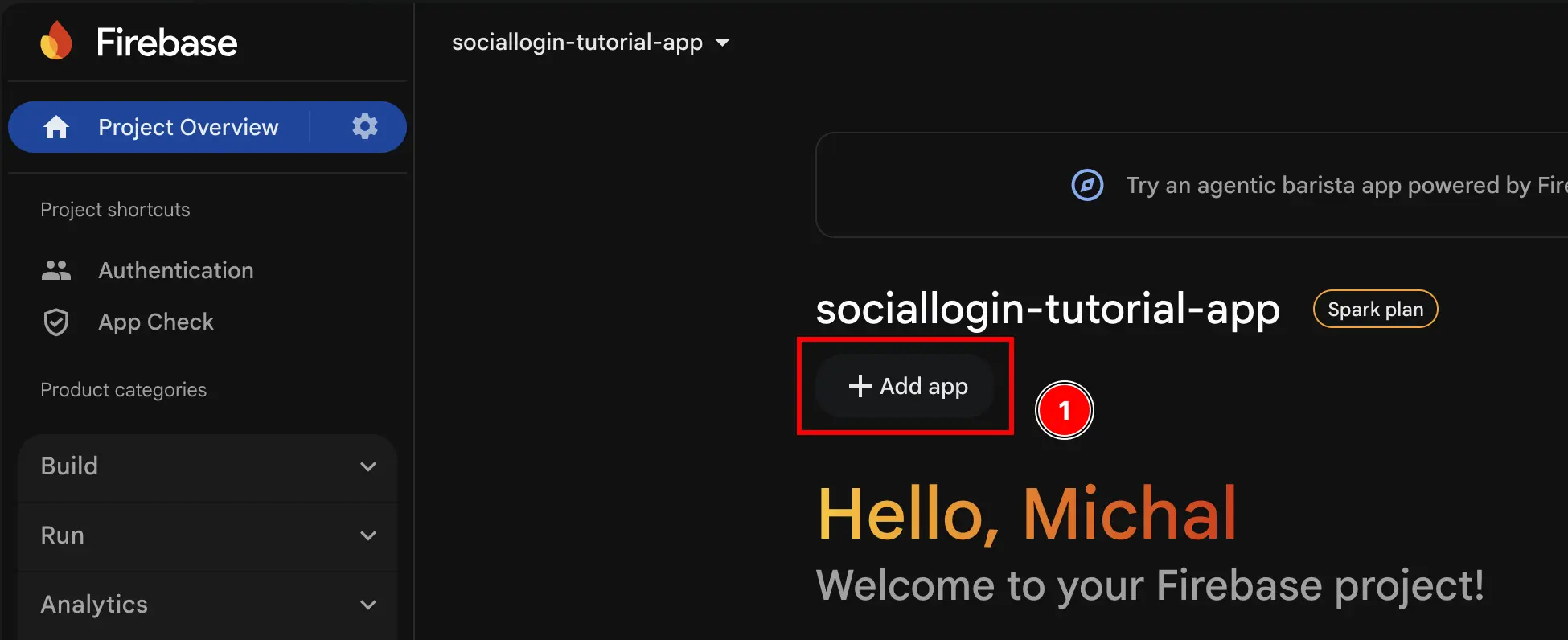
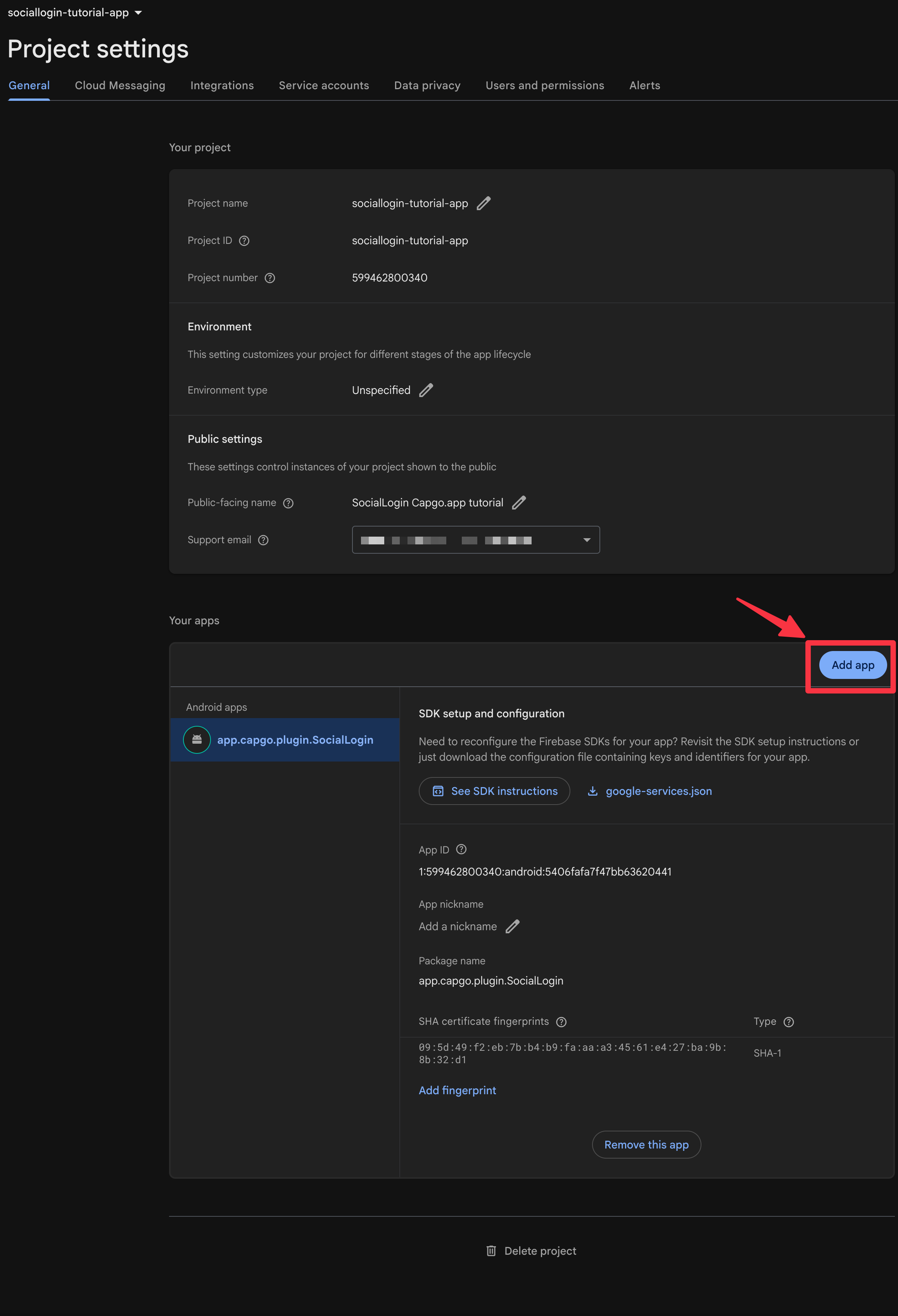
-
iOSを選択します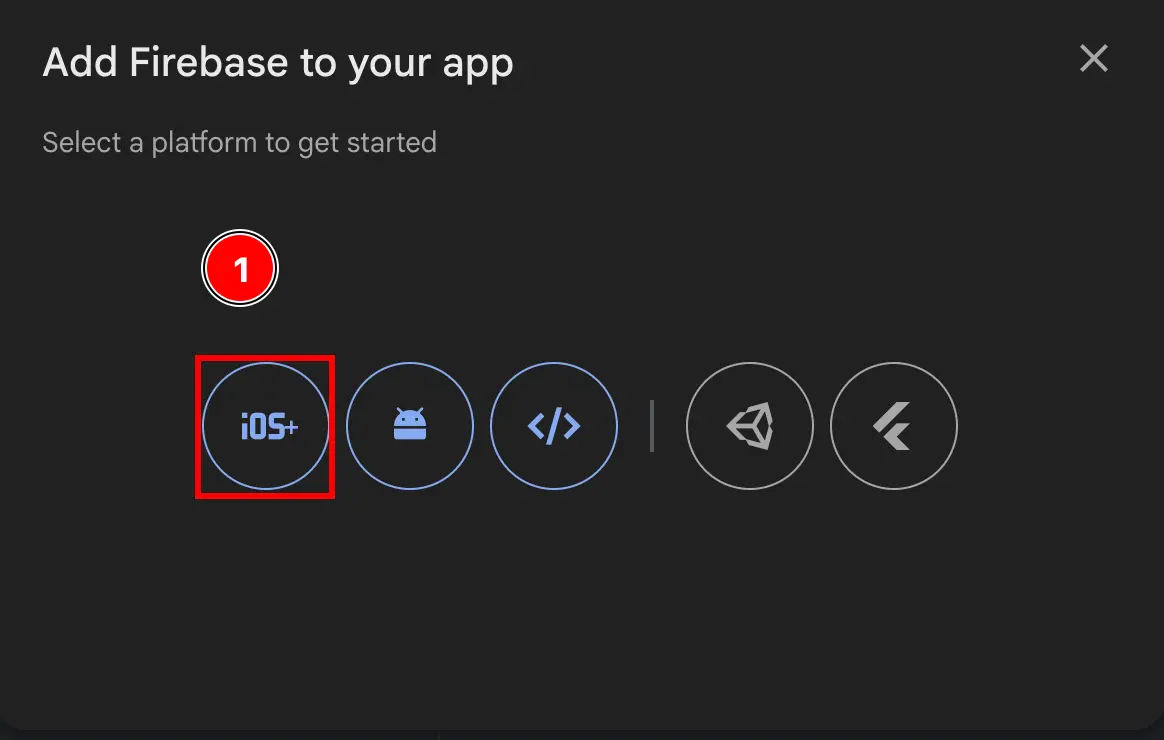
-
フォームの最初の部分を入力します
Apple bundle IDを入力しますnpx cap open iosを使用してXcodeでアプリを開きますAppをダブルクリックします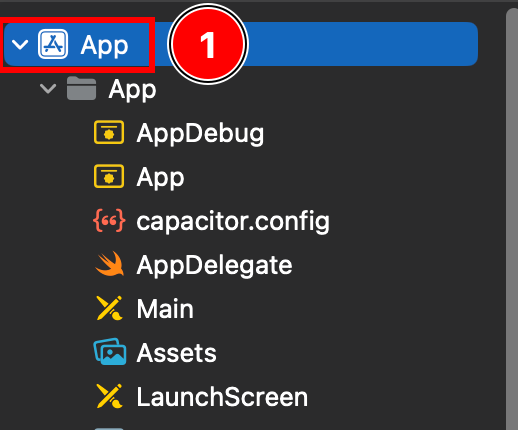
Targets -> Appにいることを確認します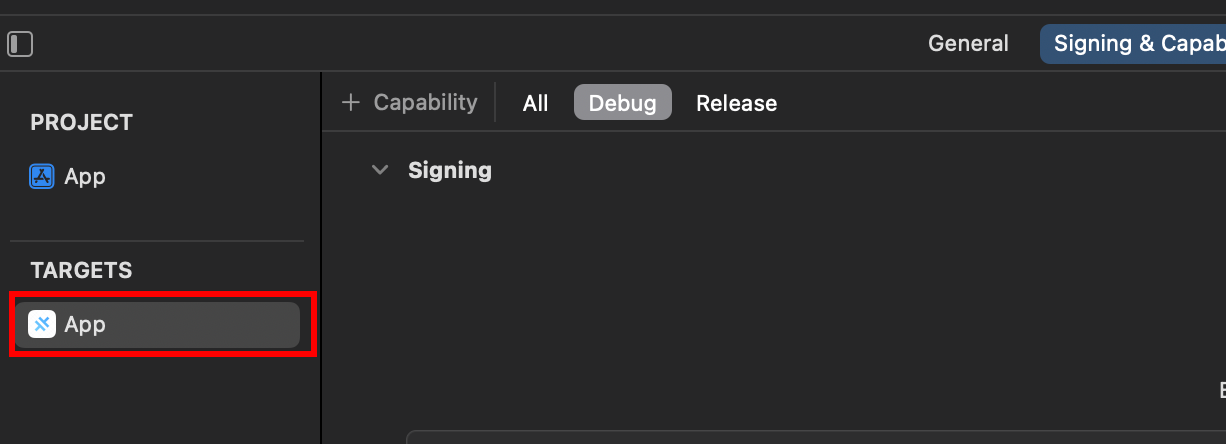
Bundle Identifierを見つけます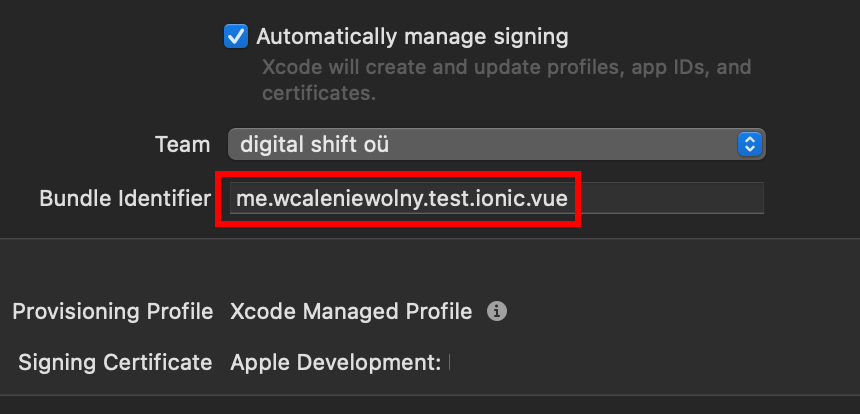
Bundle IdentifierをコピーしてFirebase consoleに貼り付けます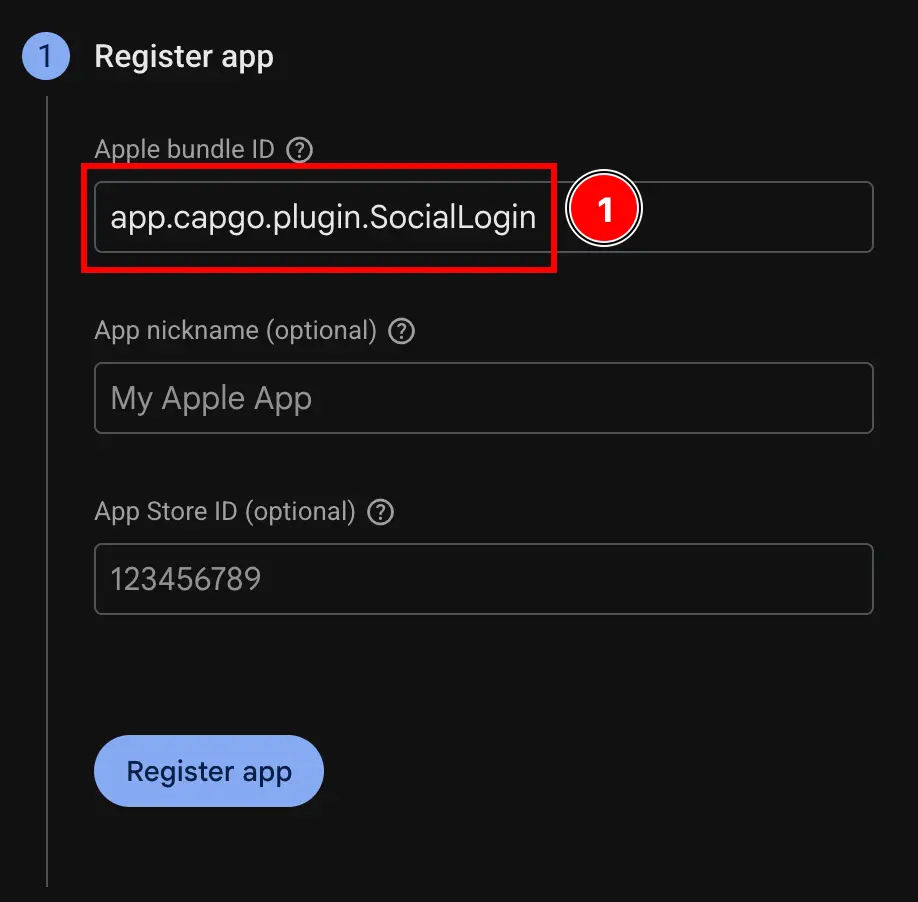
Register appボタンをクリックします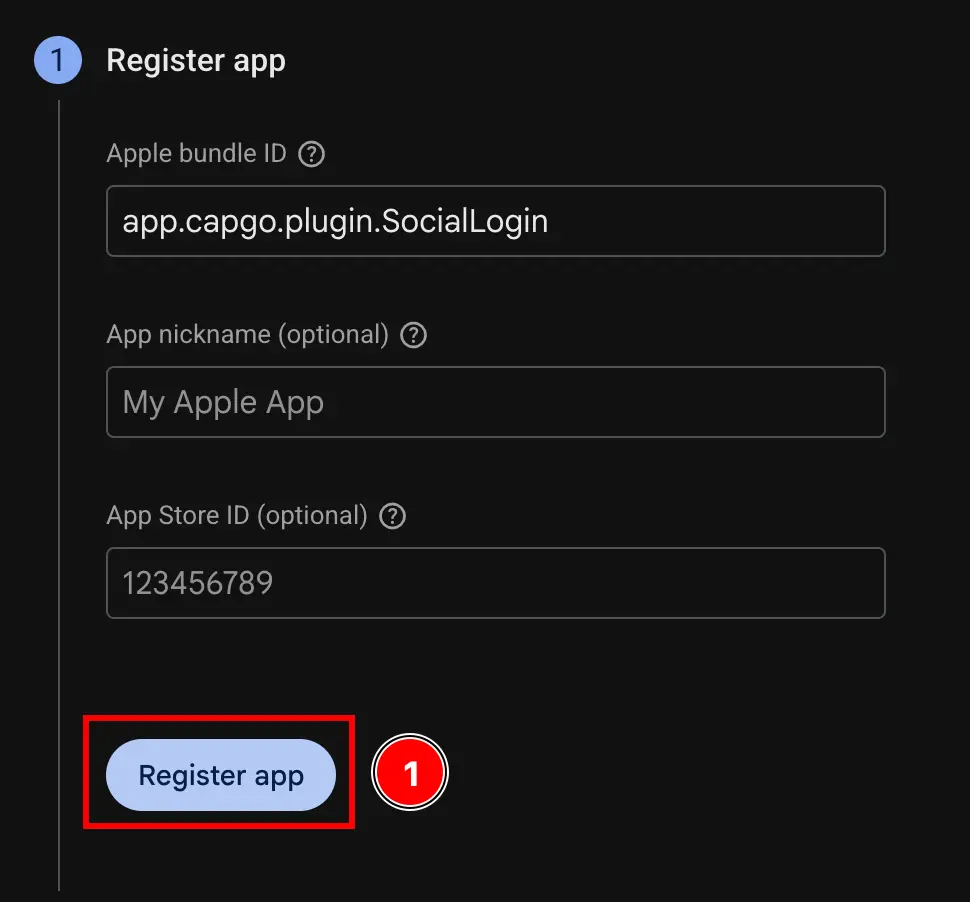
-
Download config fileステップをスキップします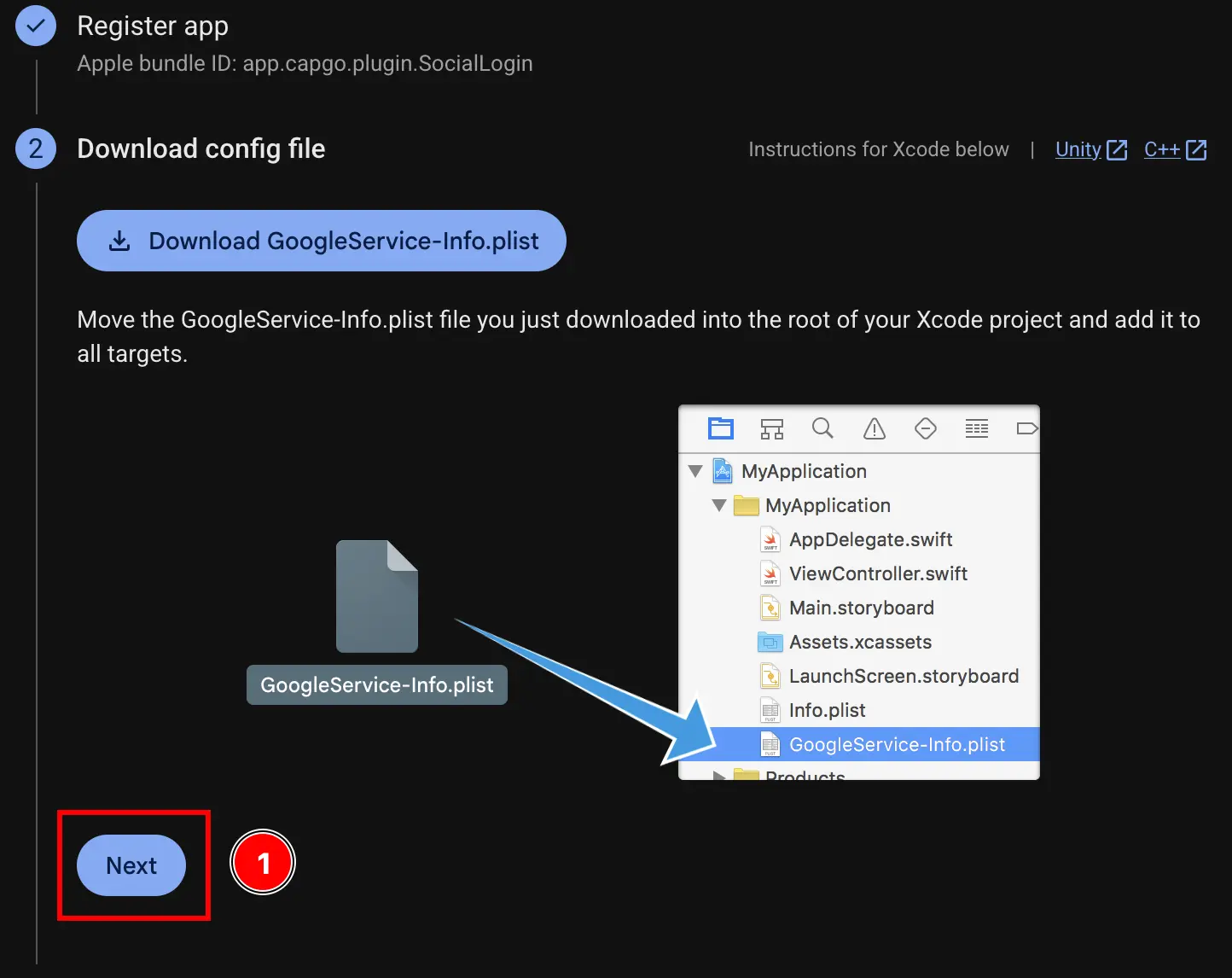
-
Add firebase SDKステップをスキップします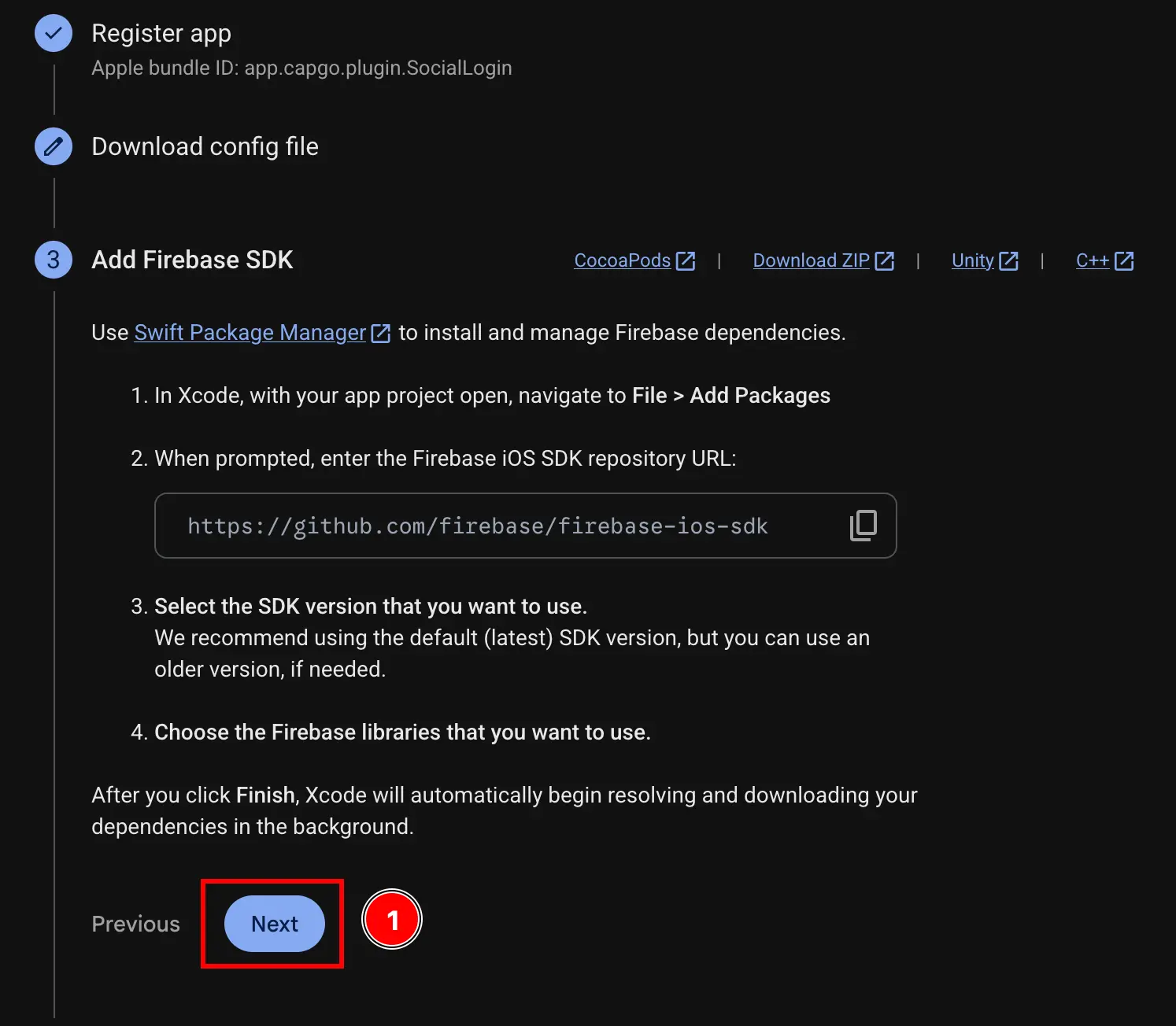
-
Add initialization codeステップをスキップします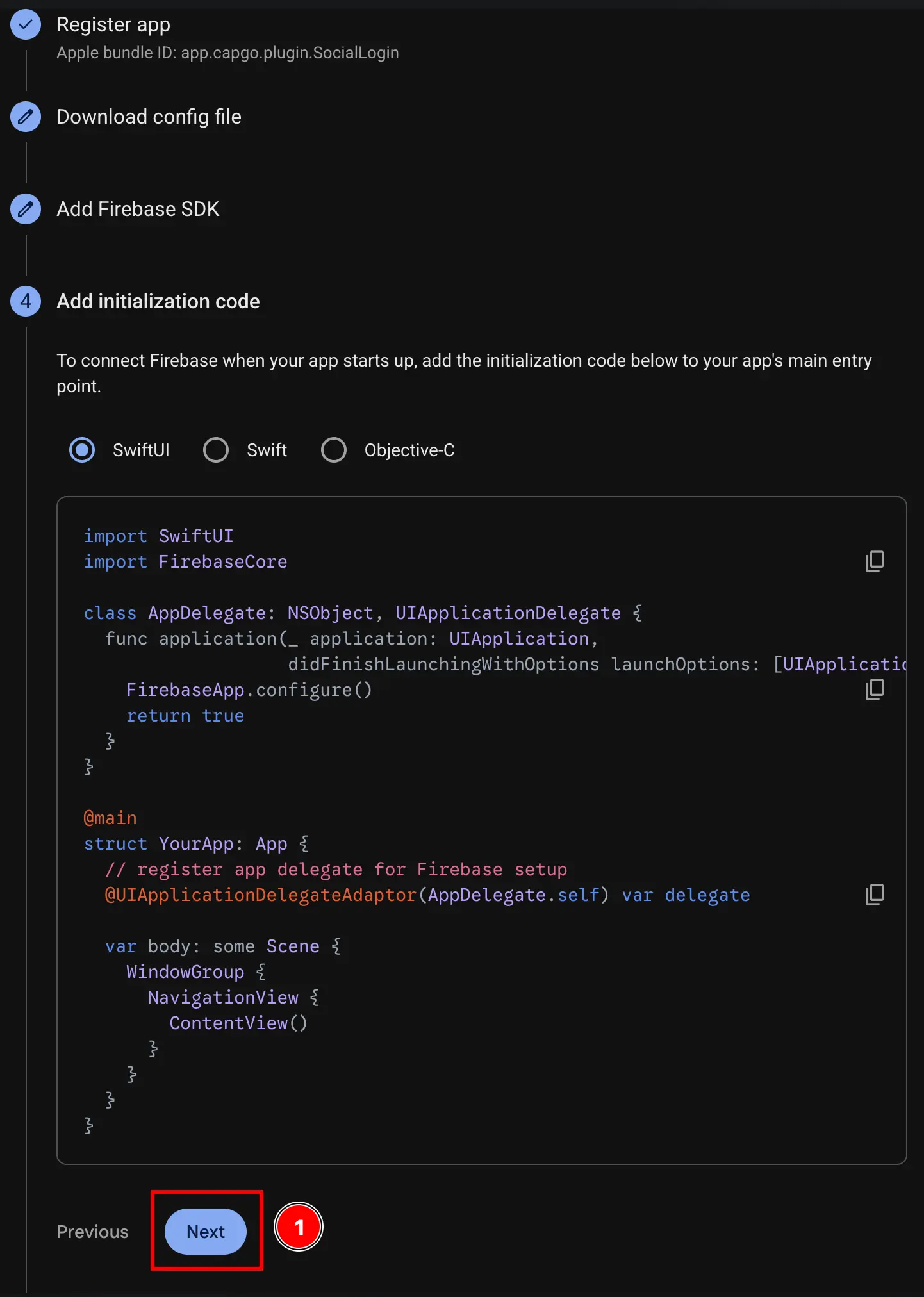
-
Continue to consoleボタンをクリックします
-
iOS client IDと
YOUR_DOT_REVERSED_IOS_CLIENT_IDを取得します-
console.cloud.google.comのGoogle Cloud Consoleにアクセスします
-
プロジェクトを見つけます
- プロジェクトセレクターをクリックします
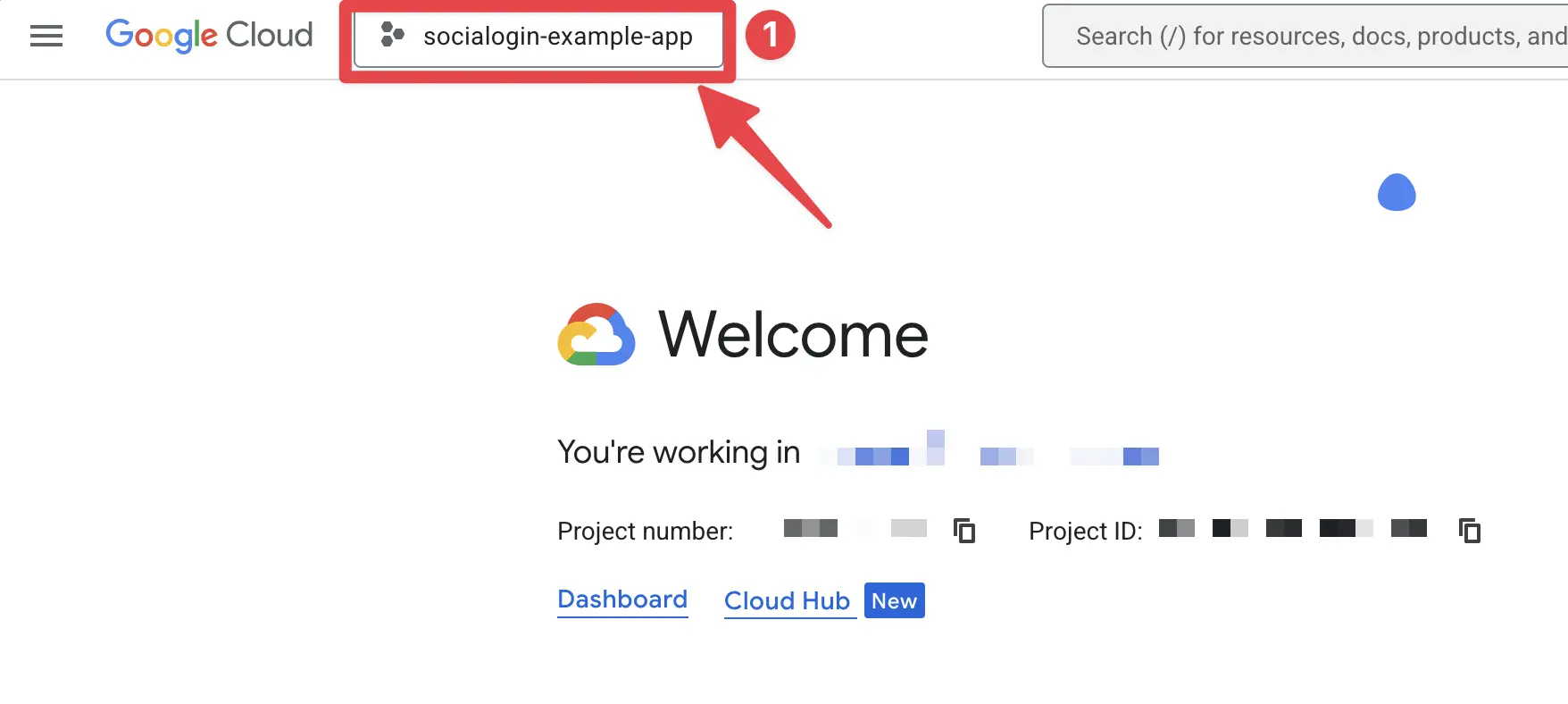
- Firebaseプロジェクトの正確な名前でプロジェクトを検索してクリックします。私の場合は
sociallogin-tutorial-appです。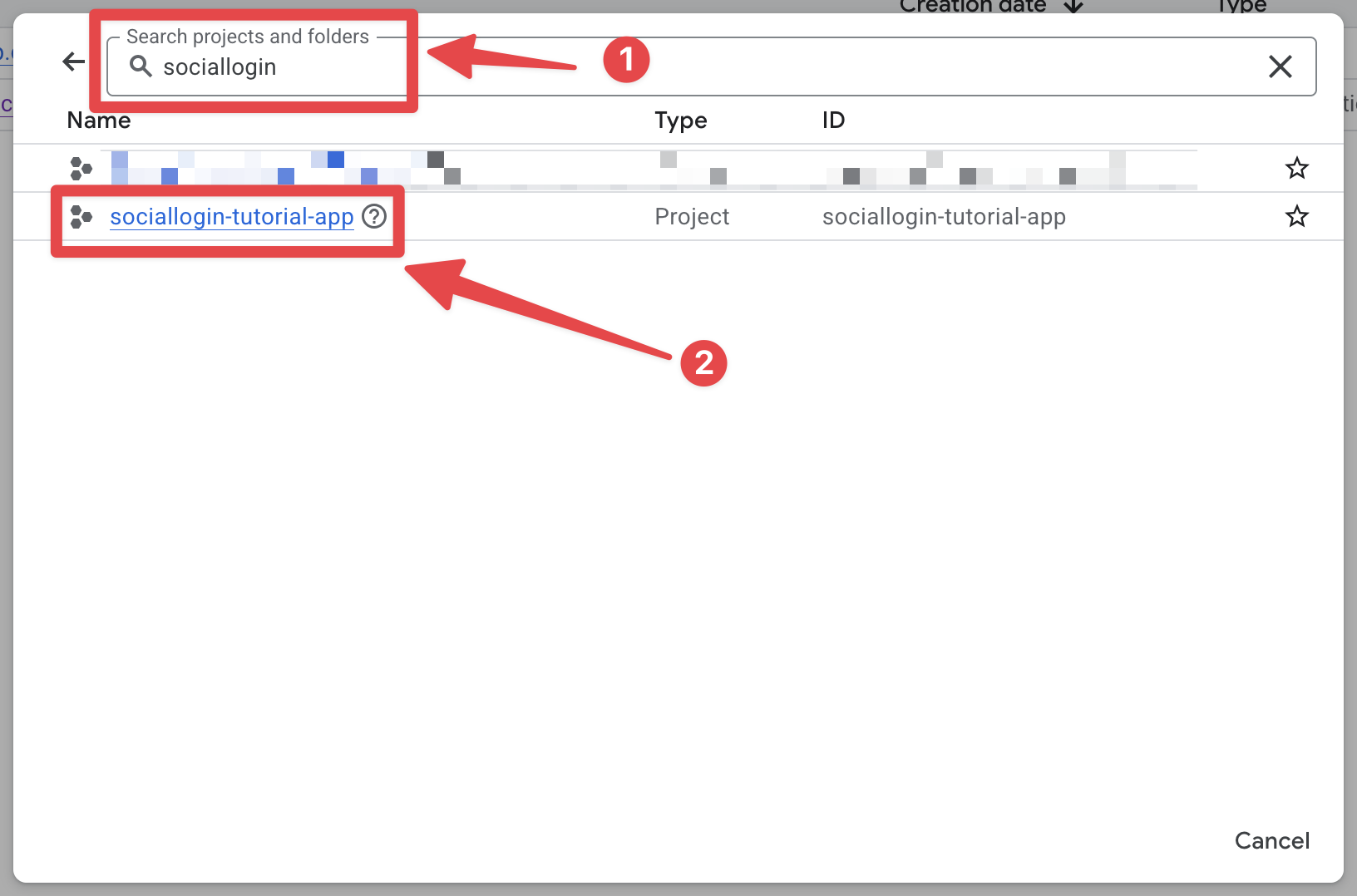
- プロジェクトセレクターをクリックします
-
検索バーを開いて
credentialsを開きます- 検索バーを開きます
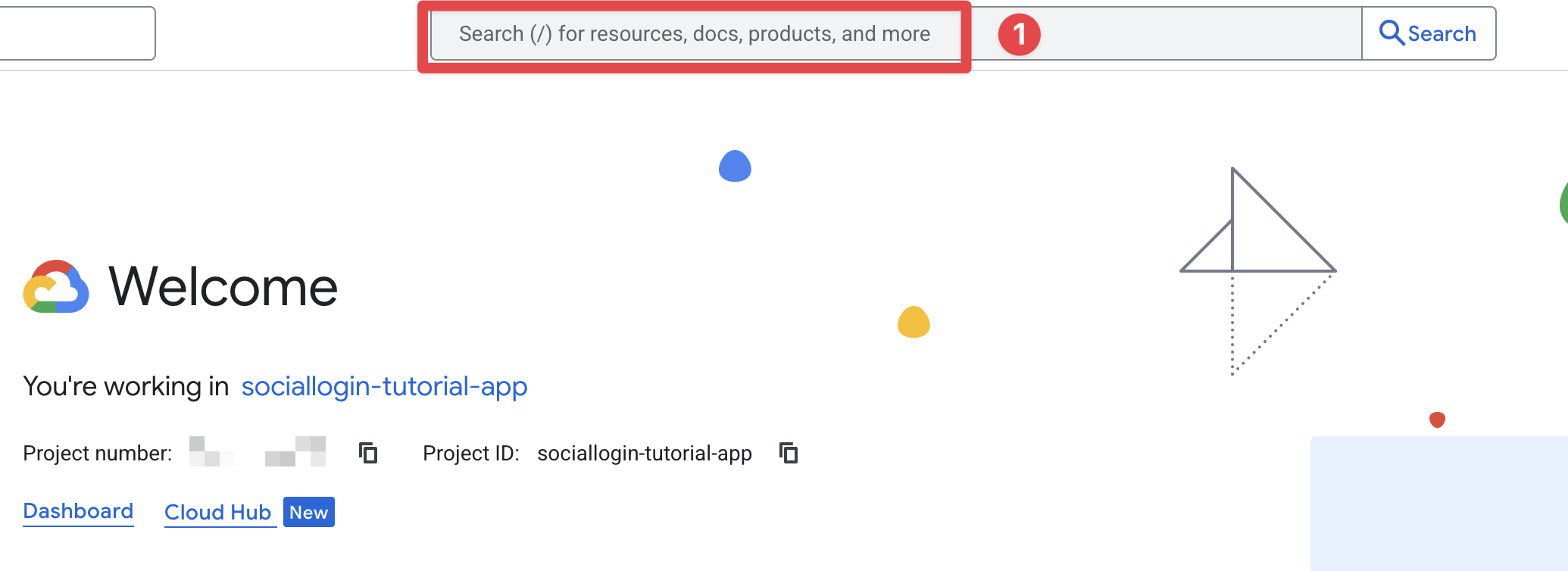
credentialsを検索し、APIs and Services(スクリーンショットの2番)をクリックします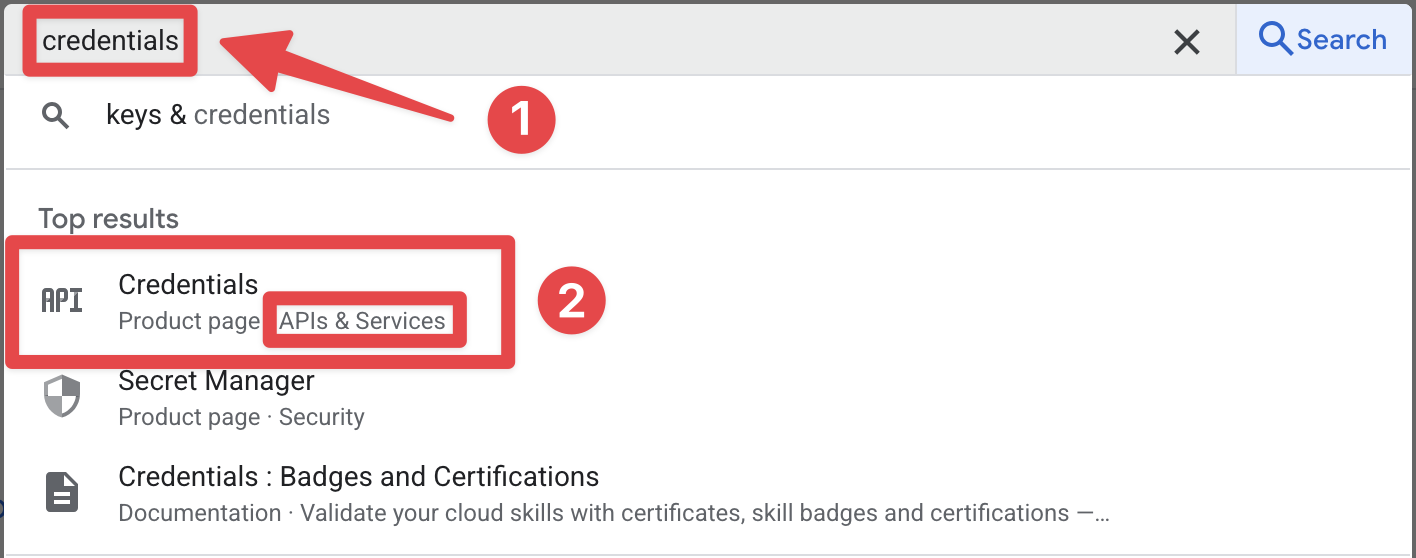
- 検索バーを開きます
-
iOS client for [YOUR_APP_ID] (auto created by Google Service)をクリックします。私の場合はsociallogin-tutorial-appです。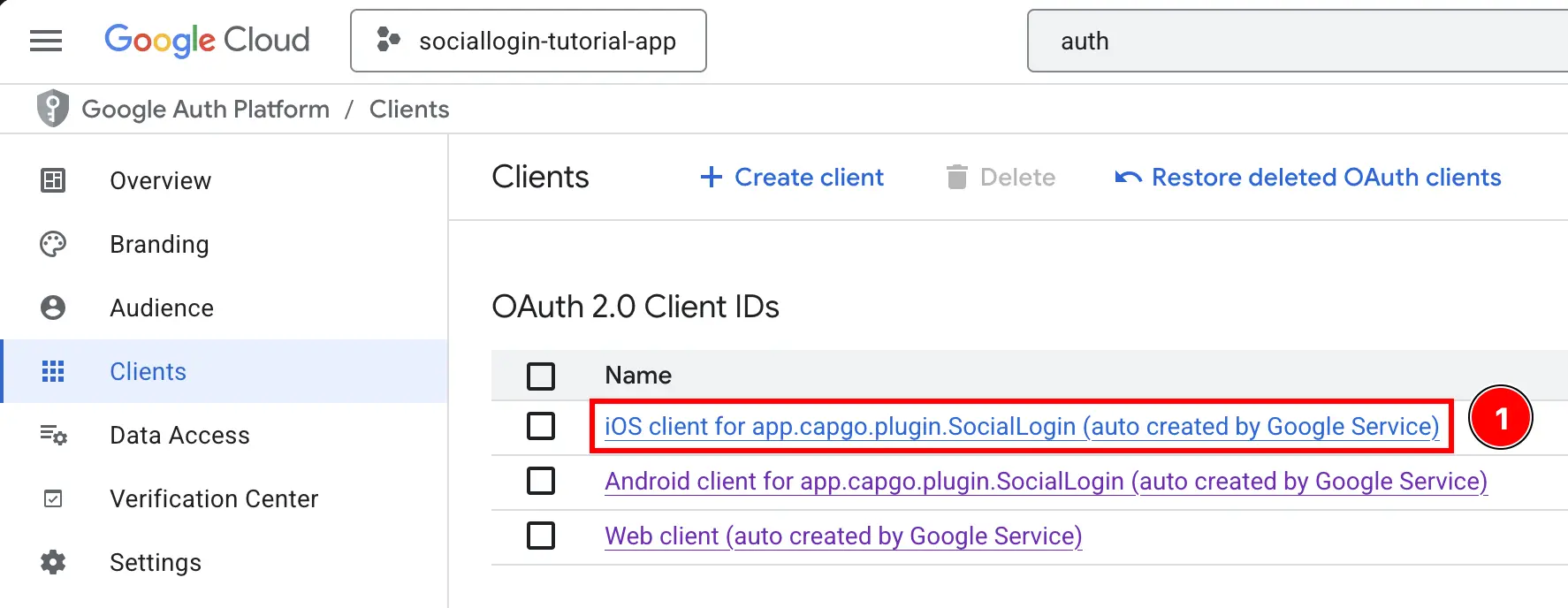
-
Client IDとiOS URL schemeをコピーします。これらがそれぞれiOSClientIdとYOUR_DOT_REVERSED_IOS_CLIENT_IDになります。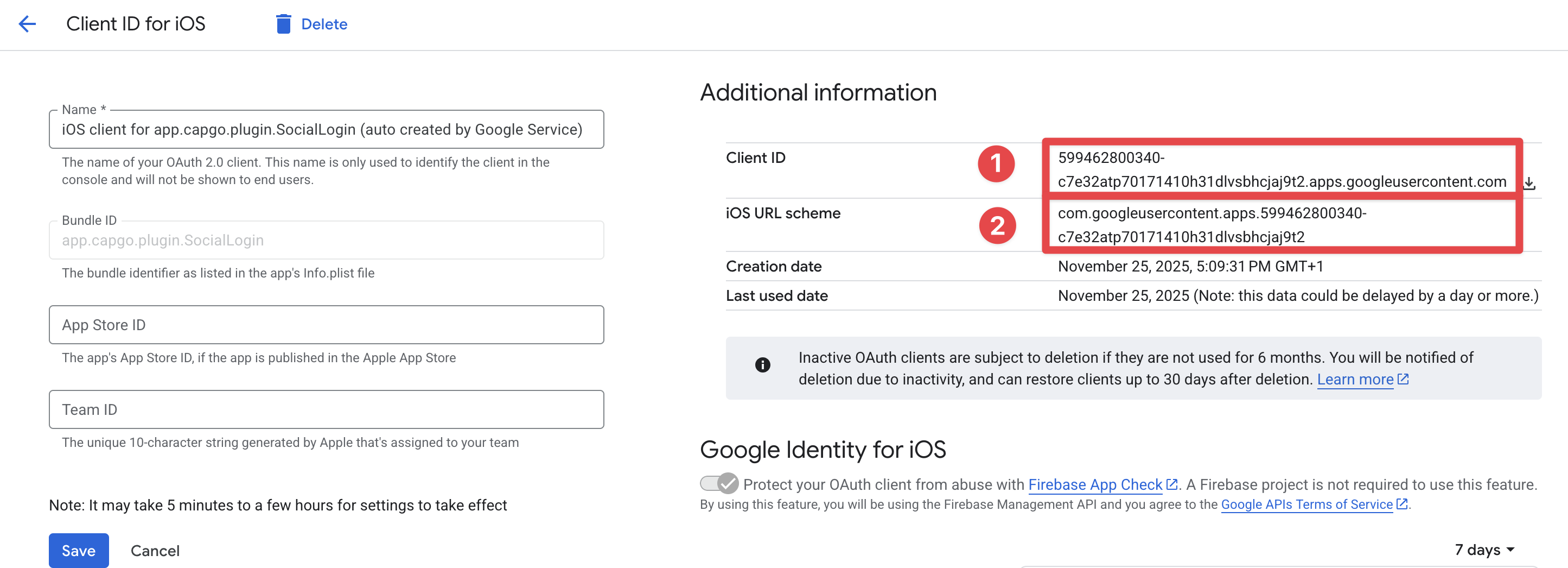
-
-
Web client IDを取得します
- Firebase consoleに戻り、
Build->Authenticationに移動します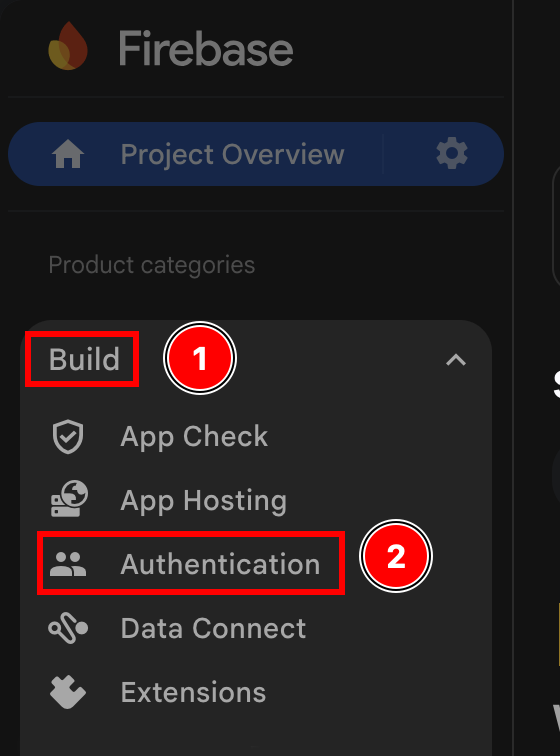
Sign-in methodボタンをクリックします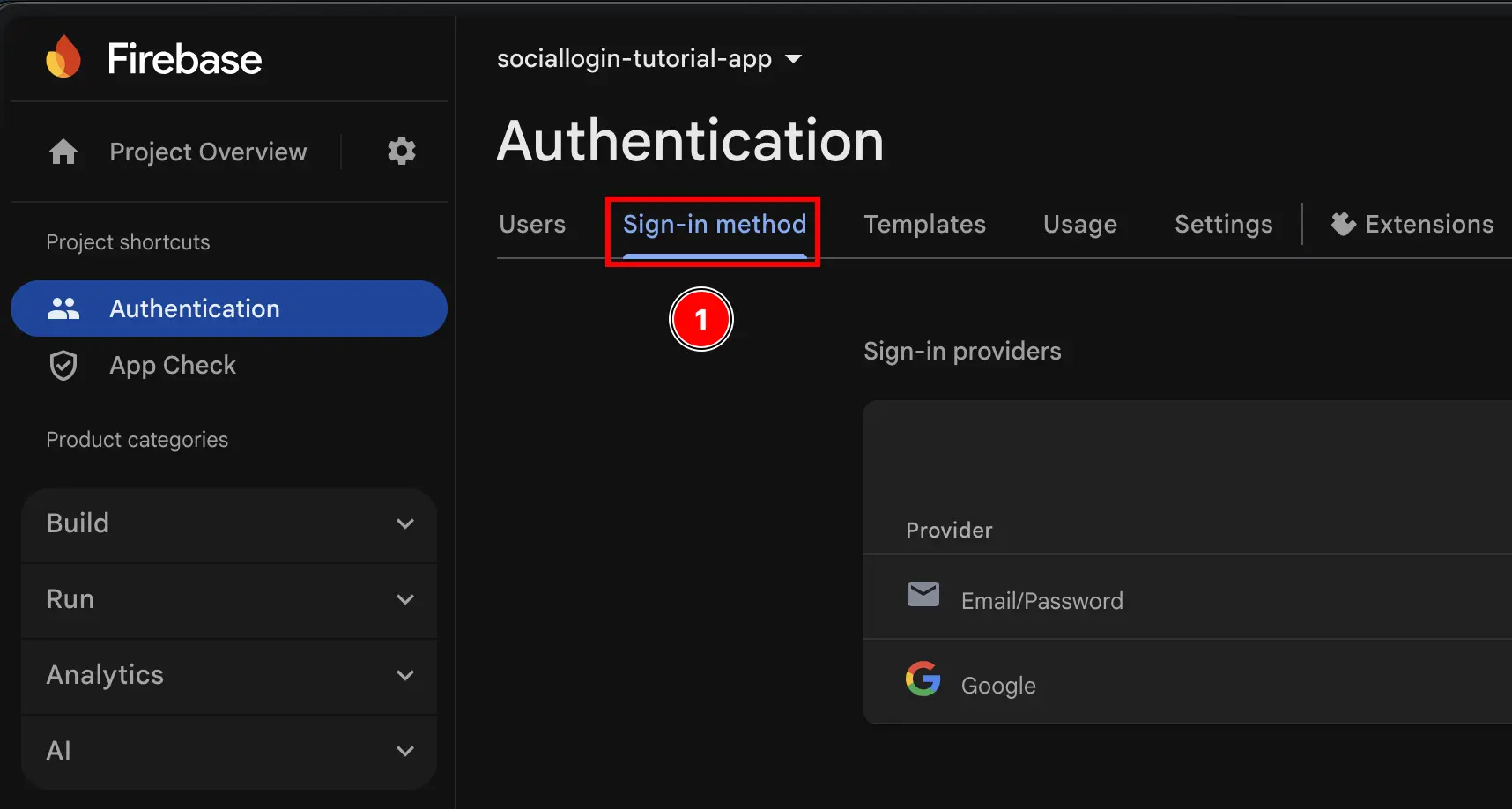
Googleプロバイダーをクリックします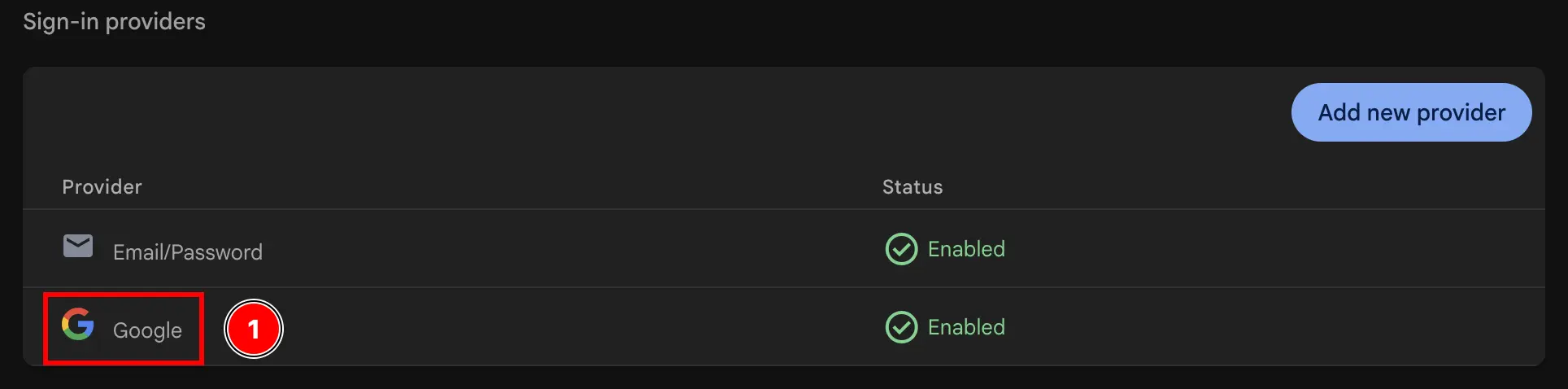
Web SDK configurationボタンをクリックします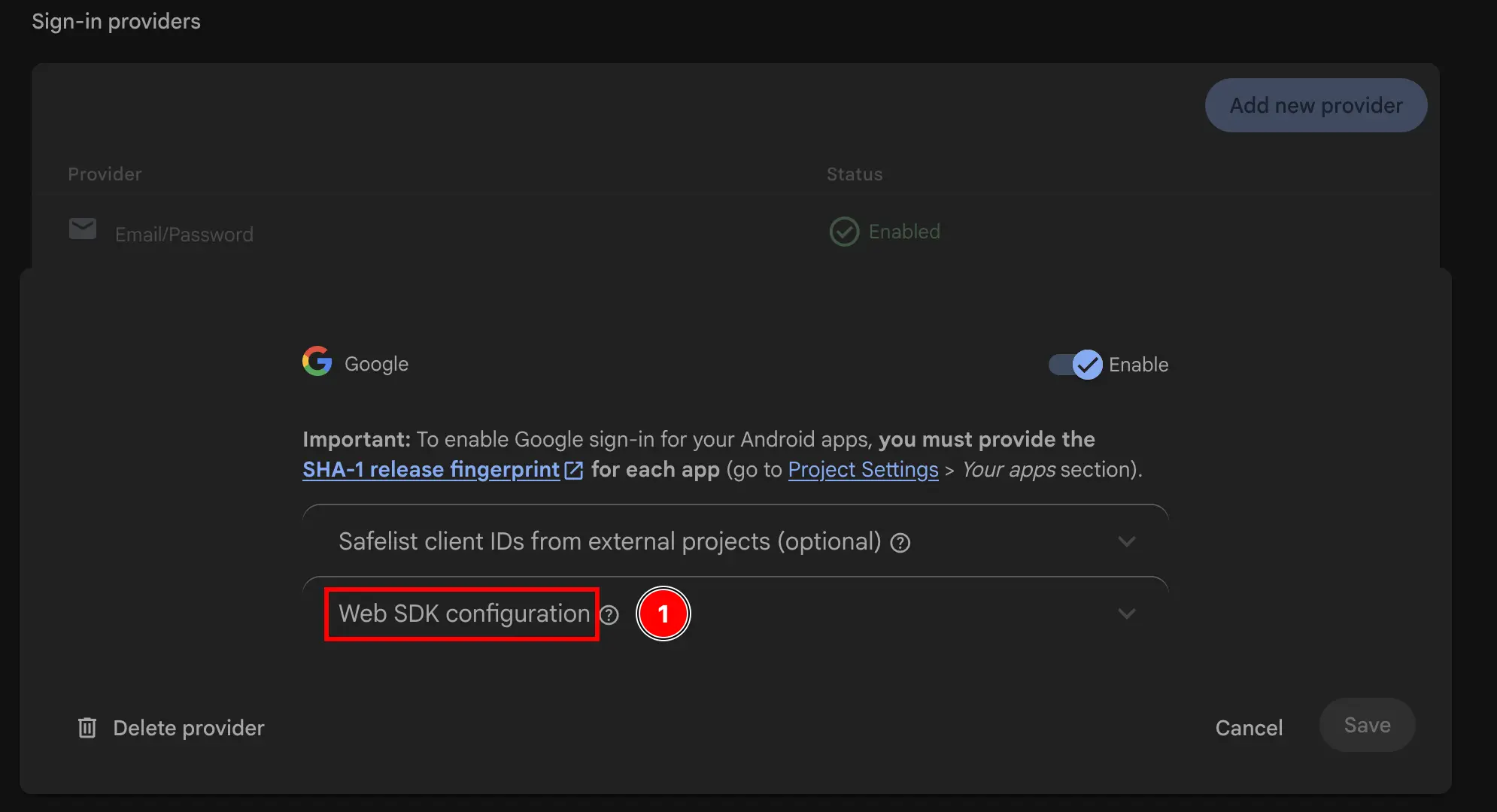
Web client IDをコピーします。これがプラグインのinitializeメソッドのwebClientIdになります。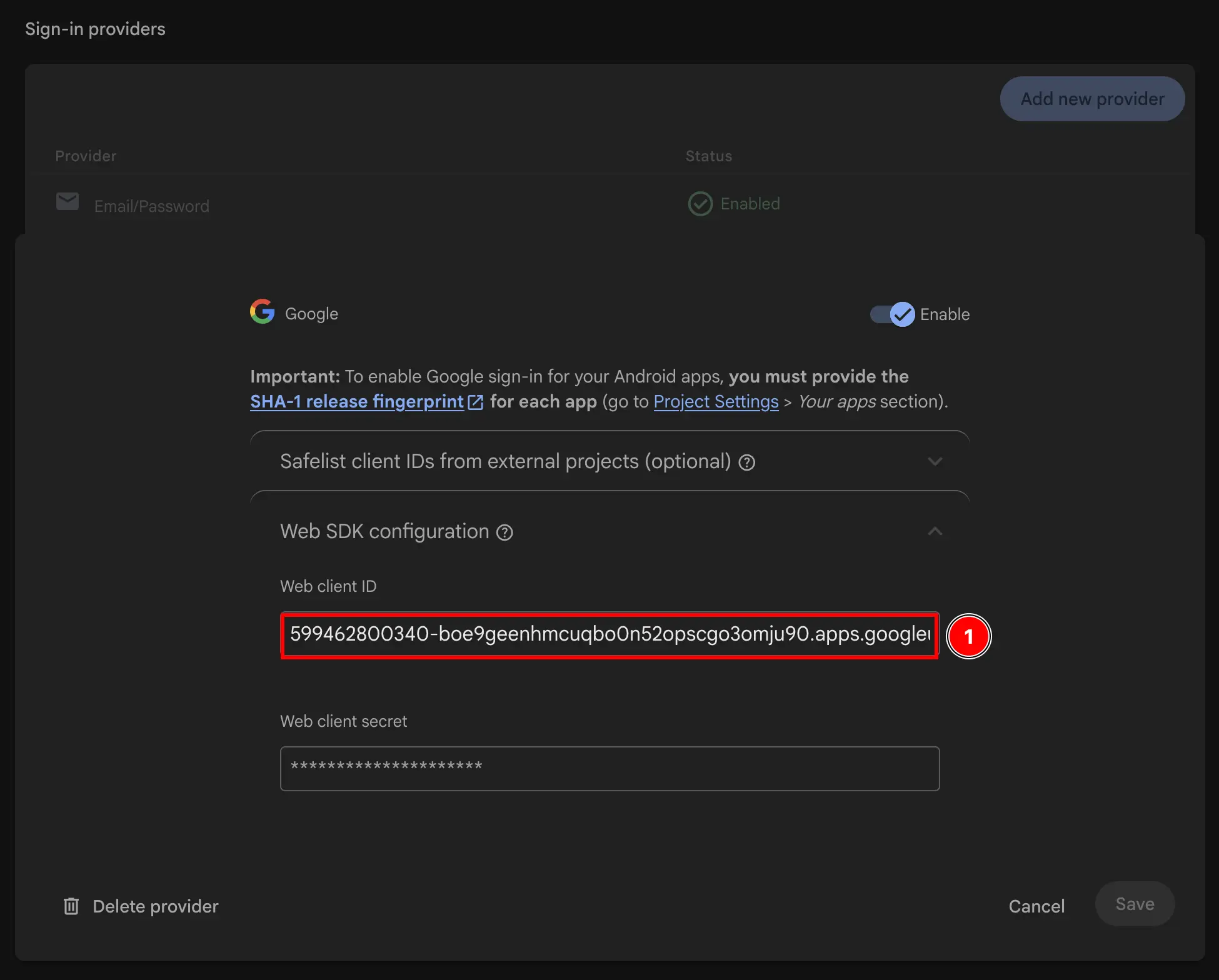
- Firebase consoleに戻り、
-
アプリの Info.plistを変更します
-
Xcodeを開いて
Info.plistファイルを見つけます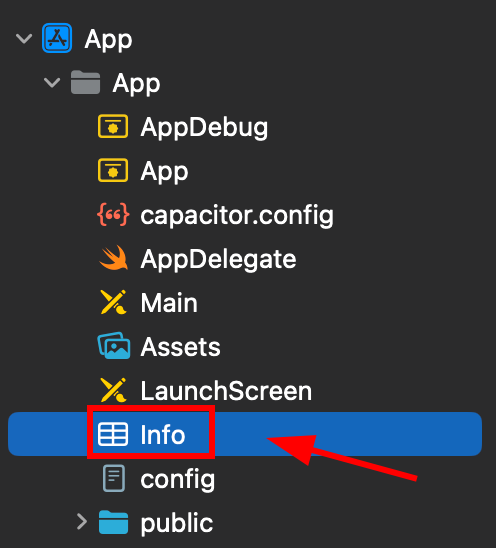
-
このファイルを右クリックしてソースコードとして開きます
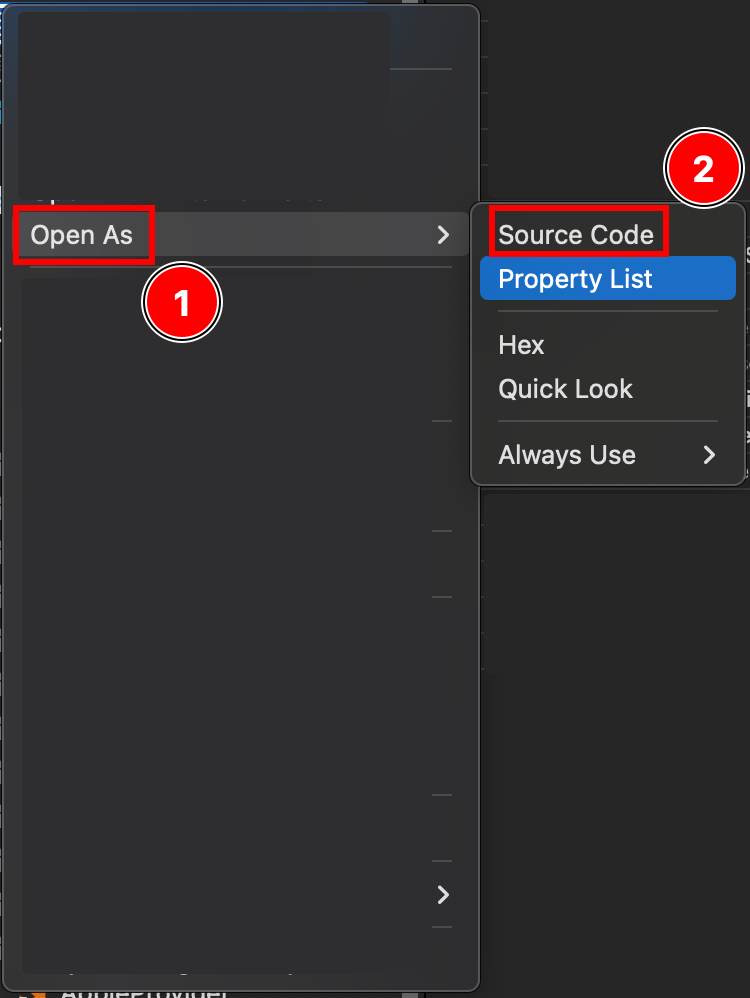
-
Plistファイルの下部に</dict>タグが表示されます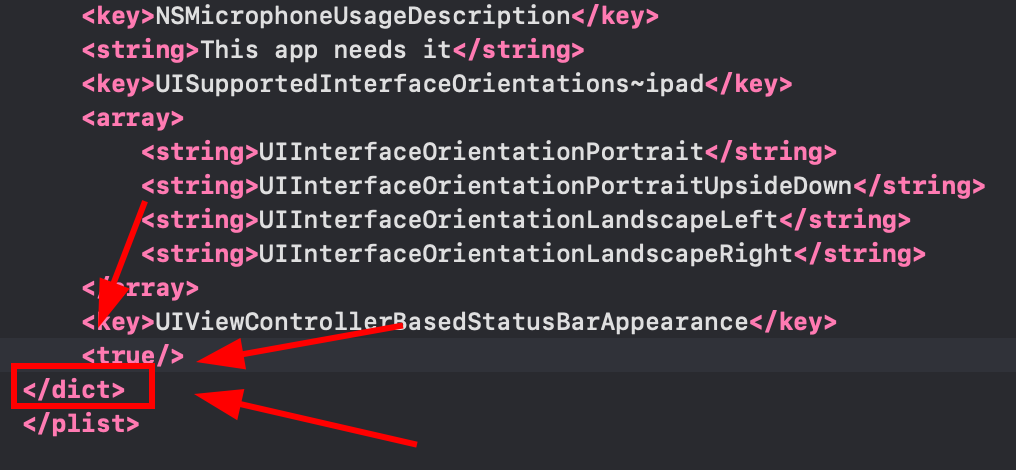
-
閉じる
</dict>タグの直前に次のフラグメントを挿入します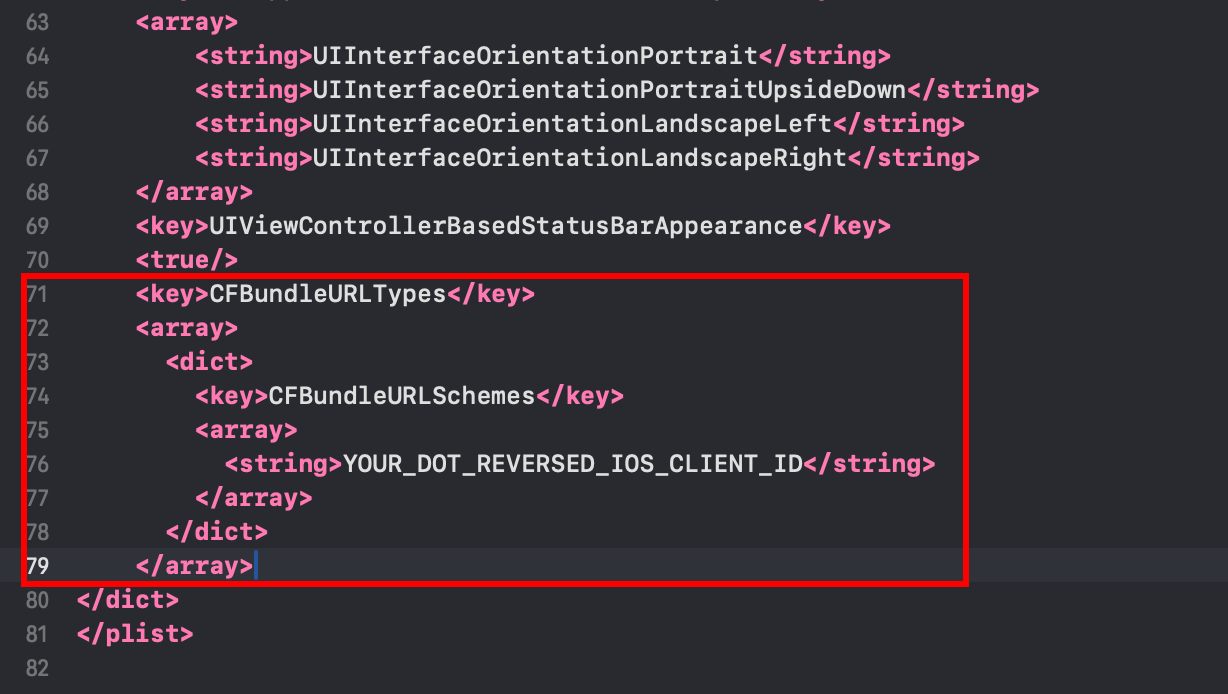 <key>CFBundleURLTypes</key><array><dict><key>CFBundleURLSchemes</key><array><string>YOUR_DOT_REVERSED_IOS_CLIENT_ID</string></array></dict></array><key>GIDClientID</key><string>YOUR_IOS_CLIENT_ID.apps.googleusercontent.com</string>
 -
YOUR_DOT_REVERSED_IOS_CLIENT_IDをステップ9でコピーした値(iOS URL scheme)に変更します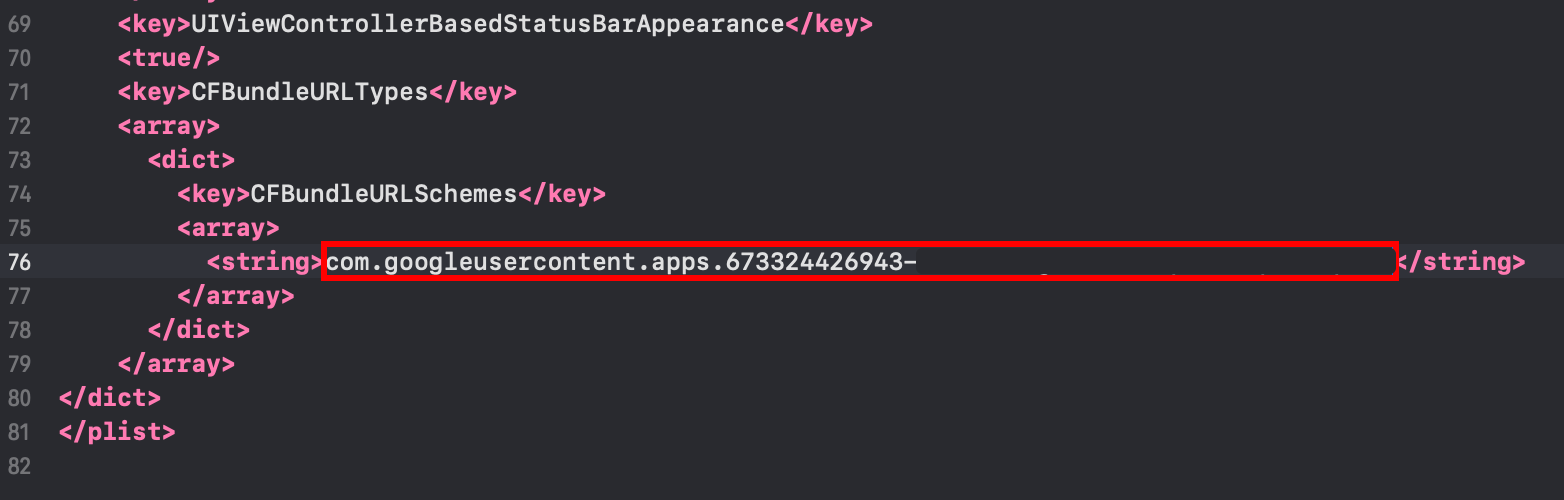
-
-
YOUR_IOS_CLIENT_IDをステップ9でコピーしたiOS Client IDに変更します -
Command + Sでファイルを保存します -
AppDelegate.swiftを変更します-
AppDelegateを開きます
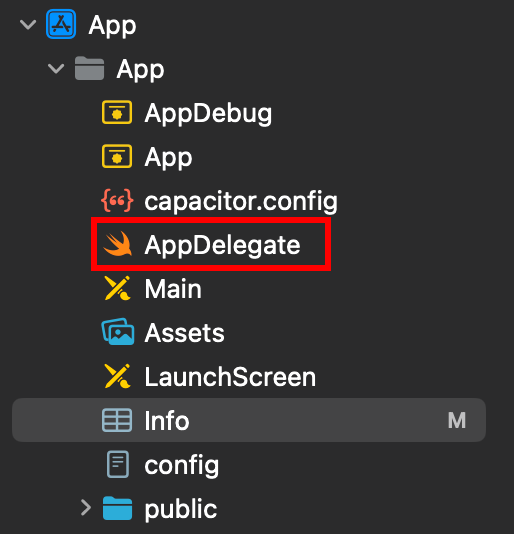
-
ファイルの先頭に
import GoogleSignInを挿入します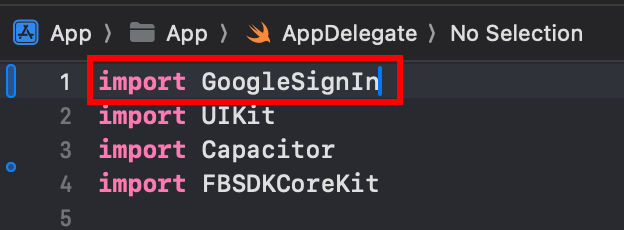
-
func application(_ app: UIApplication, open url: URL, options: [UIApplication.OpenURLOptionsKey: Any] = [:])関数を見つけます
-
関数を次のように変更します
func application(_ app: UIApplication, open url: URL, options: [UIApplication.OpenURLOptionsKey: Any] = [:]) -> Bool {// Called when the app was launched with a url. Feel free to add additional processing here,// but if you want the App API to support tracking app url opens, make sure to keep this callvar handled: Boolhandled = GIDSignIn.sharedInstance.handle(url)if handled {return true}return ApplicationDelegateProxy.shared.application(app, open: url, options: options)}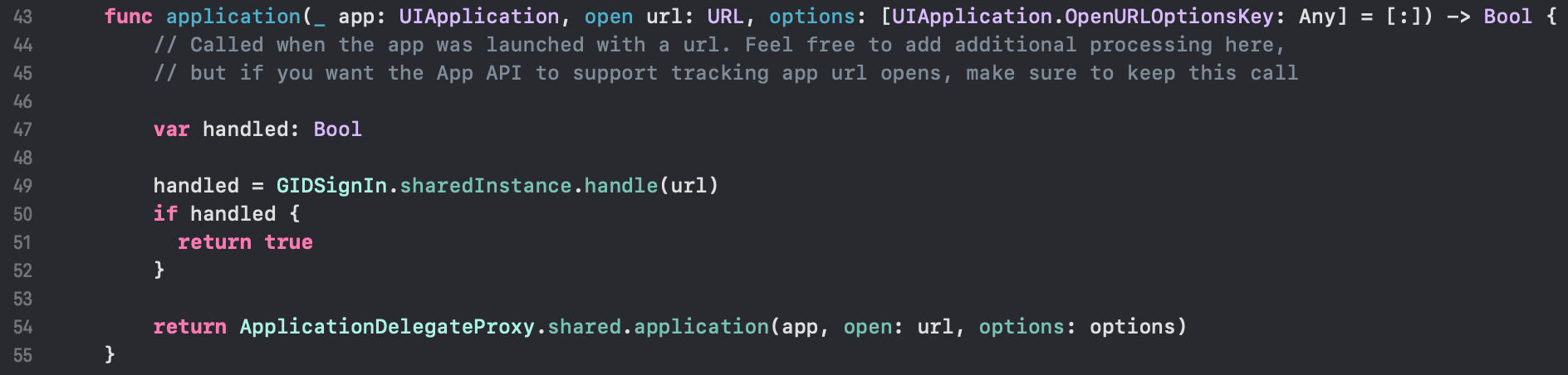
-
Command + Sでファイルを保存します
-
-
アプリでGoogleログインを使用する
この時点で、アプリでGoogleログインを使用する準備が整いました。 サンプルアプリのauthUtils.tsファイルを使用してGoogleで認証してください。
ユーザーは初回サインイン時にFirebase Authで自動的に作成されます
トラブルシューティング
Section titled “トラブルシューティング”認証がハングまたは失敗する場合:
idTokenのaudienceがFirebaseのWeb client IDと一致していることを確認してください- Firebase ConsoleでGoogleサインインが有効になっていることを確認してください
- Info.plistに正しいURL schemesとGIDClientIDがあることを確認してください
iOSServerClientIdがWeb client IDと一致していることを確認してください- 参考としてサンプルアプリコードを確認してください