
Android用のGoogleログイン
このプラグインのインストールステップとフルマークダウンガイドのコピー可能な設定プロンプトをコピーする
このガイドでは、Capgo Android用のSocial Loginの設定方法を学びます。Googleログインを設定する方法を学びます。一般的な設定ガイドをすでに読んだことを前提としています。 一般設定ガイド.
AndroidでGoogleログインを使用する
「AndroidでGoogleログインを使用する」のセクションこのセクションでは、AndroidでGoogleログインを設定する方法を学びます。
-
AndroidクライアントIDを作成します。
-
検索バーをクリックしてください。

-
で検索してください。
credentials検索結果を表示してください。APIs and Services検索結果の表示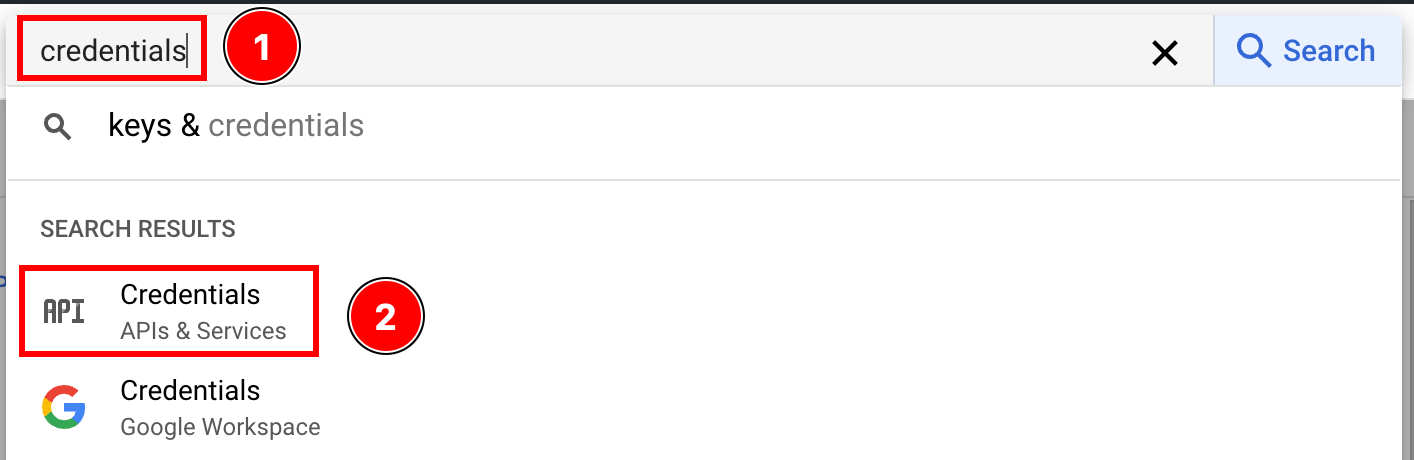
-
クリックしてください。
create credentials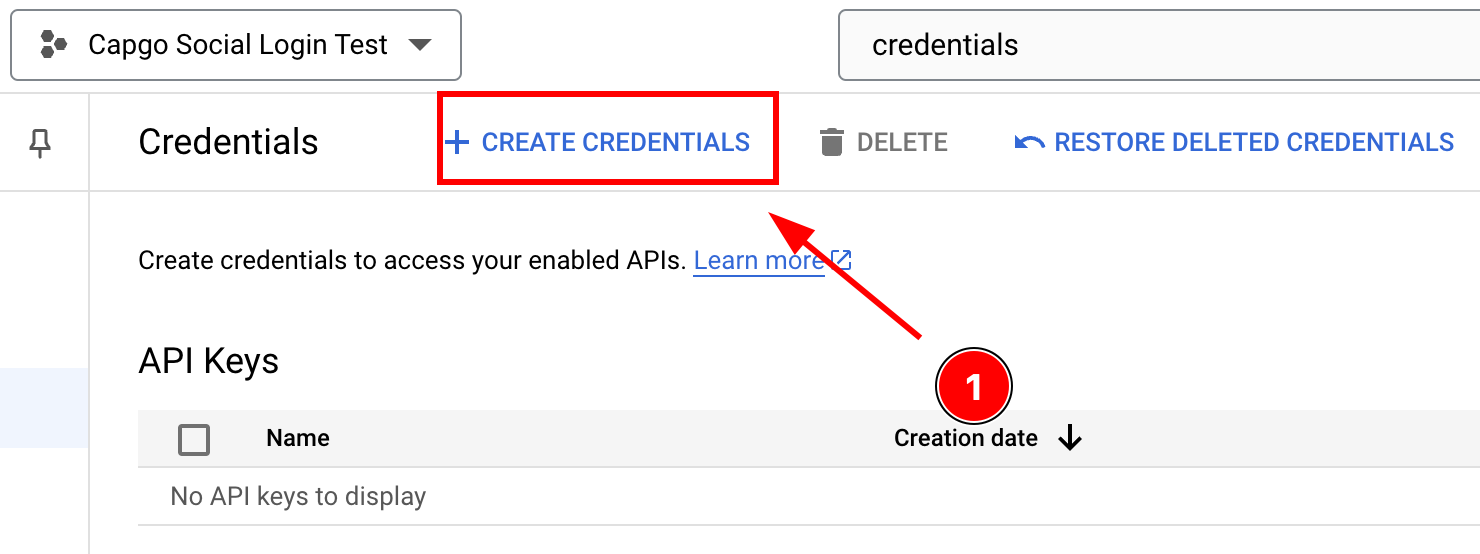
-
選択してください
OAuth client ID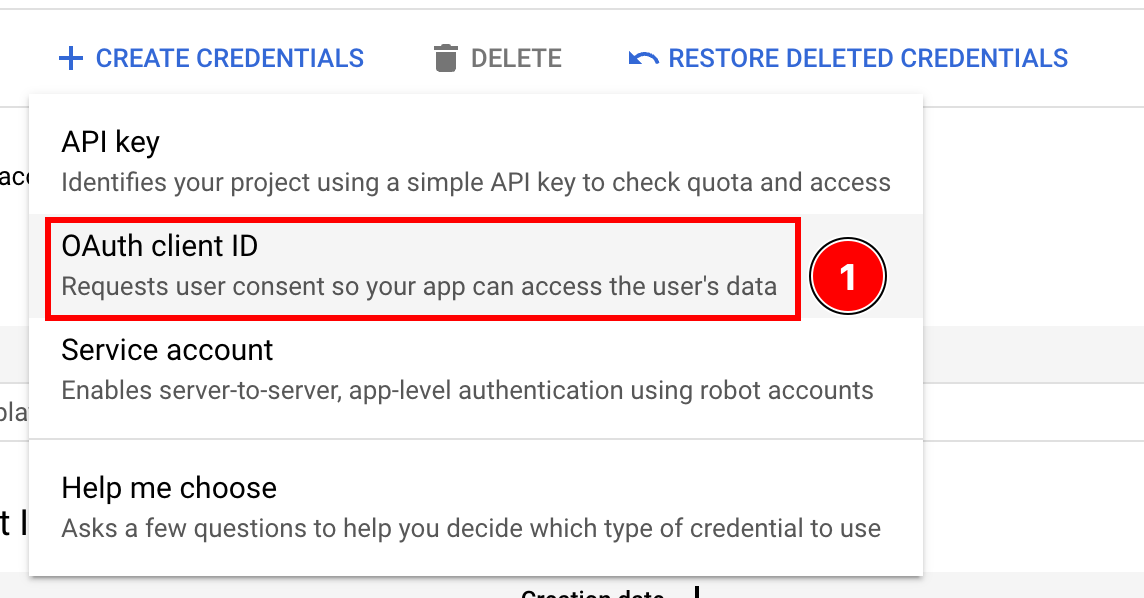
-
選択してください
Androidアプリケーションタイプ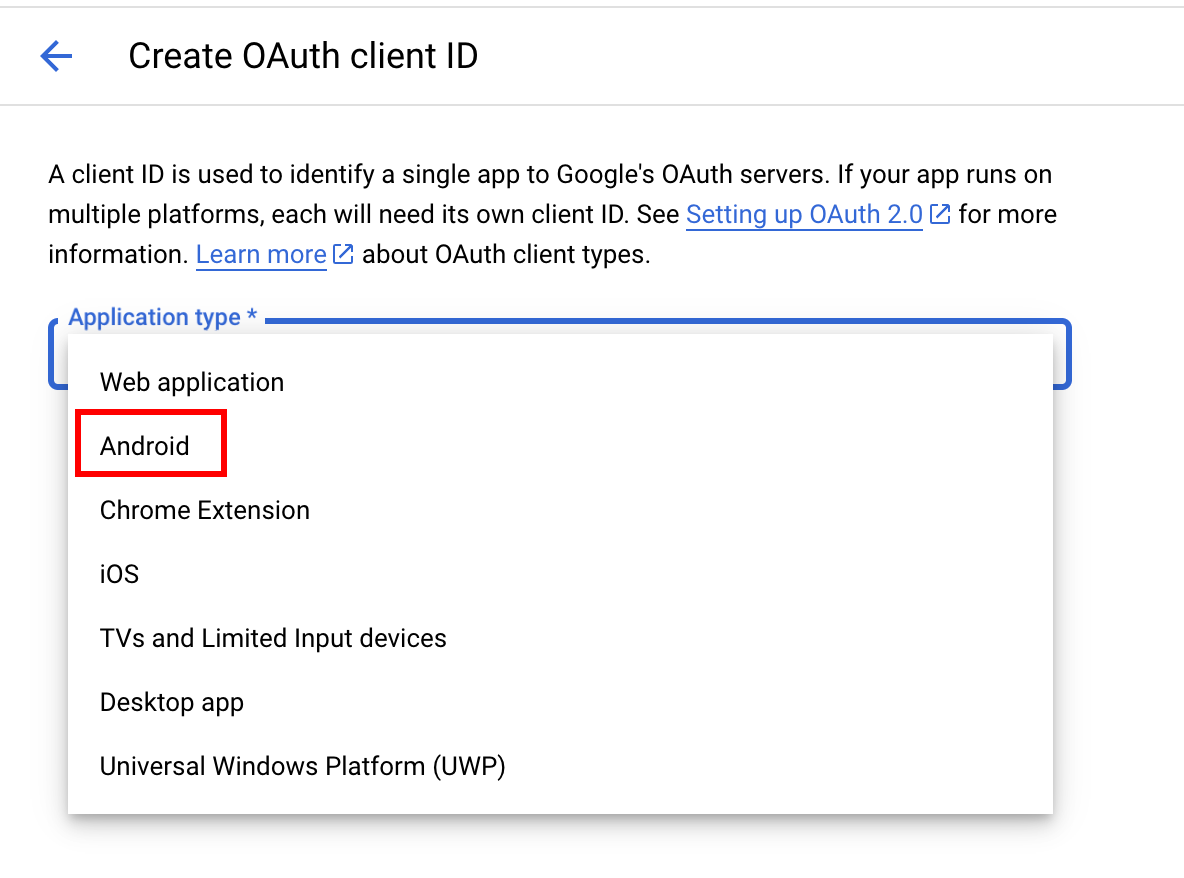
-
Android Studioを開く
-
Android Studioのプロジェクトナビゲーターの最下部に移動し、
Gradle Scripts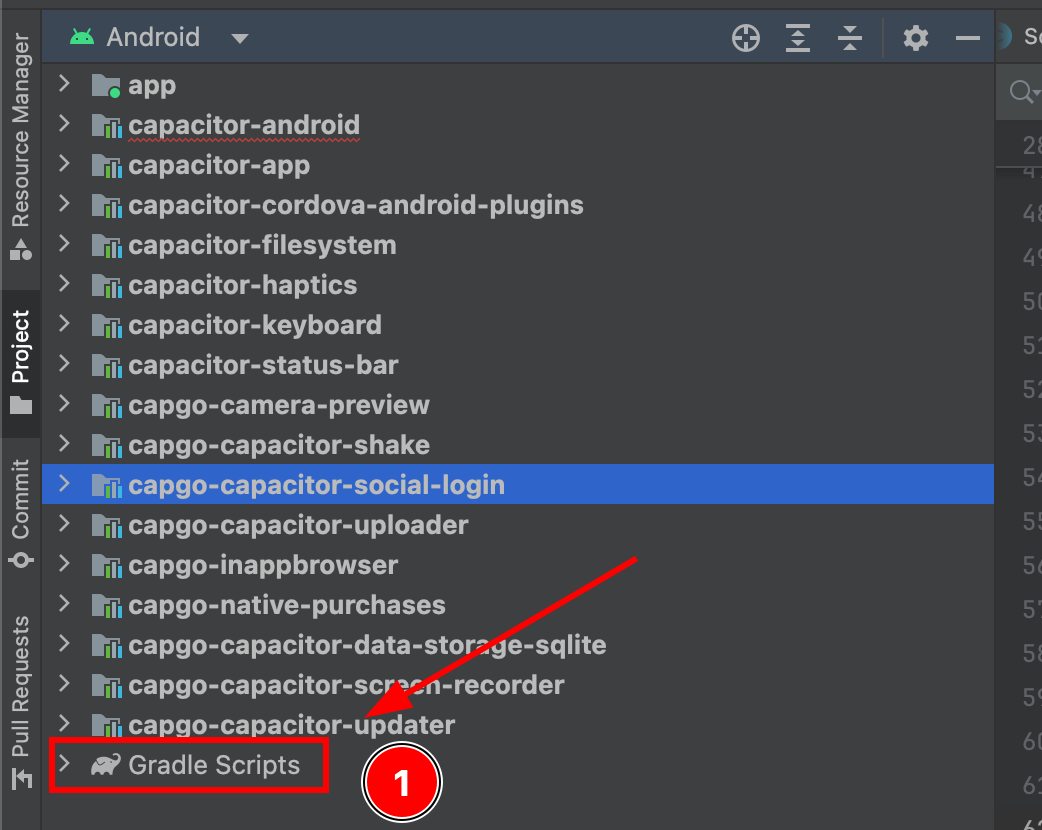
-
Find
build.gradleコピーするapp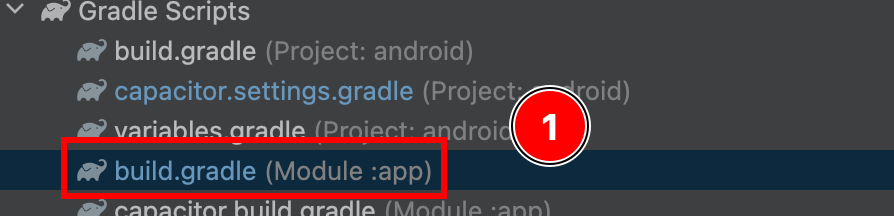
-
コピーする
android.defaultConfig.applicationIdアプリケーションタイプの選択画面package nameGoogleコンソール内
-
現在、ターミナルを開いてください。アプリのフォルダに移動し、以下のコマンドを実行してください。
androidターミナルの出力が表示される。 gradlew signInReportコマンドを実行します。./gradlew signInReport

- SHA1証明書の指紋を示すターミナル出力
SHA1.
![Googleコンソールに戻り、パッケージ名とSHA1を入力し、[作成]ボタンをクリックしてください。](/social-login-assets/term_sign_report_res.png)
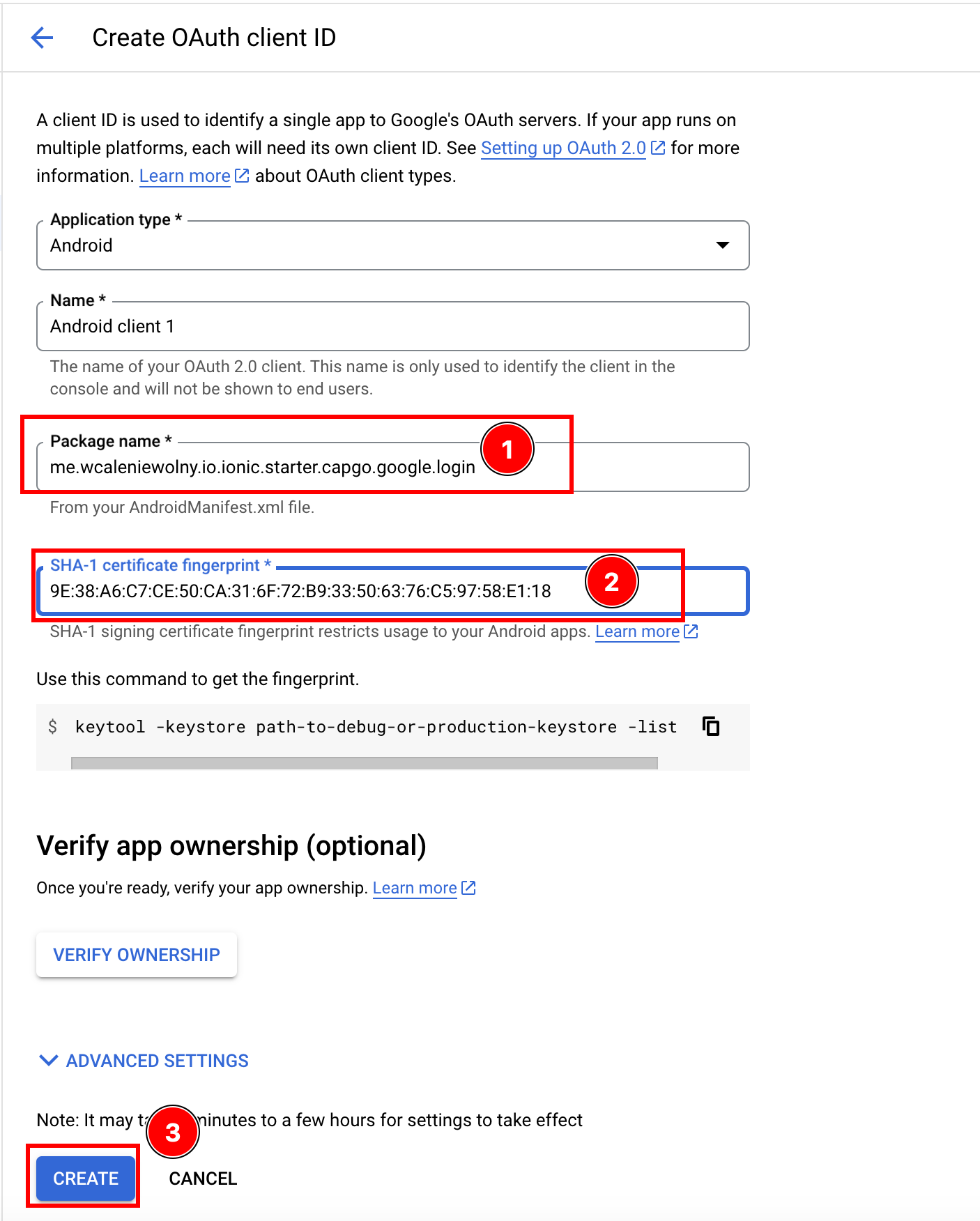
- パッケージ名とSHA1を入力したAndroidクライアント作成フォーム
applicationIdas thePackage Nameパッケージ名とSHA1を入力したAndroidクライアント作成フォームcreate
-
-
Googleコンソールに戻り、パッケージ名とSHA1を入力し、[作成]ボタンをクリックしてください。
-
Capgoにアクセス
Create credentialsGoogle Consoleのページ -
アプリケーションの種類を
Web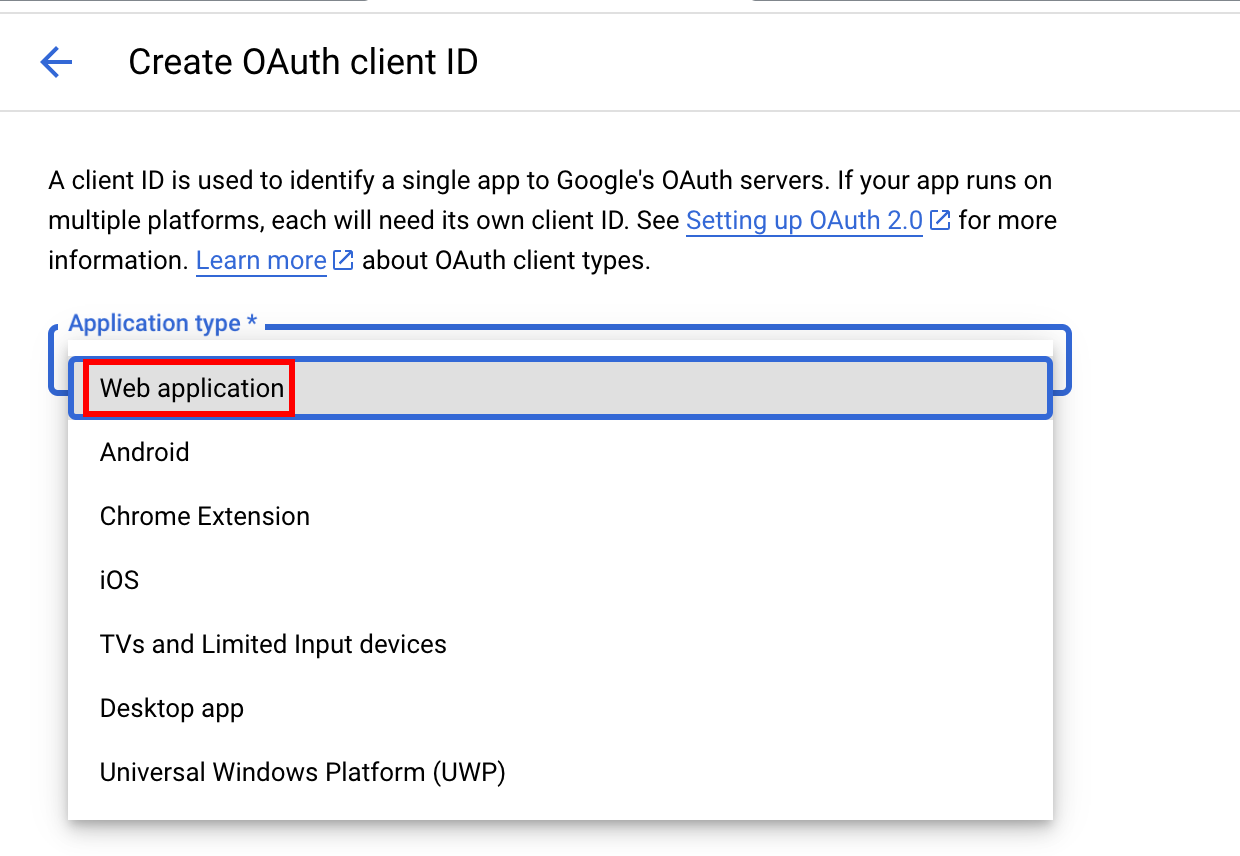
-
クリックしてください
Create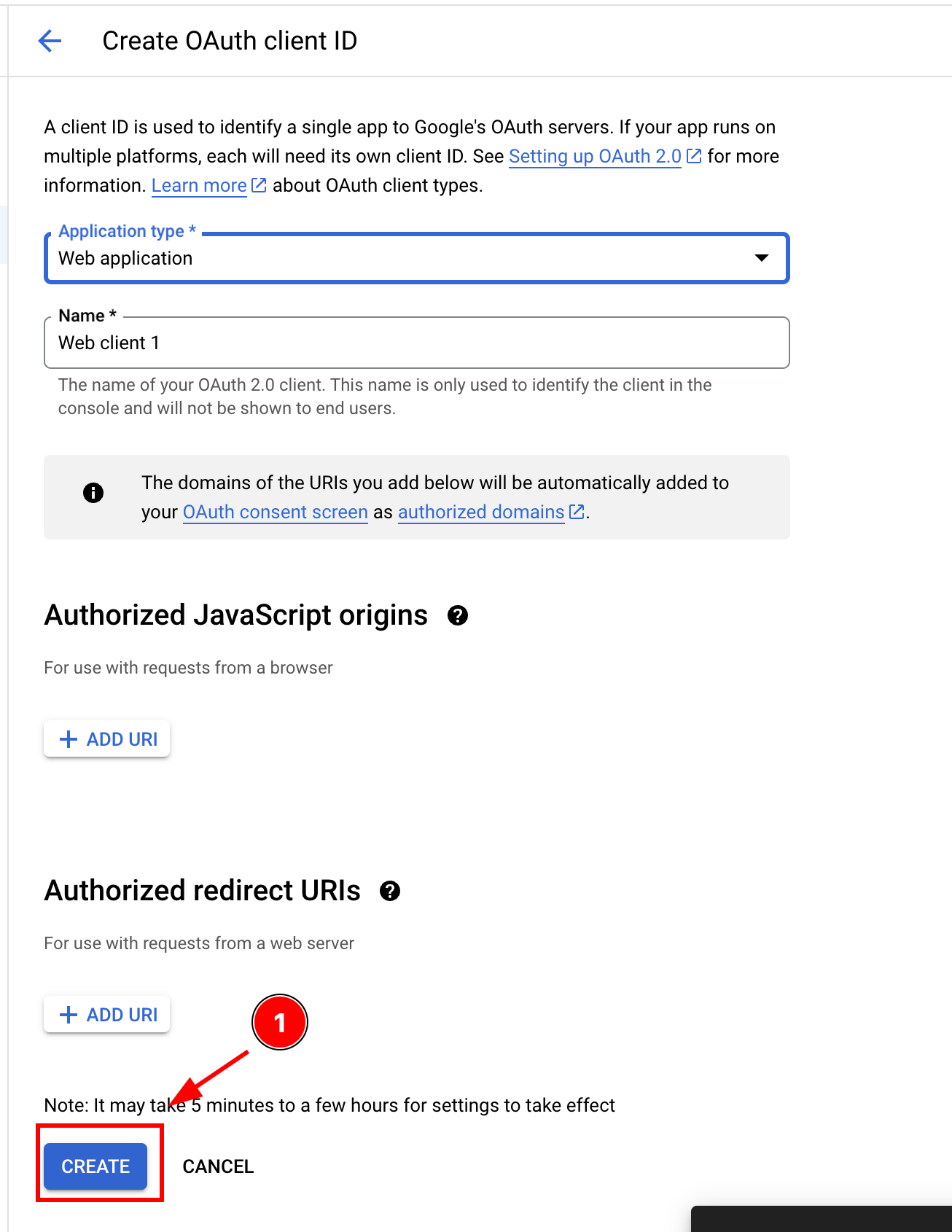
-
クライアントIDをコピーしてください
webClientIdJS/TSのcodeに使用します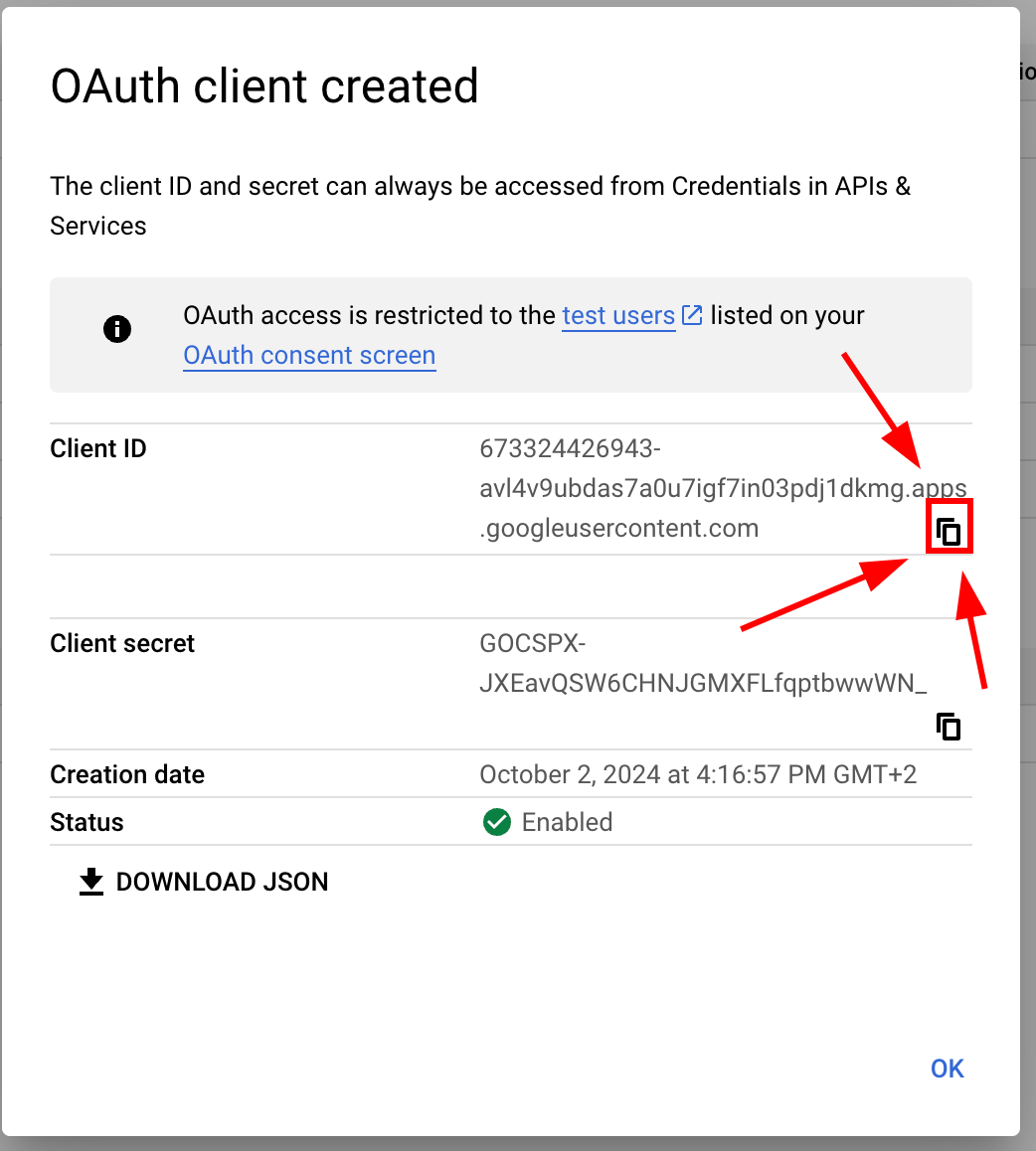
-
-
アプリケーションを修正してください
MainActivity-
Android Studioでアプリを起動してください
cap open android -
検索してください
MainActivity.java-
「開く」
appフォルダ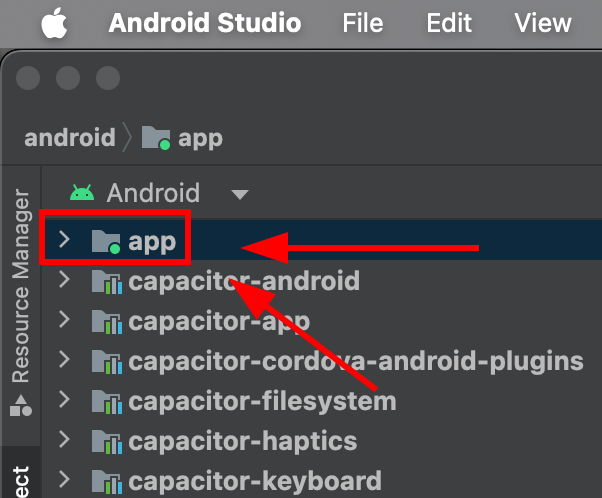
-
検索
java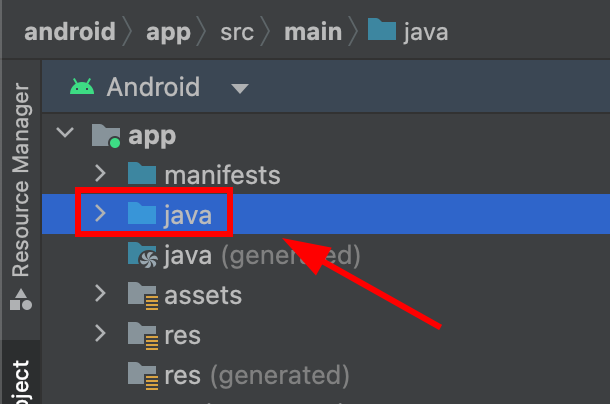
-
検索して
MainActivity.javaをクリックしてください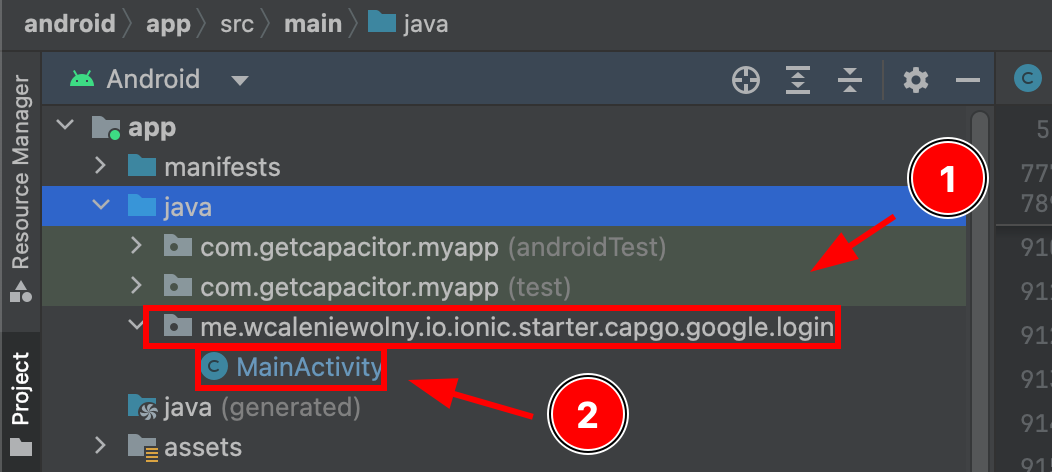
-
-
Modify
MainActivity.java. Please add the following codeimport ee.forgr.capacitor.social.login.GoogleProvider;import ee.forgr.capacitor.social.login.SocialLoginPlugin;import ee.forgr.capacitor.social.login.ModifiedMainActivityForSocialLoginPlugin;import com.getcapacitor.PluginHandle;import com.getcapacitor.Plugin;import android.content.Intent;import android.util.Log;import com.getcapacitor.BridgeActivity;// ModifiedMainActivityForSocialLoginPlugin is VERY VERY important !!!!!!public class MainActivity extends BridgeActivity implements ModifiedMainActivityForSocialLoginPlugin {@Overridepublic void onActivityResult(int requestCode, int resultCode, Intent data) {super.onActivityResult(requestCode, resultCode, data);if (requestCode >= GoogleProvider.REQUEST_AUTHORIZE_GOOGLE_MIN && requestCode < GoogleProvider.REQUEST_AUTHORIZE_GOOGLE_MAX) {PluginHandle pluginHandle = getBridge().getPlugin("SocialLogin");if (pluginHandle == null) {Log.i("Google Activity Result", "SocialLogin login handle is null");return;}Plugin plugin = pluginHandle.getInstance();if (!(plugin instanceof SocialLoginPlugin)) {Log.i("Google Activity Result", "SocialLogin plugin instance is not SocialLoginPlugin");return;}((SocialLoginPlugin) plugin).handleGoogleLoginIntent(requestCode, data);}}// This function will never be called, leave it empty@Overridepublic void IHaveModifiedTheMainActivityForTheUseWithSocialLoginPlugin() {}} -
Open the
-
-
Googleログインをアプリケーションに使用する
-
最初にインポートする
SocialLoginimport { SocialLogin } from '@capgo/capacitor-social-login'; -
初期化を呼び出す。1度だけ呼び出す必要がある。
// onMounted is Vue specific// webClientId is the client ID you got in the web client creation step not the android client ID.onMounted(() => {SocialLogin.initialize({google: {webClientId: '673324426943-avl4v9ubdas7a0u7igf7in03pdj1dkmg.apps.googleusercontent.com',}})}) -
呼び出し
SocialLogin.login. ボタンを作成し、次の code をクリックすると実行します。const res = await SocialLogin.login({provider: 'google',options: {}})// handle the responseconsole.log(JSON.stringify(res))
-
-
エミュレータの設定
-
に移動し
Device managerプラスボタンをクリック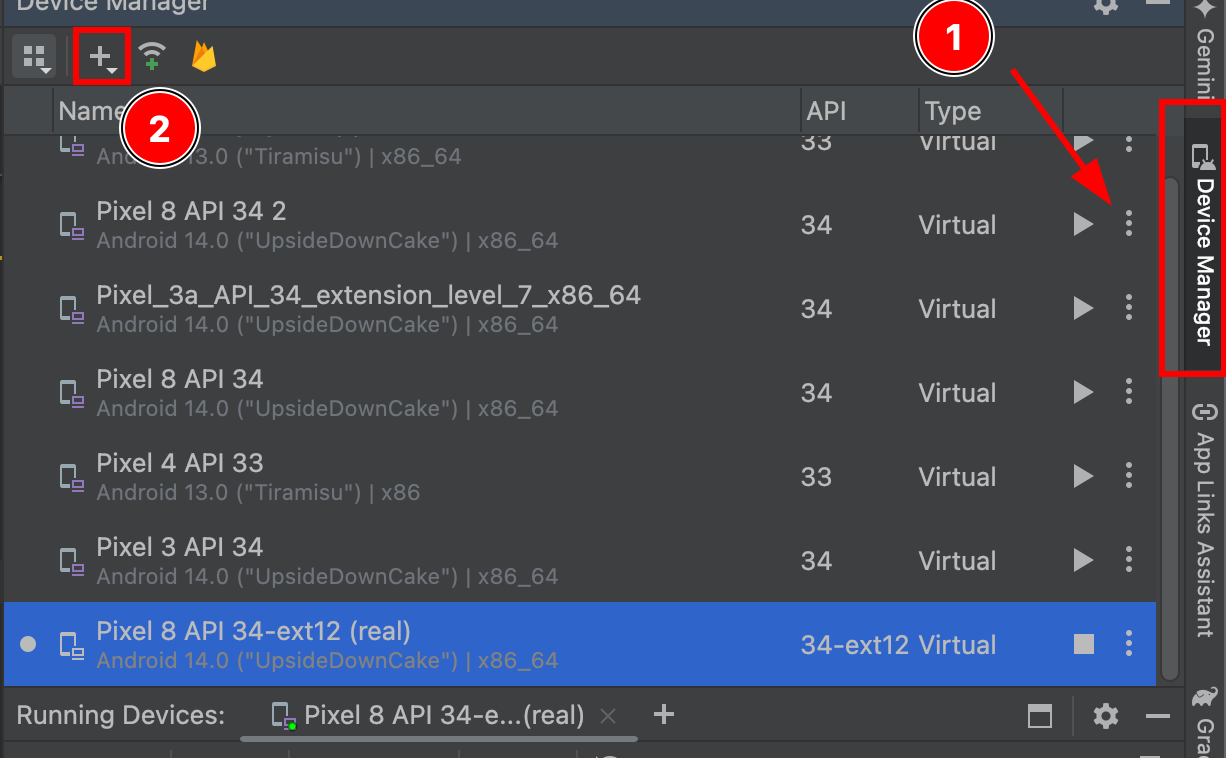
-
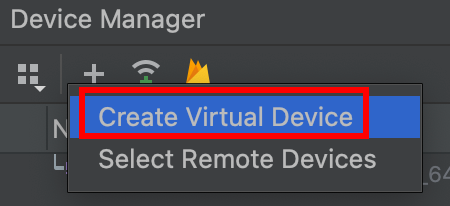
仮想デバイスの作成
-
任意のデバイスを選択し、
Play Storeアイコン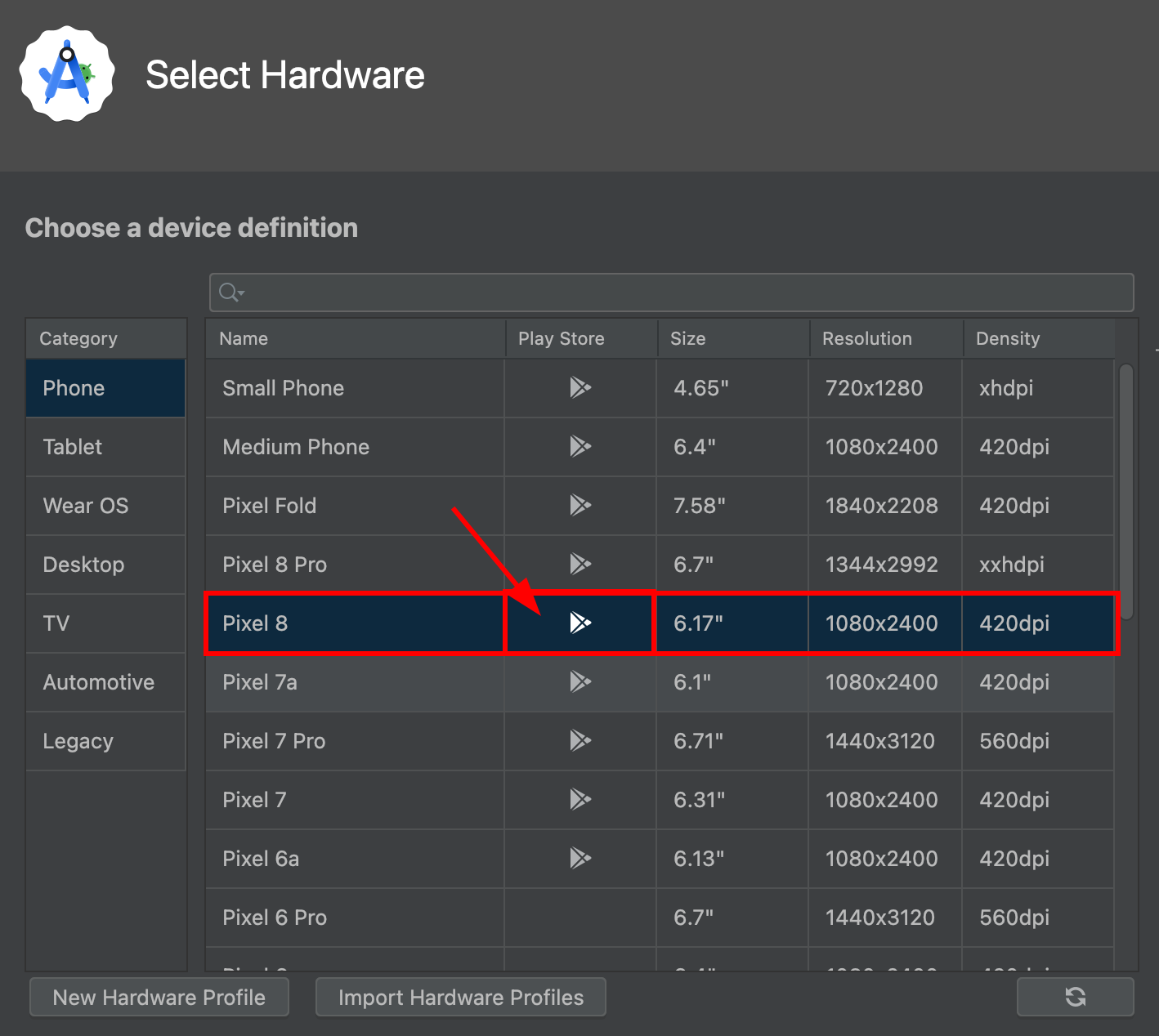
Android の Google のソーシャルログインプラグインは、Capacitor の Live Update によって提供されます。
pixel 8サポートします。Play Storeservices -
Click
next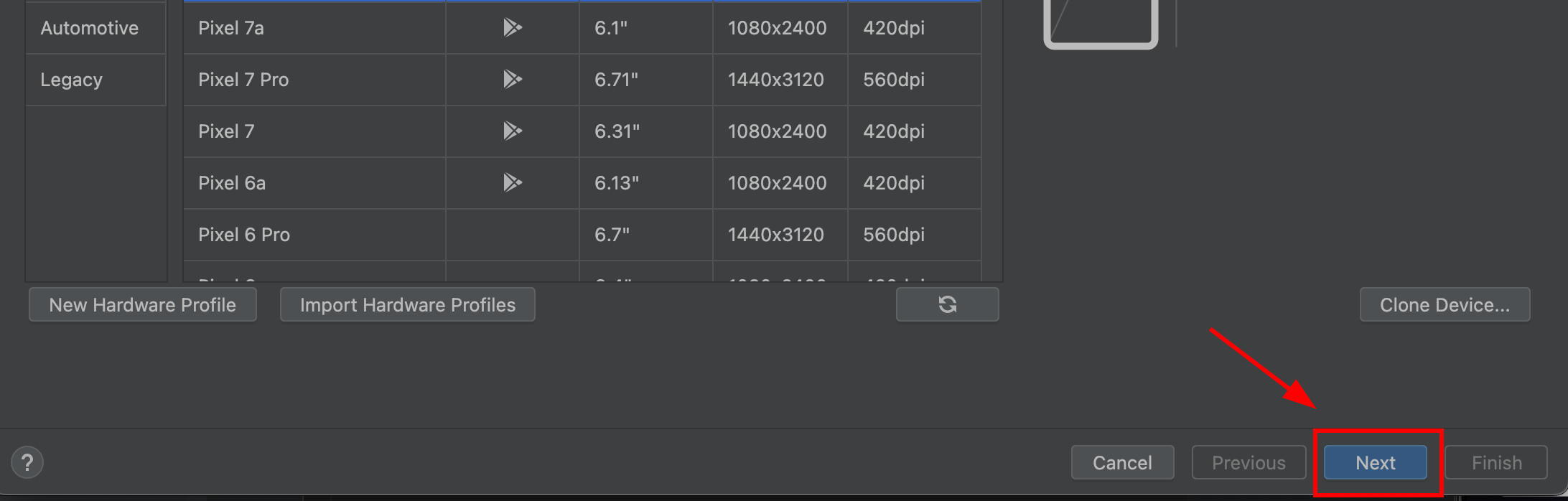
-
OSイメージのタイプが
Google Play. IT MUST タイプが必要です。Google Play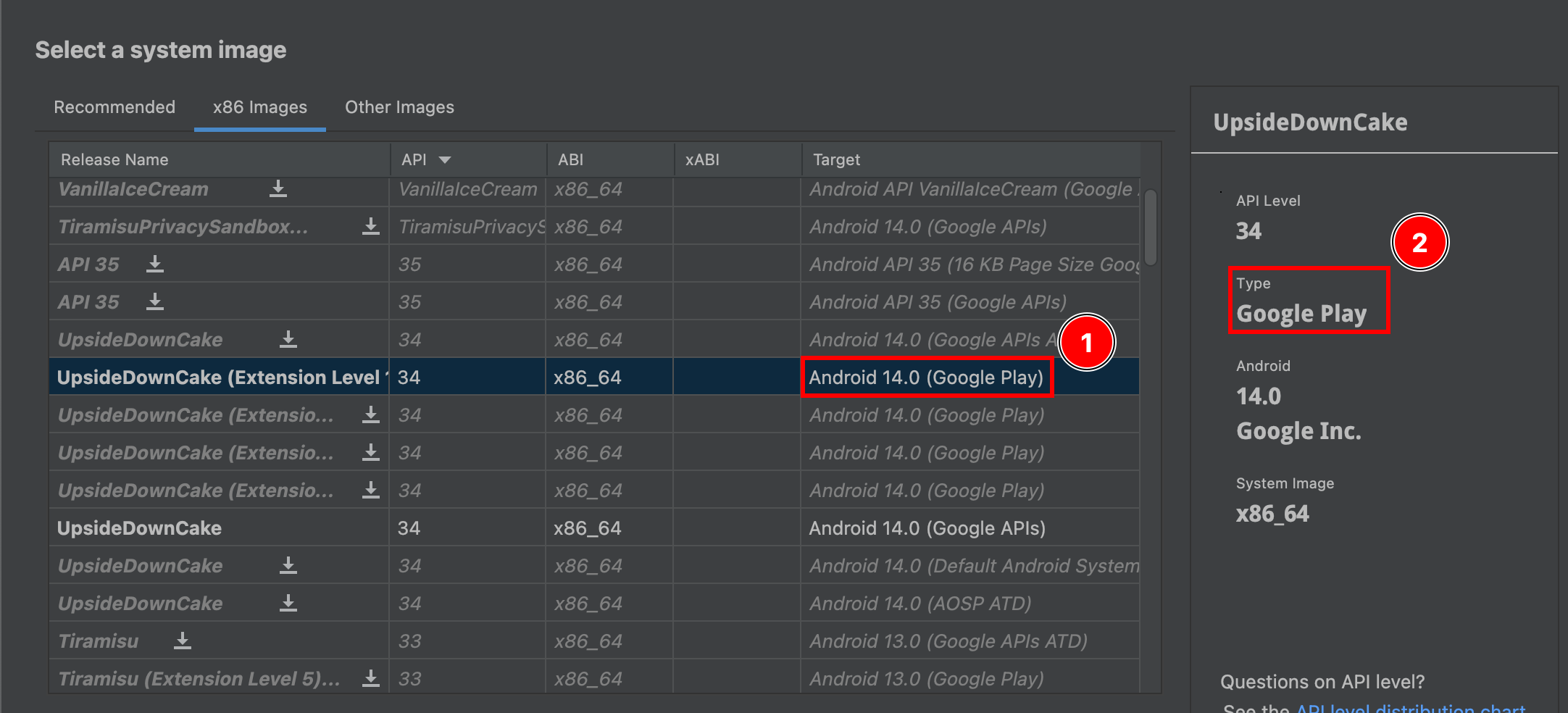
-
次へクリック
-
確認するデバイス。エミュレータに名前を付けることができます
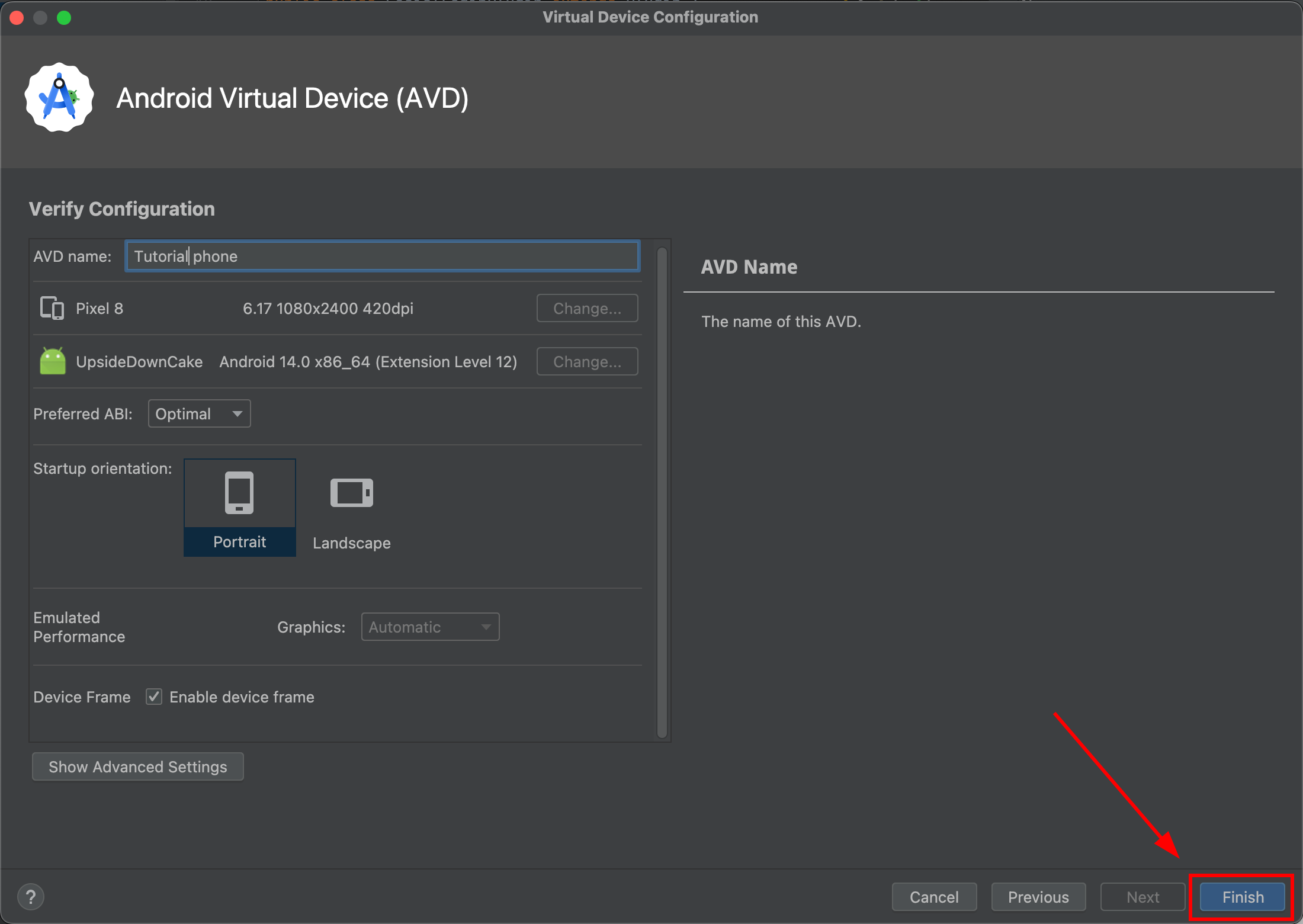
-
シミュレータに
Device Managerとシミュレータを起動してください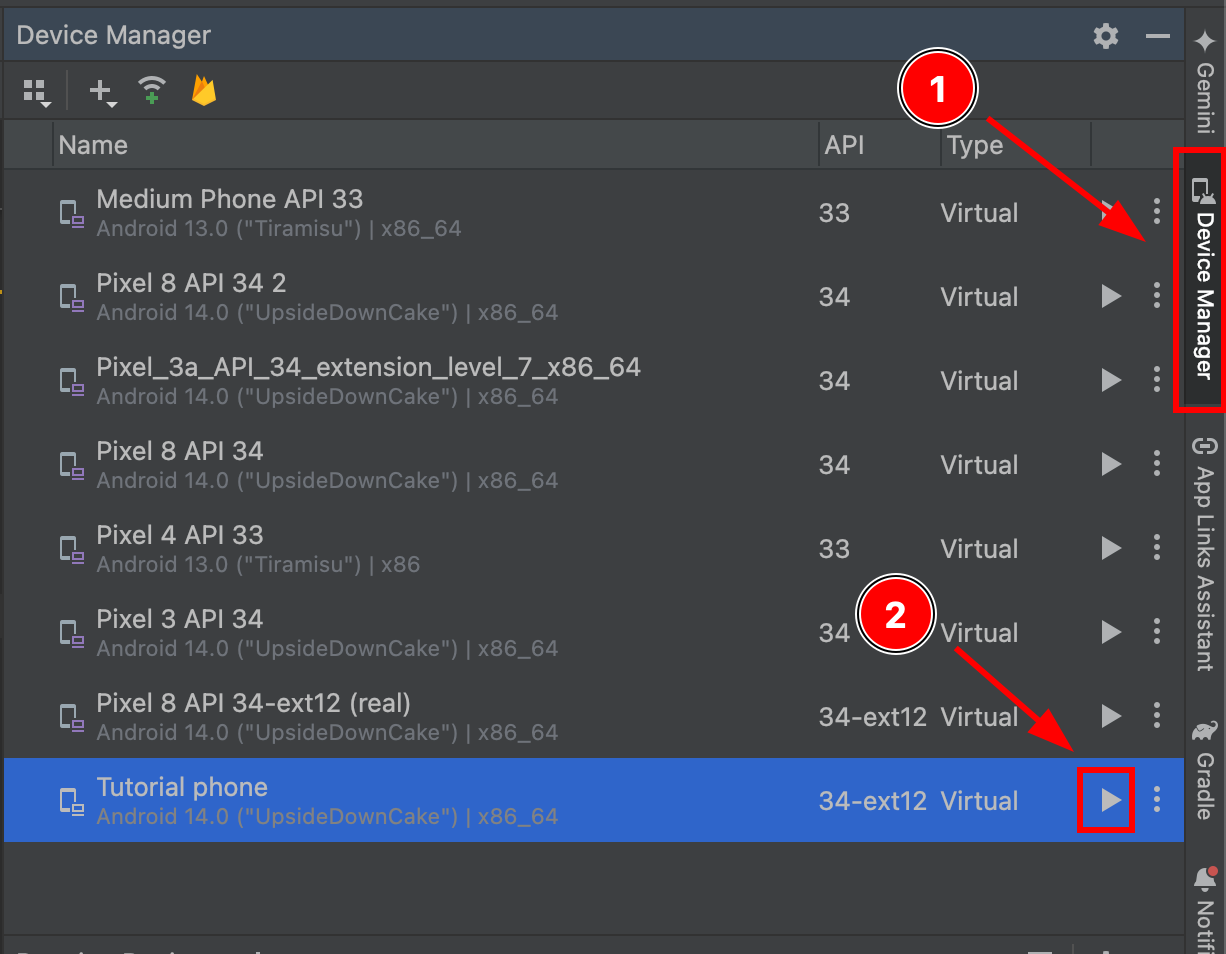
-
シミュレータが起動したら、設定に進みます
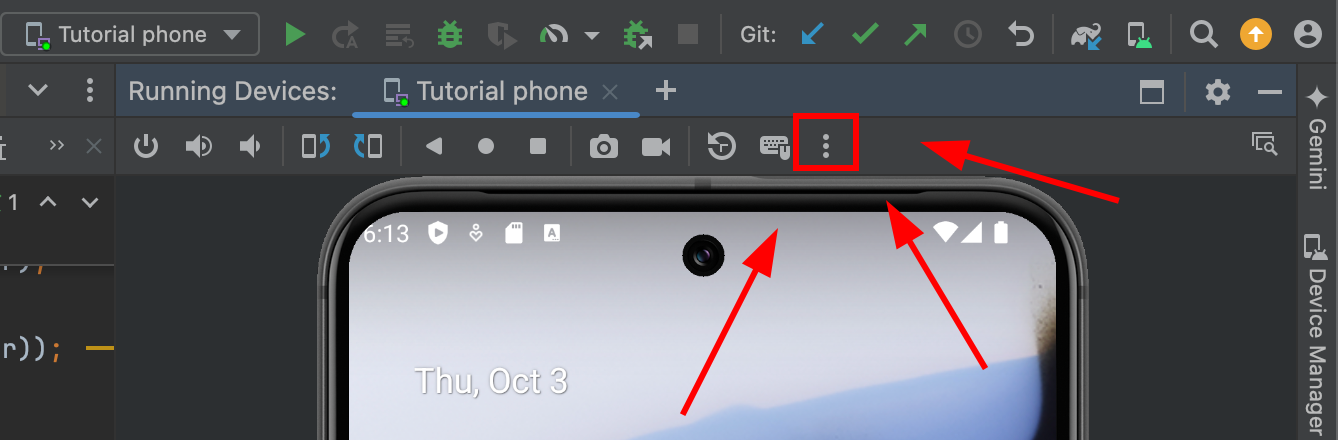
-
シミュレータに
Google Play
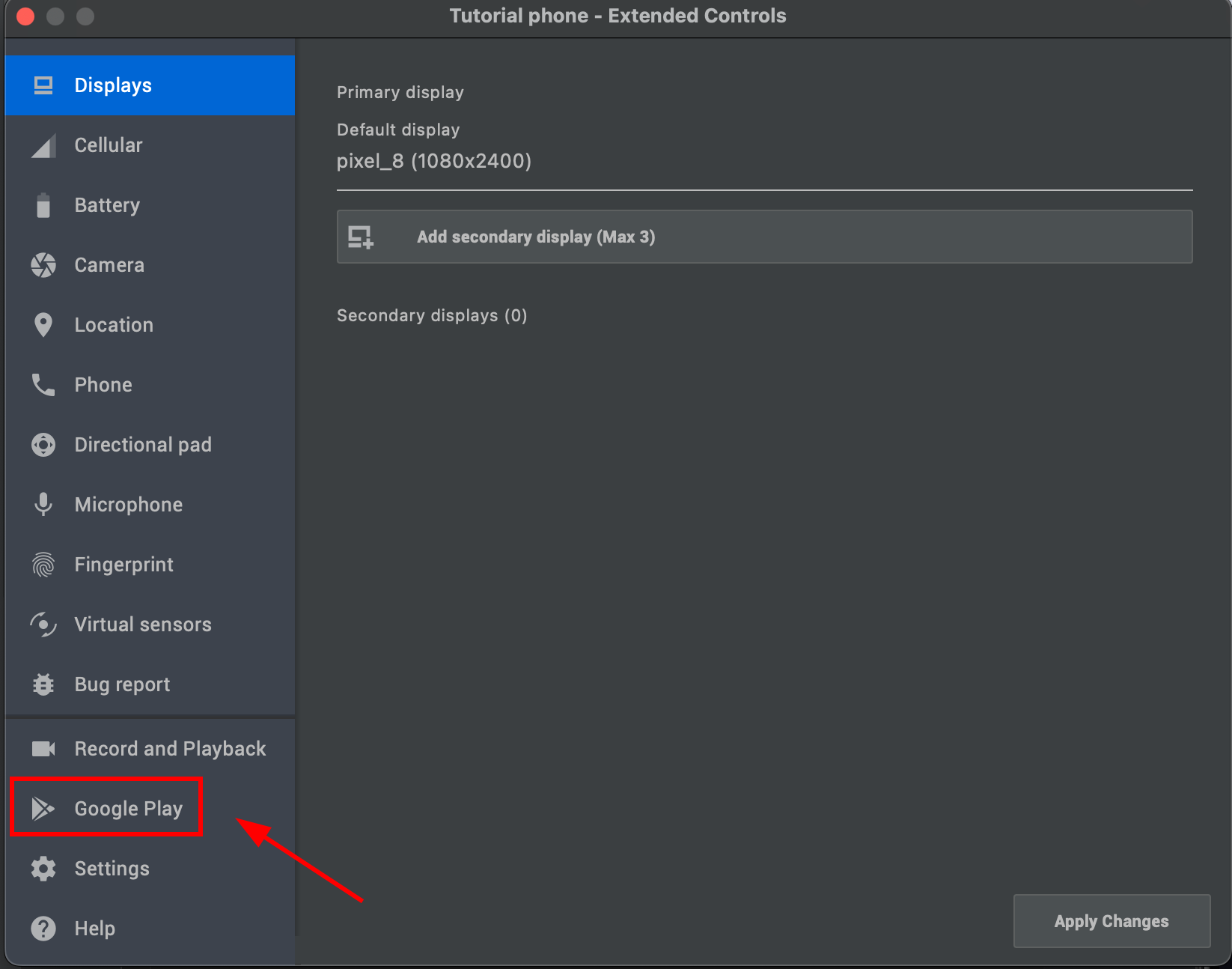
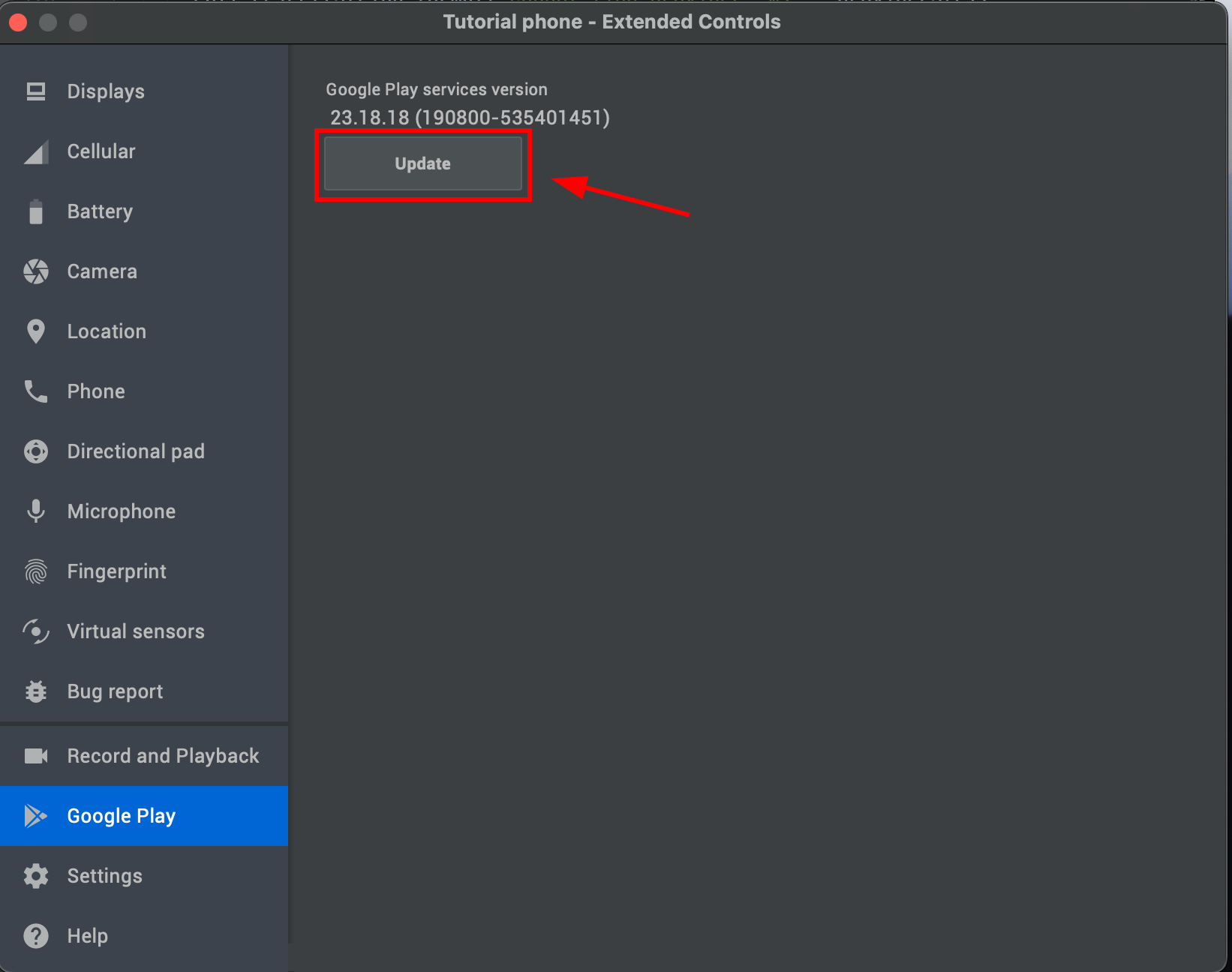
- をクリック
Update約60秒待ちます
-
-
アプリケーションをテストしてください
正しく設定した場合、Google ログインフローが正常に動作するはずです:

トラブルシューティング
トラブルシューティング問題が発生した場合は、まずアプリの設定を Google Cloud Console の値と比較してください。 Android の Google Sign-In の失敗は、パッケージ名、SHA-1、またはクライアントIDの不一致によって引き起こされることがよくあります。
クレデンシャルマネージャー、SHA-1、および Firebase
Android 上で、このプラグインは Google Credential Manager (と Google にサインインする) を使用しますが、LEGACYandroidx.credentials __CAPGO_KEEP_0__。 GoogleSignInClient API. ログキャットエラーとして表示される GetCredentialCustomException: [28444] Developer console is not set up correctly ログキャットをフィルタしてください
ログキャットをフィルタする GoogleProvider または CapgoSocialLogin 失敗したログイン後、プラグインはパッケージ名、署名のSHA-1、およびマスクされた webClientId これらをGoogle Cloud Consoleで比較することができます。
必要なGoogle Cloud設定
「必要なGoogle Cloud設定」Google Cloudプロジェクト内に2種類のOAuth 2.0クライアントIDが必要です:
| クライアントタイプ | 使用 | 場所 |
|---|---|---|
| Webアプリケーション | サーバー/IDトークン受信者 | webClientId に SocialLogin.initialize() |
| Android、署名キーごとに1つ | Googleを呼び出すことを許可されているAPKを証明します | Google Cloud Consoleのみ。 このIDを webClientId |
Android クライアント ID を使用するのはよくない慣行です。 webClientId各署名証明書でビルドをテストする場合に1つのAndroid OAuthクライアントを作成してください:
デバッグ:
- デバッグ用の
./gradlew signingReportリリース: 実際にインストールするAPKまたはAABから - リリース: APK または AAB から実際にインストールするものです。
- 必要なのは
の applicationId in android/app/build.gradle Android OAuth クライアント パッケージ名は、任意のサフィックスを含めて正確に一致する必要があります。 .debug サフィックス。
OAuthConsent画面がテストモードになっている場合、Audience > テストユーザーにテストするGoogleアカウントをすべて追加してください。アプリをProductionに公開する必要はありません。 email そして profile スコープ。assetlinks.jsonDigital Asset Links ( ) は、Credential Managerを通じてGoogleでサインインする必要はありません。
Google Cloudの変更は最大数時間かけて反映される場合があります。
エラー 28444: 開発者コンソールが正しく設定されていない
エラー 28444: 開発者コンソールが正しく設定されていないこれはほとんどの場合、Googleがインストール済みのAPK署名証明書、パッケージ名、 webClientIdを組み合わせて却下したことを意味します。
- 確認してください
webClientIdはWebアプリケーションクライアントIDであり、.apps.googleusercontent.com. - アプリを実行し、エラーが発生した場合のログキャットを読み、
GoogleProvider,signingSha1=, そしてpackage=. - で Google Cloud Console > 資格情報, Android OAuthクライアントを開き、パッケージ名とSHA-1の完全な値を確認する
- リリースビルドをテストしている場合、デバッグキーストアからSHA-1を登録するのではなく、そのビルドからSHA-1を登録する
- リリースビルドがPlayストアを通じて配布されている場合、Playアプリ署名SHA-1も登録する
- WebアプリとAndroidアプリが同じGoogle Cloudプロジェクト内に存在することを確認する
- consent画面がテストモードの場合、Googleアカウントがテストユーザーであることを確認する
- コンソールの変更後、待機して再試行する
USER_CANCELLED デバッグビルドの設定が不正である場合、ログイン後にアカウントを選択した後もSHA-1またはクライアントIDの不一致が発生する可能性がある。コンソールの設定を修正することから始める
インストールするビルドからSHA-1を抽出
「インストールするビルドからSHA-1を抽出」のセクションデバッグまたはローカルビルド:
cd android && ./gradlew signingReport署名済みリリースAPK:
keytool -printcert -jarfile android/app/release/app-release.apkパッケージ名が一致するAndroid OAuthクライアントにそのSHA-1を追加し、同じ署名済みAPKを再インストールし、再度テストしてください。
adb install android/app/release/app-release.apkログイン結果を読み取る
セクションのタイトル “ログイン結果を読む”トークンは次のようにネストされています result:
const login = await SocialLogin.login({ provider: 'google' });const idToken = login.result?.idToken;Firebase Authの場合、次のクレデンシャルを作成します idToken WebクライアントIDを使用します webClientId で initialize.
開発用SHA-1証明書を取得できない場合は、カスタムキーストアを試してください。 この問題コメント プロジェクトにキーストアを追加する方法について説明しています。
Google Login on Androidから続けてください
セクションのタイトル “Google Login on Androidから続けてください”Google Login on Androidを使用している場合 AndroidでGoogleログイン 認証とアカウントフローの計画に役立つため、接続してください。 @capgo/capacitorでソーシャルログインを使用します。 Using @capgo/capacitor-social-login Using @capgo/capacitor-social-login Using @capgo/capacitor-passkey Using @capgo/capacitor-passkey Using @capgo/capacitor-native-biometric Using @capgo/capacitor-native-biometric for the capgo implementation detail in capacitor-native-biometric, and 2要素認証 Two-factor authentication
Capacitor アプリを配信 待たずに
iOS と Android アプリを Mac なしで作成し、1 つのクリックで戻すことができます。


ビジネス用のニーズがありますか? チームと話しましょう