
Progressive rollouts
Copy a setup prompt with the install steps and the full markdown guide for this plugin.
A progressive rollout keeps a channel’s stable fallback in place while delivering a separate rollout target to a controlled subset of devices. Most production users stay on stable. Only the rollout cohort receives the candidate until you Complete rollout or Rollback rollout.
How progressive rollouts work end to end
Section titled “How progressive rollouts work end to end”Each channel can have two bundle links at the same time:
| Console label | API / CLI | Who receives it |
|---|---|---|
| Stable fallback | Stable bundle (version on Channels POST) | Every device on the channel that is not in the rollout cohort. |
| Rollout target | Rollout target (rolloutVersion / rollout_version) | Only devices Capgo randomly selects into the rollout cohort while the rollout is enabled and not paused. |
What happens on each update check
Section titled “What happens on each update check”- The device asks Capgo for an update on its channel.
- If the rollout is disabled, or there is no target, Capgo serves the stable fallback.
- If the rollout is enabled and paused, devices already in the cohort keep the rollout target; everyone else receives stable fallback.
- If the rollout is enabled and not paused, Capgo checks whether this device is in the rollout cohort:
- In the cohort → rollout target.
- Not in the cohort → stable fallback.
Capgo makes a random decision for each eligible device, then caches it using a hash of the device ID and the rollout ID. That makes the cohort sticky for the configured cache duration instead of re-rolling on every update check.
Enable a rollout
Section titled “Enable a rollout”A rollout needs a stable fallback first. In the dashboard, assign the stable bundle before choosing the rollout target. With the Public Channels API, an existing channel can supply version and rolloutVersion in the same POST request.
To start delivery:
- Set the Rollout target (or upload/assign a bundle — see Upload and assign bundles).
- Choose a percentage and click Apply percentage.
- Click Enable rollout.
Until you enable the rollout, configuring a target and percentage does not change what devices receive.
Percentage changes
Section titled “Percentage changes”In the console, edit the percentage and click Apply percentage to save it. Capgo preserves existing decisions when it can:
- Increase a percentage — devices already selected stay selected; only a random subset of previously unselected devices is added.
- Decrease a percentage — a random subset of the selected cohort returns to the stable fallback.
- Set the percentage to 0% — no new devices are selected. Devices already running the enabled rollout target continue to receive that target until you disable, roll back, or change the target.
- Pause rollout — stops new devices from entering while devices already running the enabled target remain on it.
- Disable rollout — stops resolving the rollout target; update checks use the stable fallback.
Upload and assign bundles
Section titled “Upload and assign bundles”On channels with progressive rollout configured, new uploads and bundle links go to the rollout target by default. Stable fallback stays unchanged unless you explicitly choose to replace it.
Default upload routing
Section titled “Default upload routing”| Channel state | Default upload / assign | Stable fallback | Rollout target |
|---|---|---|---|
| No progressive rollout configured | Lands on the channel | Set to the upload | N/A |
| Progressive rollout configured | Lands on the channel | Unchanged | Set to the upload |
CLI and API paths
Section titled “CLI and API paths”| How you ship the bundle | Stable fallback | Rollout target | Notes |
|---|---|---|---|
bundle upload --channel <name> (no extra flags) | Unchanged on rollout channels; set when no rollout | Set on rollout channels | Matches console default. |
bundle upload --channel <name> --rollout <percent> | Unchanged | Set; rollout enabled at that percentage | One-step upload + enable. |
bundle upload --channel <name> --stable | Replaced | Unchanged | Escape hatch — intentional stable replace. |
bundle upload with no --channel | Unchanged | Unchanged | Register only; link with channel set or API. |
| Console link dialog → Auto (recommended) | Unchanged on rollout channels | Set on rollout channels | Default choice. |
| Console link dialog → Rollout target | Unchanged | Set | Explicit rollout target. |
| Console link dialog → Replace stable | Replaced | Unchanged | Escape hatch. |
PUT /bundle/ with target: "auto" | Unchanged on rollout channels | Set on rollout channels | API default. |
PUT /bundle/ with target: "rollout" | Unchanged | Set | Explicit rollout target. |
PUT /bundle/ with target: "stable" | Replaced | Unchanged | Escape hatch. |
channel set --bundle <version> | Replaced | Unchanged | Explicit stable override. |
channel set --rollout-bundle <version> (+ --rollout-percentage, --rollout-enable) | Unchanged | Set or changed | Configure target without uploading. |
Channels POST version | Replaced when set | Unchanged | Explicit stable override. |
Channels POST rolloutVersion | Unchanged | Set or changed when set | Programmatic target assignment. |
CLI examples
Section titled “CLI examples”Default upload on a rollout-configured channel (rollout target; stable unchanged):
bunx @capgo/cli@latest bundle upload com.example.app \ --path ./dist \ --channel productionUpload, set rollout target, and enable at 5%:
bunx @capgo/cli@latest bundle upload com.example.app \ --path ./dist \ --channel production \ --rollout 5Replace stable explicitly:
bunx @capgo/cli@latest bundle upload com.example.app \ --path ./dist \ --channel production \ --stableUpload without linking, then configure rollout:
bunx @capgo/cli@latest bundle upload com.example.app --path ./dist -b 1.3.0
bunx @capgo/cli@latest channel set production com.example.app \  --rollout-bundle 1.3.0 \  --rollout-percentage 5 \  --rollout-enable
API assign with explicit target (auto | stable | rollout):
curl -X PUT \ -H "authorization: your-api-key" \ -H "Content-Type: application/json" \ -d '{ "app_id": "com.example.app", "version_id": 456, "channel_id": 789, "target": "rollout" }' \ https://api.capgo.app/bundle/Increase exposure without reseating devices already selected:
bunx @capgo/cli@latest channel set production com.example.app \ --rollout-percentage 25Use --rollout-percentage-bps when you need finer steps than whole percents (for example 50 = 0.5%).
See the channel CLI reference and bundle CLI reference for every rollout option. Console UX ships in capgo.app#3313.
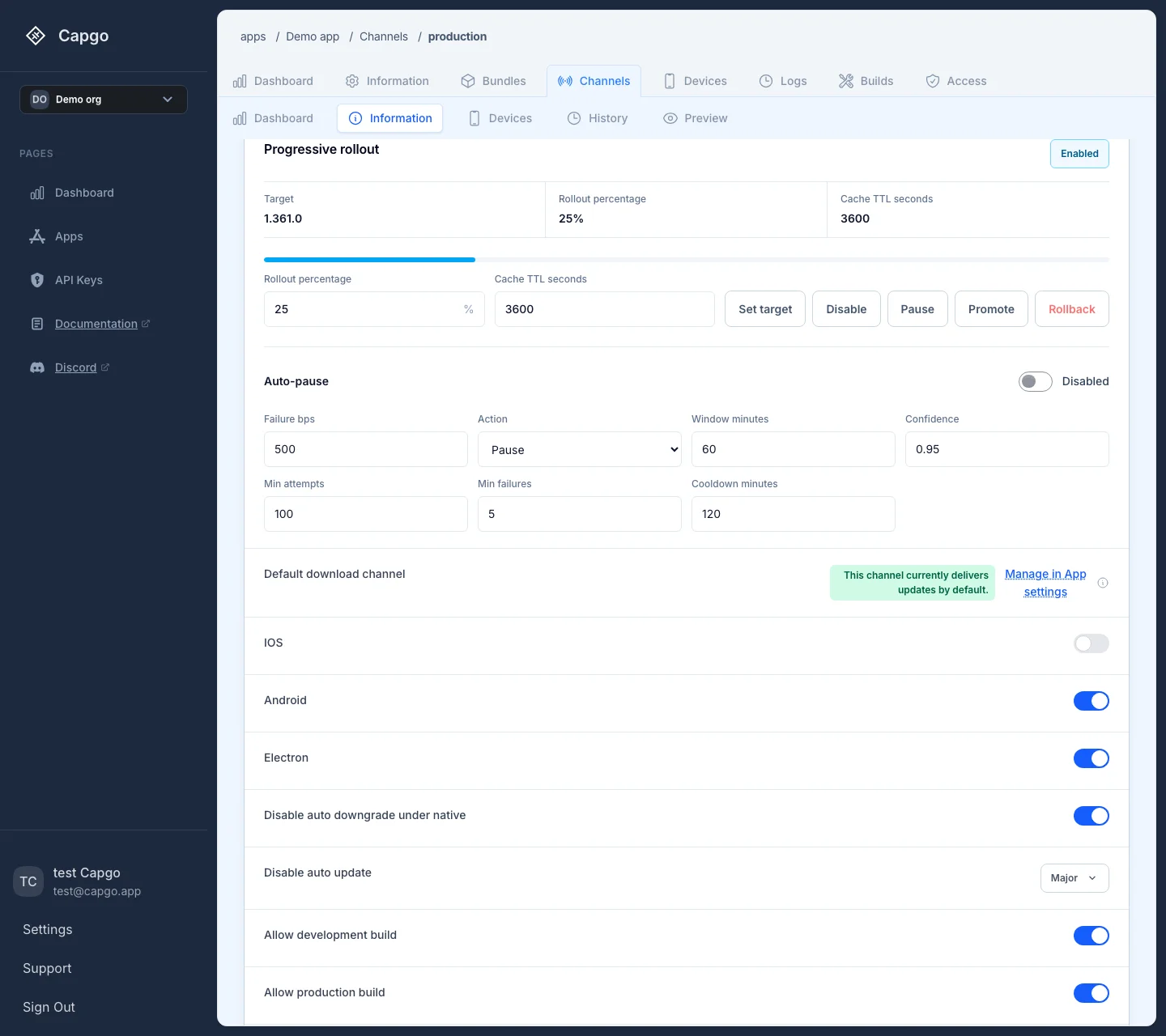
Progressive rollout section (dashboard)
Section titled “Progressive rollout section (dashboard)”Open an app → Channels → choose the channel → Information → Progressive rollout.
The section shows Rollout target and Stable fallback for the two bundle links. Use Change rollout target to pick a different candidate bundle. After editing the percentage, click Apply percentage to save it.
| Control | What it does | Devices already in the cohort | New eligible devices |
|---|---|---|---|
| Change rollout target | Sets rolloutVersion. Changing it starts a new rollout ID and a new cohort. Uploading or assigning a bundle to the channel (default) also sets the rollout target. | Keep the previous target until they check in again and match the new decision rules. | Selected by the percentage against the new target. |
| Apply percentage | Saves the percentage you entered. | Preserved when you increase; a random subset may leave when you decrease. | Added or excluded according to the percentage rules above. |
| Enable rollout | Turns on rollout delivery for the configured target and percentage. | No immediate change until the next update check. | May be selected on the next check. |
| Pause rollout | Stops new devices from entering. | Stay on the rollout target. | Receive stable fallback on the next check. |
| Resume rollout | Clears the pause. | Unchanged. | May be selected again on the next check. |
| Disable rollout | Stops resolving the rollout target; Capgo uses stable fallback for everyone. | Move to stable fallback on the next check. | Receive stable fallback. |
Complete rollout (API: promoteToStable; CLI: --rollout-promote) | Makes the rollout target the new stable fallback, then clears rollout state. Confirmed by Complete progressive rollout? — the target becomes stable for everyone, the previous stable fallback is replaced, and the percentage resets. | Become stable fallback for everyone. | Receive the completed bundle as stable. |
Rollback rollout (API: rollback; CLI: --rollout-rollback) | Clears the target, disables the rollout, resets percentage to 0%, and returns devices to stable fallback. | Return to stable fallback on the next check. | Receive stable fallback. |
Use one terminal action at a time (Complete rollout and Rollback rollout cannot be combined in a single API call):
# Stop adding devices while you investigatebunx @capgo/cli@latest channel set production com.example.app --rollout-pause
# Allow new devices to enter againbunx @capgo/cli@latest channel set production com.example.app --rollout-resume
# Complete rollout — candidate becomes stable for everyonebunx @capgo/cli@latest channel set production com.example.app --rollout-promote
# Rollback rollout — discard candidate and return to stablebunx @capgo/cli@latest channel set production com.example.app --rollout-rollback
Keep the rollout target bundle available until you Complete rollout or Rollback rollout. Bundles linked as stable fallback or rollout target are protected from deletion.
Safe workflow
Section titled “Safe workflow”Progressive rollout is designed so you can validate in production without switching the whole channel at once. A practical sequence:
- Confirm stable fallback is healthy. It should be the version you are willing to keep serving to most users.
- Upload the candidate to the rollout-configured channel (
bundle upload --channel <name>lands on Rollout target and leaves Stable fallback alone) or use--rollout <small-percent>to enable exposure in the same step. - Start small — 1–5% is enough for first signal. Click Apply percentage, then Enable rollout. Turn on auto-pause if you want Capgo to stop exposure when failure rates spike.
- Monitor before you widen. Use Observe for version health, Log Insights for error patterns, and the channel History tab for configuration changes. Compare rollout target with stable fallback; do not raise the percentage until the cohort looks healthy.
- Increase gradually — edit the percentage, click Apply percentage, and step up (for example 5% → 25% → 50% → 100%). Capgo keeps devices already in the cohort selected when you increase.
- Complete rollout when confident — confirm Complete progressive rollout? so the candidate becomes stable fallback for everyone.
- If something is wrong, Pause rollout first — stops new exposure while you investigate. Devices already on the bad build stay on it until you Rollback rollout or Disable rollout.
Auto-pause policy
Section titled “Auto-pause policy”Capgo can evaluate an enabled rollout every five minutes and act when its failure signal crosses your threshold. It measures installs and failures for the rollout target in the selected channel and time window, then uses a Wilson confidence lower bound rather than the raw failure rate alone.
Auto-pause is disabled by default. Configure these fields in the channel’s Information tab or with channel set:
- Failure rate threshold in basis points (
500= 5%). A threshold is required for the policy to trigger. - Window in minutes (default: 60).
- Confidence between
0and1(default:0.95). - Optional minimum attempts and failures, to avoid acting on tiny samples.
- Cooldown in minutes (default: 60), which prevents repeated actions.
- Action:
pause,rollback, ornotify.
pause stops new rollout exposure, rollback clears the target and returns to stable fallback, and notify sends a rollout alert without changing rollout delivery.
bunx @capgo/cli@latest channel set production com.example.app \ --auto-pause-enabled \ --auto-pause-failure-rate-bps 500 \ --auto-pause-window-minutes 60 \ --auto-pause-confidence 0.95 \ --auto-pause-min-attempts 100 \ --auto-pause-min-failures 5 \ --auto-pause-action pause \ --auto-pause-cooldown-minutes 120API and dashboard entry points
Section titled “API and dashboard entry points”- Dashboard: app → Channels → channel → Information → Progressive rollout
- Channels API: Public Channels API for rollout fields, promote, and rollback
- Bundle assign API: PUT
/bundle/withtarget:auto,stable, orrollout
For general channel routing and device precedence, see Channels. For emergency bundle recovery outside a progressive rollout, see Rolling back a live update.
Ship Capacitor apps without the wait
Build with your AI coding agent, ship fixes in minutes, build iOS and Android without a Mac, and observe every release.


Enterprise needs? Talk to our team