
Security advisory emails
Copy a setup prompt with the install steps and the full markdown guide for this plugin.
Capgo can email you when we publish a GitHub security advisory that affects Capacitor, Cap-go @capgo plugins, or @capgo/cli. The console stores that choice on your user account as the security_updates email preference.
This page covers signed-in console users. It does not repeat the public signup form or the JSON advisory feed. For those, see Security advisory notifications (website #1394) and the Capacitor+ security marketing page (website #1393).
What the toggle sends
Section titled “What the toggle sends”When you turn Security update emails on, Capgo may send email after we publish a qualifying advisory. Each message summarizes the issue, affected version ranges, patched releases when available, and package-specific upgrade steps (same content model as the Security advisory notifications guide).
Capgo does not use this preference for marketing. It is limited to published security advisories for in-scope packages.
Default is off
Section titled “Default is off”For console accounts, security_updates defaults to off. Opt in only from signed-in account Notifications settings. This differs from several other notification toggles on the same page, which default to on.
Turn security emails on or off in the console
Section titled “Turn security emails on or off in the console”- Open console.capgo.app and sign in.
- Click your name, choose Settings, then open the Notifications tab under account settings. Direct link: Account notifications.
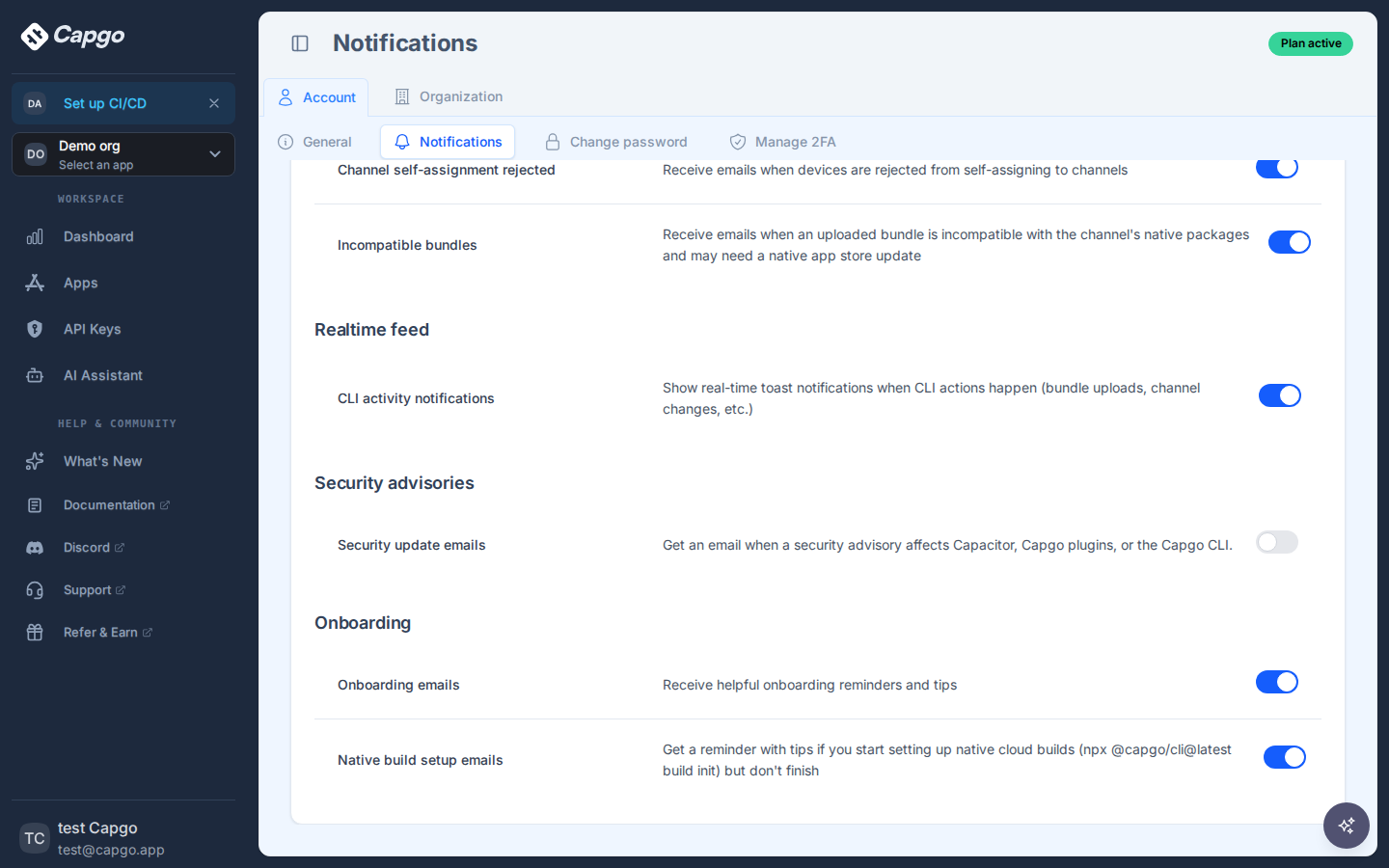
- Scroll to the Security advisories section.
- Use the Security update emails toggle to opt in or out. Changes save to your user record and sync your Bento subscriber tags for this email address (
security-updates).
Turn security emails off from an email link
Section titled “Turn security emails off from an email link”Some Capgo emails include a footer link to the public Email preferences page (/email-preferences on the console host). The link identifies your Bento visitor id or email in the query string.
That form is opt-out only. It does not load your saved preferences and all category toggles start in the on position. Turn Security update emails off (or use Unsubscribe from all), complete Turnstile, and save. Capgo applies only explicit opt-outs (false values) to your account; it will not re-enable categories you left on.
You cannot opt in to Security update emails from this public page. Use signed-in account Notifications to turn them on.
Compare with the public signup form
Section titled “Compare with the public signup form”| Channel | Who it is for | Opt-in |
|---|---|---|
| Capacitor+ security signup form | Anyone with an email address (no Capgo account required) | Double opt-in confirmation email when the form is enabled on the site |
| Console Notifications toggle | Signed-in Capgo users | Single toggle, default off |
| Public Email preferences page | Recipients with a valid preferences link | Opt-out only (cannot enable security_updates here) |
You can use more than one channel; Capgo deduplicates by email address on the backend.
Keep going
Section titled “Keep going”- Observe security updates to compare bundle-reported versions with advisories per app
- Security advisory notifications for the JSON feed and public subscription behavior
- Settings for other account controls
Ship Capacitor apps without the wait
Build with your AI coding agent, ship instant live updates, build iOS and Android without a Mac, and observe every release.


Enterprise needs? Talk to our team