
Observe security updates
Copy a setup prompt with the install steps and the full markdown guide for this plugin.
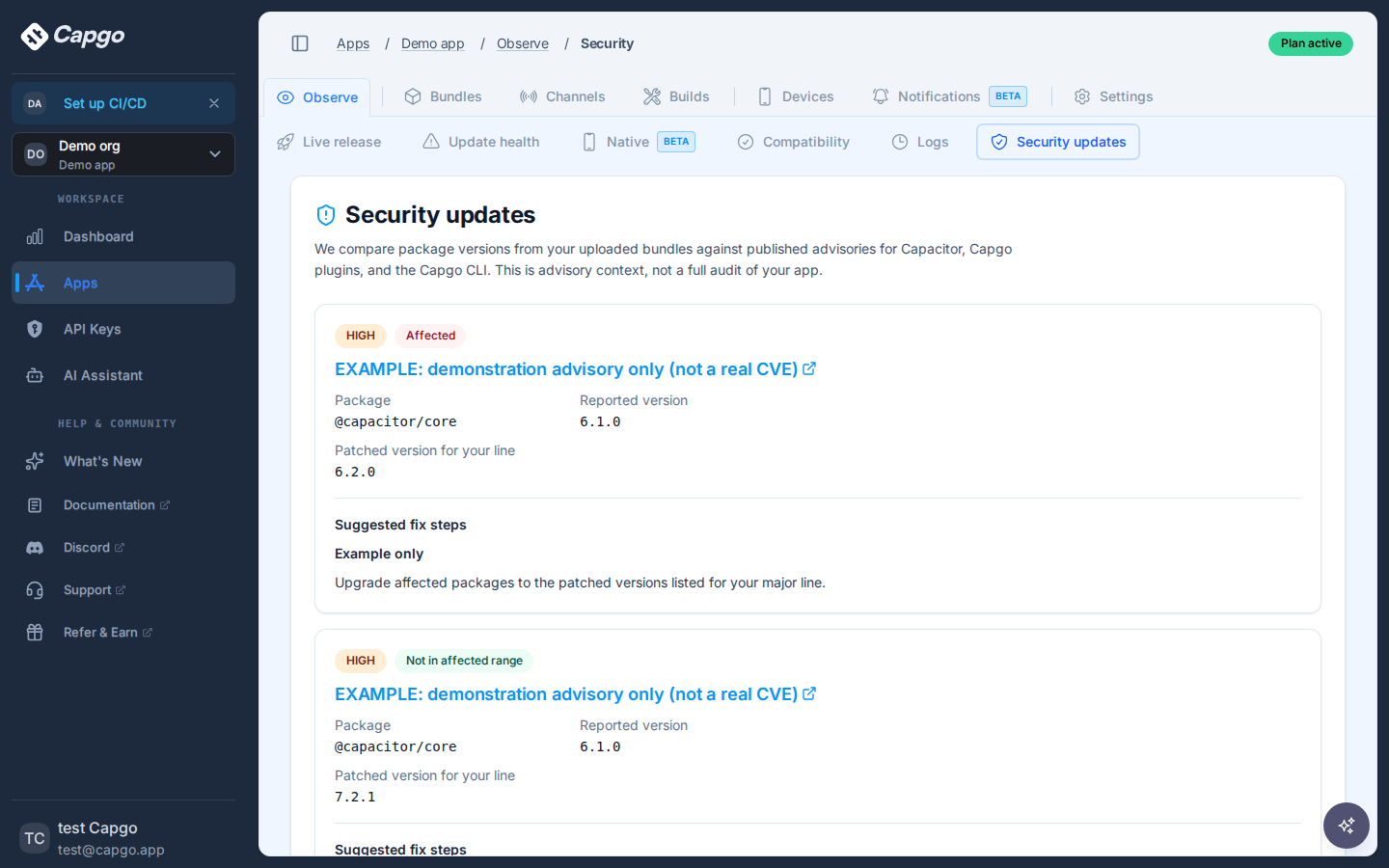
The Security updates tab under Observe compares package versions Capgo already knows about for an app against published security advisories. It is advisory context to help you prioritize upgrades. It is not a full security audit and does not guarantee that your app is safe or that every relevant package is visible.
Backend support shipped in capgo.app#4048. Console UI shipped in capgo.app#4049. Advisory email content and the public JSON feed are documented in Security advisory notifications (website #1394).
Open the tab
Section titled “Open the tab”- Sign in to the Capgo console.
- Open the app you want to review.
- Select Observe, then the Security updates subtab.
What you see
Section titled “What you see”For each advisory row that applies to an in-scope package, the console shows:
- Severity (
low,moderate,high, orcritical) - Match status for your reported version (see below)
- Advisory title with a link to the GitHub security advisory when a URL is available
- Package npm name (for example
@capgo/capacitor-updateror@capacitor/core) - Reported version from bundle metadata, or Not reported when Capgo has no version string
- Patched version for your line when published, or a note that no patched version exists yet
- Optional Capacitor Plus release link when the advisory includes
plus_release_url - Suggested fix steps rendered from the advisory markdown (aligned with notification email steps)
When nothing matches, the tab explains that no known advisories match versions the app reported on recent bundles, and that versions the app never reported cannot be checked here.
The feed timestamp at the bottom reflects when the advisory JSON snapshot was generated.
How versions are chosen
Section titled “How versions are chosen”Capgo does not scan your repository or live devices for this view. It uses versions already stored when you upload bundles:
- Native packages: Capgo reads
native_packagesfrom the bundle linked to the production channel when that channel has a version. If not, it uses the latest uploaded bundle for the app. @capgo/cli: Capgo preferscli_versionfrom the latest uploaded bundle. If that upload has no CLI version, it falls back tocli_versionon the production-linked bundle (or latest upload when production is missing).
Packages considered in scope include @capgo/cli, @capgo/capacitor-*, @capgo/camera-preview, @capacitor/*, capacitor-plus, and community capacitor-* packages (excluding capacitor-plus). Other npm packages are ignored for matching.
If iOS or Android platform packages are reported but @capacitor/core is missing, Capgo does not guess a core version. Core-related advisories may show Unknown until a bundle reports @capacitor/core.
The console calls GET /private/security_updates/feed?app_id= (JWT auth and app.read permission). The response joins your reported versions with the same advisory feed used for email and automation (fixture data in some environments until SECURITY_ADVISORIES_BASE_URL points at a live host).
Match statuses
Section titled “Match statuses”| Status | Meaning |
|---|---|
| Affected | The reported version parses and falls in the advisory affected range, and is below the published patched version (or no patch is published yet). |
| Not in affected range | The reported version is outside the affected range, or is at/above the patched version for that line. |
| Unknown | The app did not report a version, the version string is not usable, or Capgo cannot compare it to the range. |
What you should do
Section titled “What you should do”- For Affected rows, follow the suggested fix steps: bump affected npm packages, run
npx cap syncwhen native plugins change, rebuild store binaries when needed, and update@capgo/cliin CI when the advisory is CLI-only (details in Security advisory notifications). - For Unknown, upload a bundle that reports complete native package versions (including
@capacitor/corewhen you use Capacitor platform packages) and a currentcli_version. - Opt in to Security advisory emails if you want proactive email when new advisories publish. The Security updates tab also links to Manage security update emails in account notifications.
Keep going
Section titled “Keep going”- Observe for launch timing, WebView metrics, and release health signals
- Bundles and Channels for how production versions are linked
- Security advisory notifications for email and JSON feed contracts
Ship Capacitor apps without the wait
Build with your AI coding agent, ship instant live updates, build iOS and Android without a Mac, and observe every release.


Enterprise needs? Talk to our team